Search and filter transactions
Find a transaction by name, or narrow the list down to exactly what you want to see.
8 steps
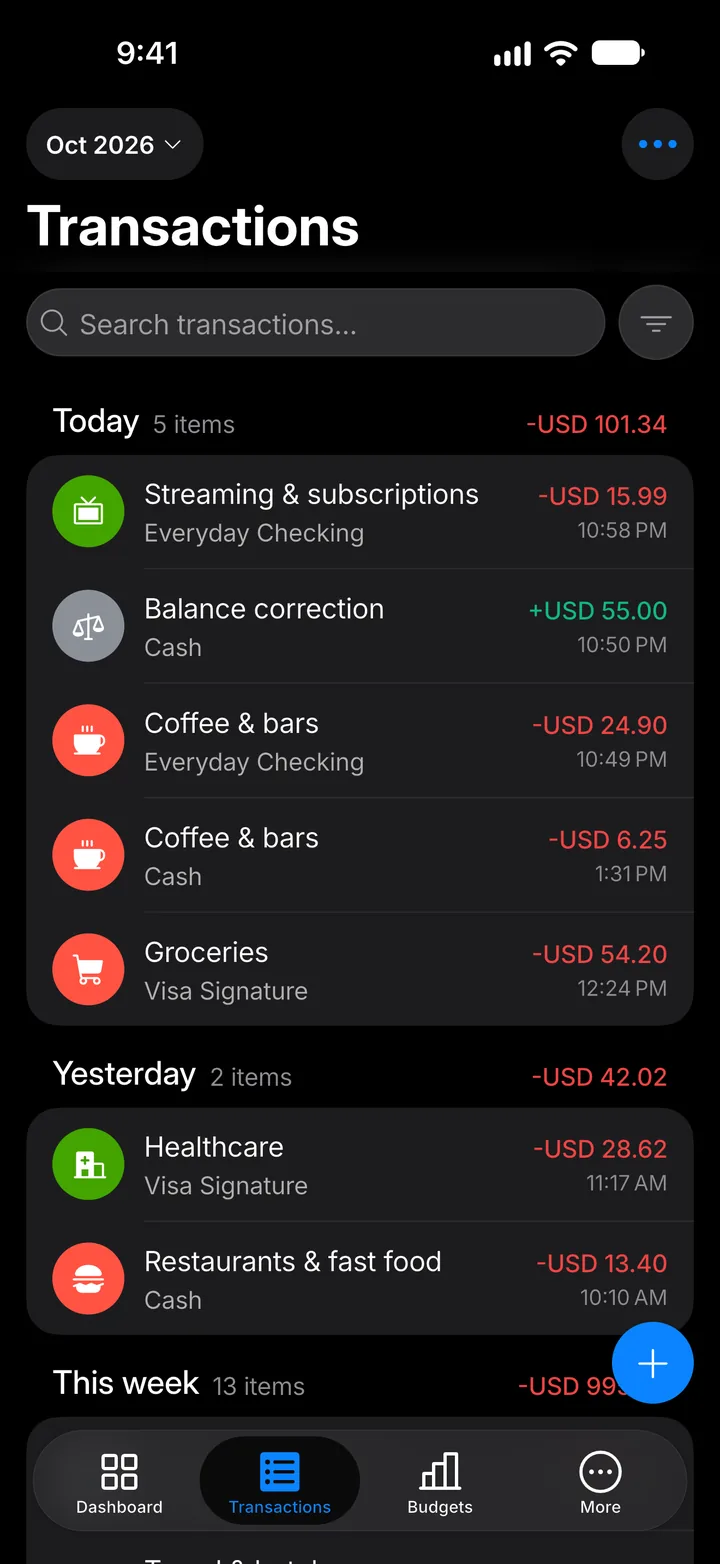
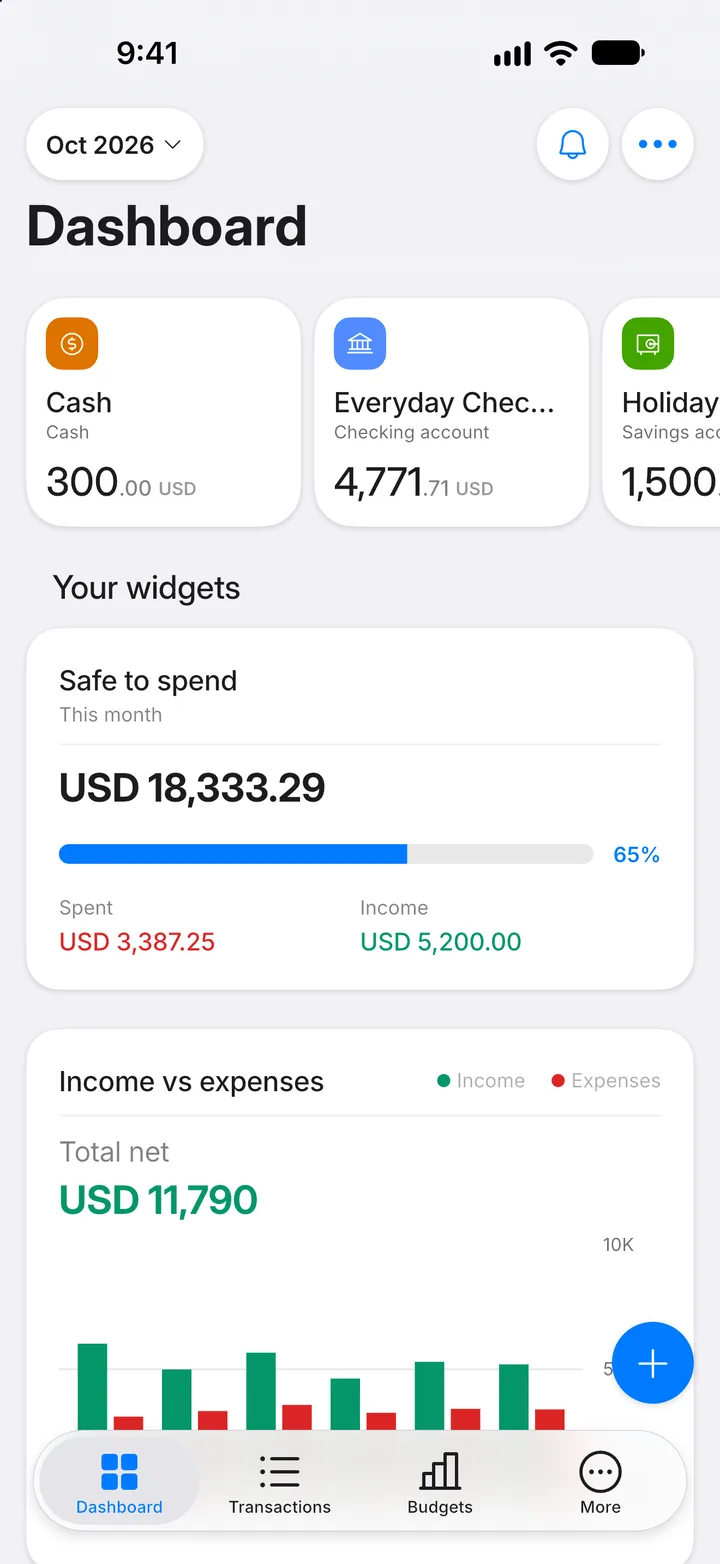
Step 1: Open Transactions
Tap the Transactions tab.
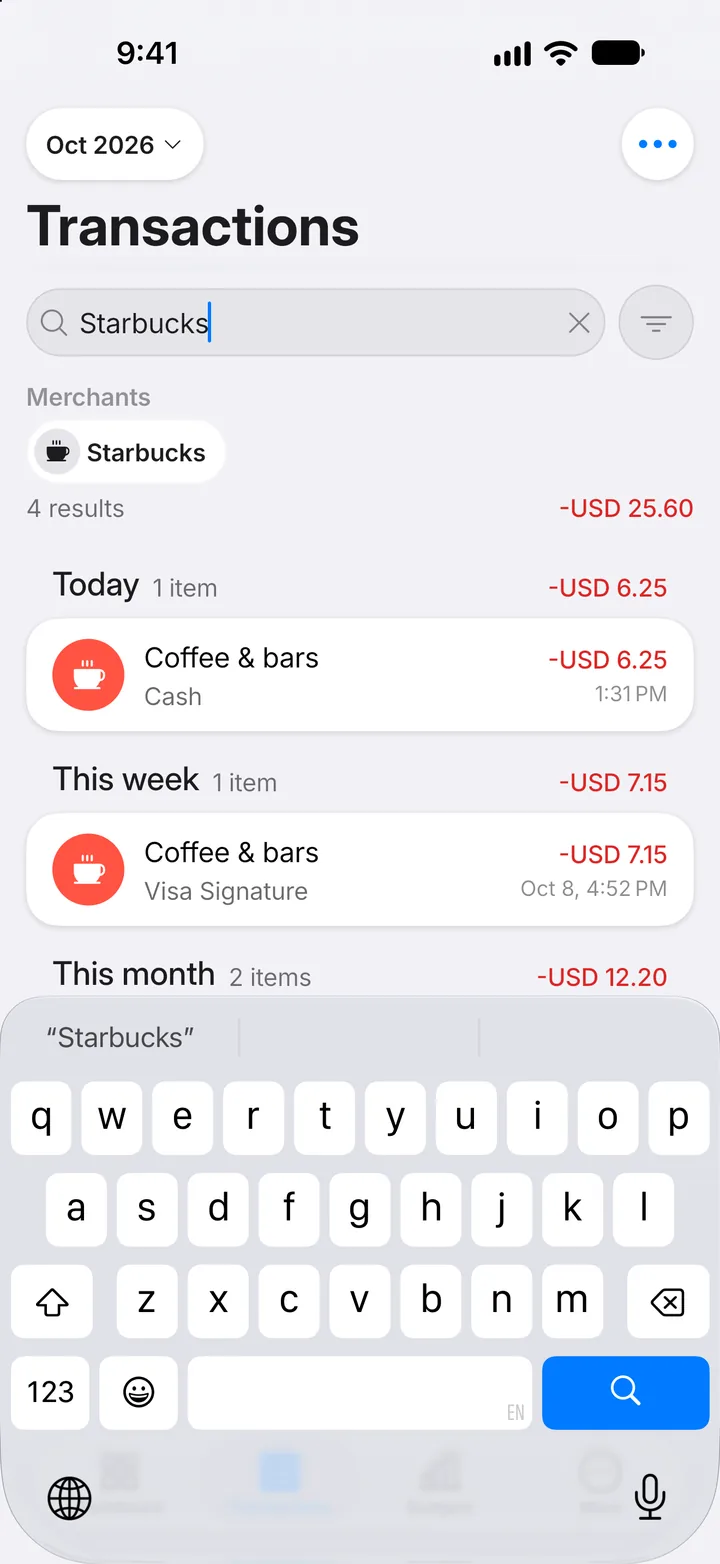
Step 2: Search
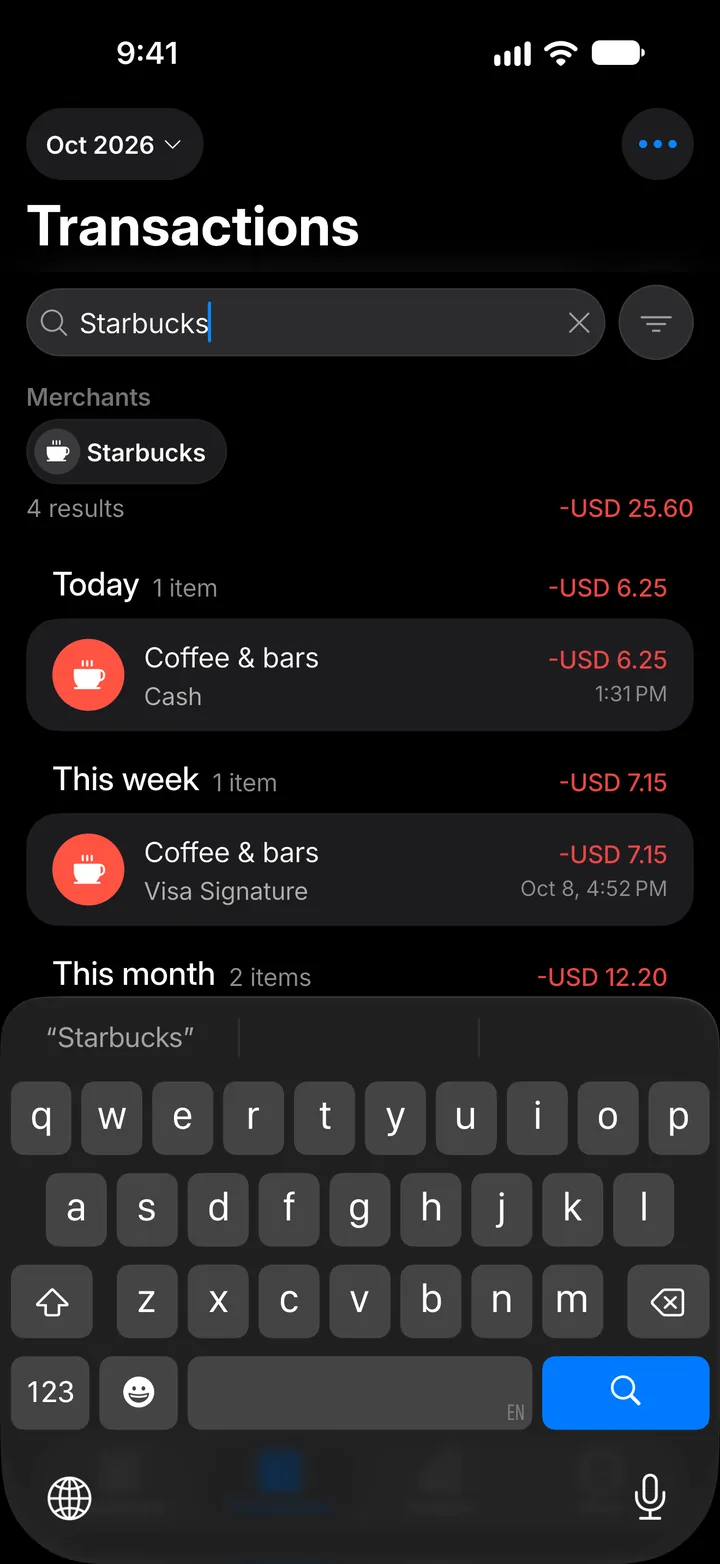
Tap the search field and type a merchant, category or note. Matching transactions show as you type.
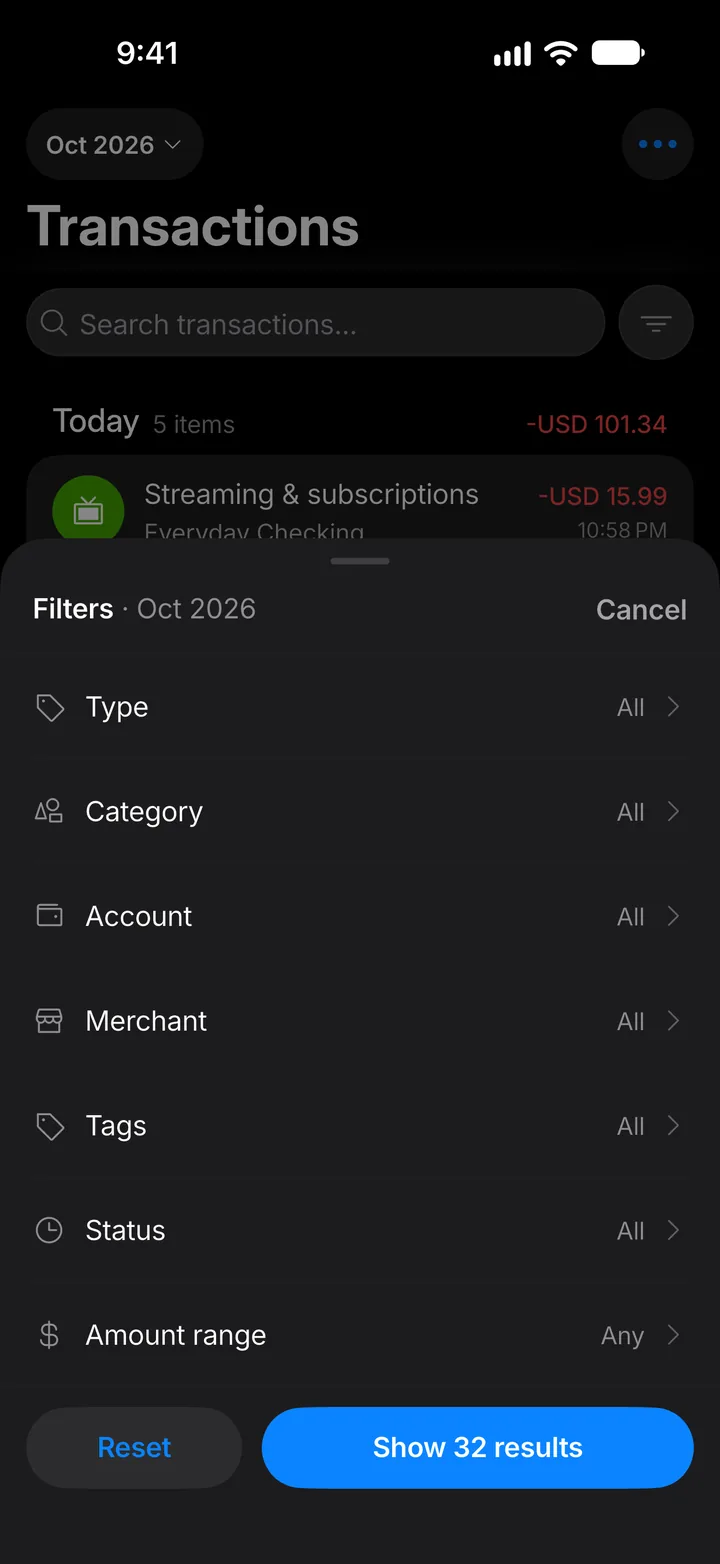
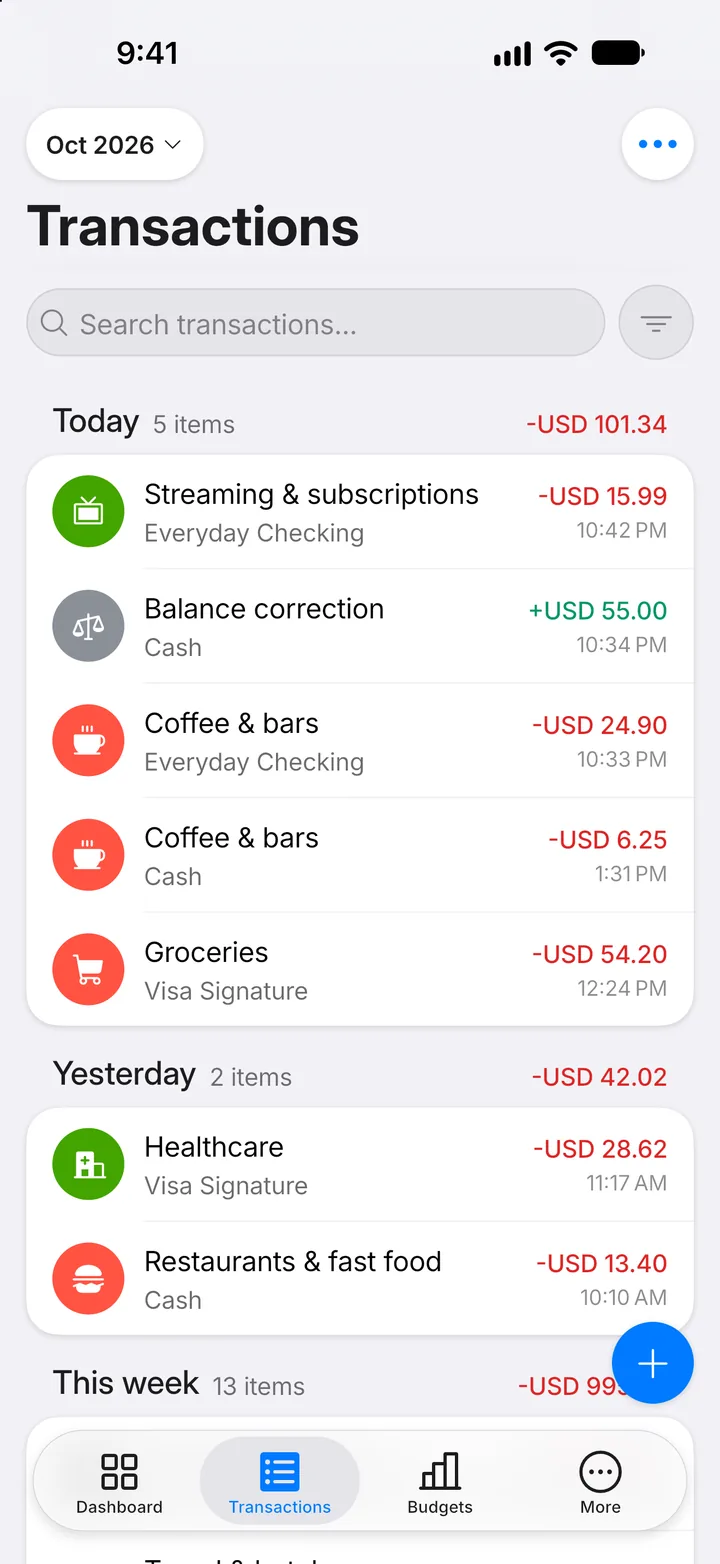
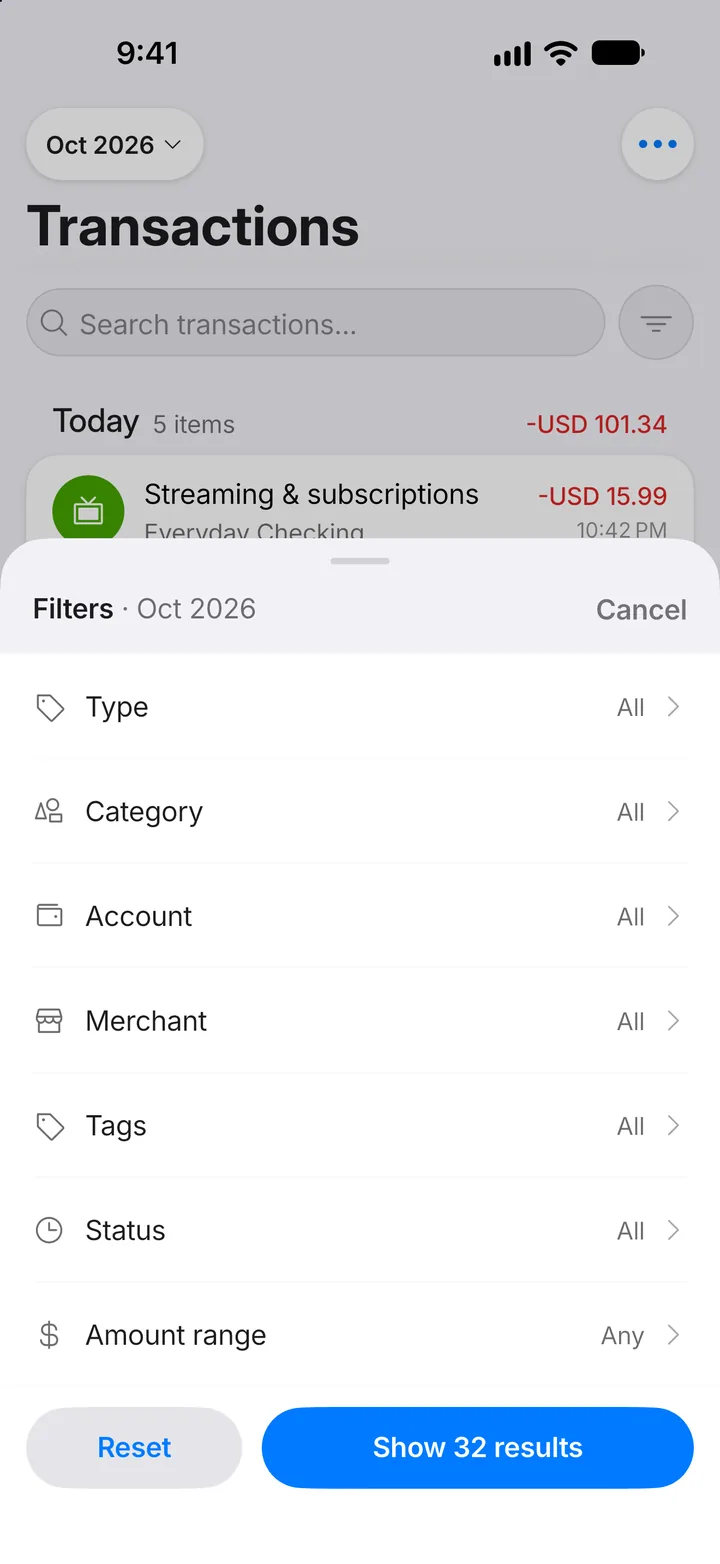
Step 3: Open the filters
For more control, tap the filter button next to the search field.
Step 4: Choose what to filter
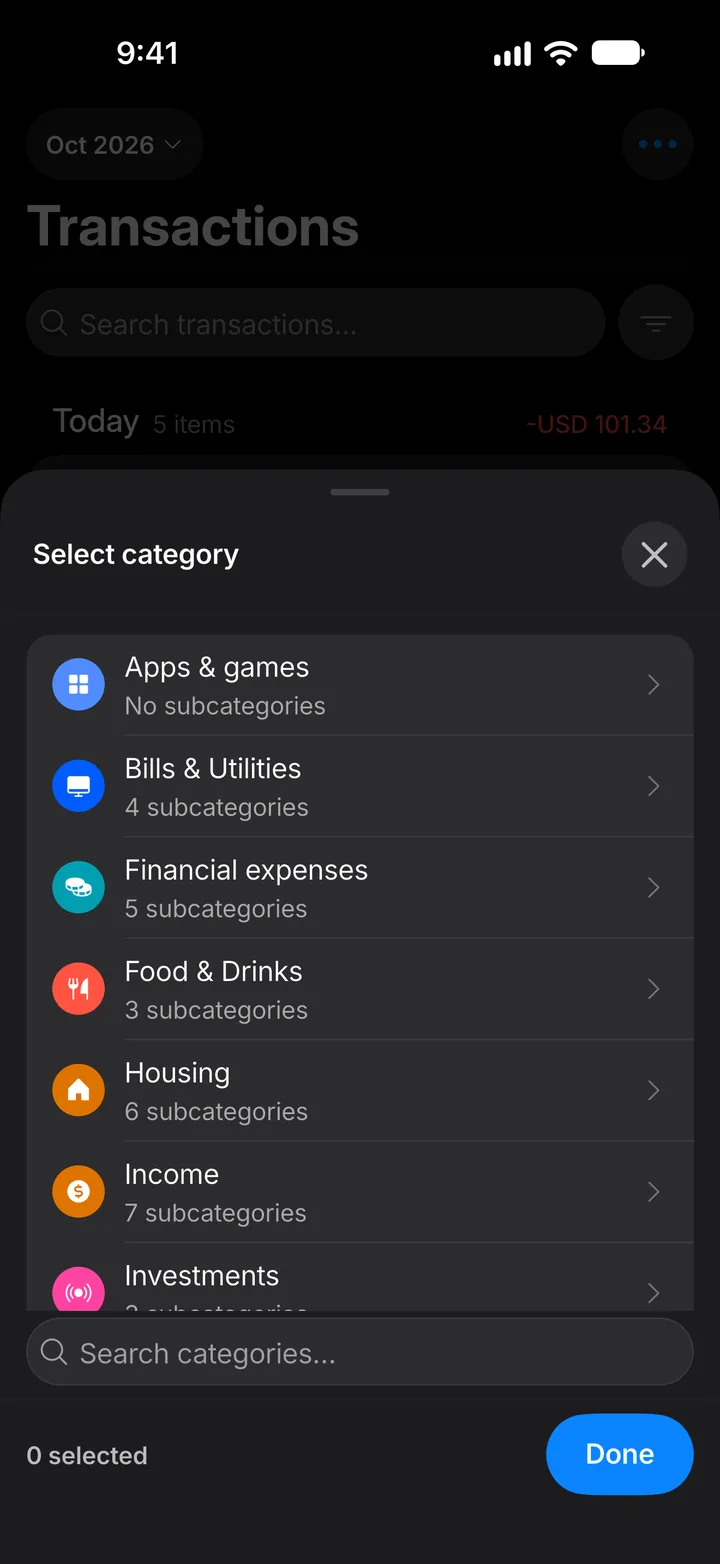
Tap Category. You can also filter by account, merchant, tags, status or amount.
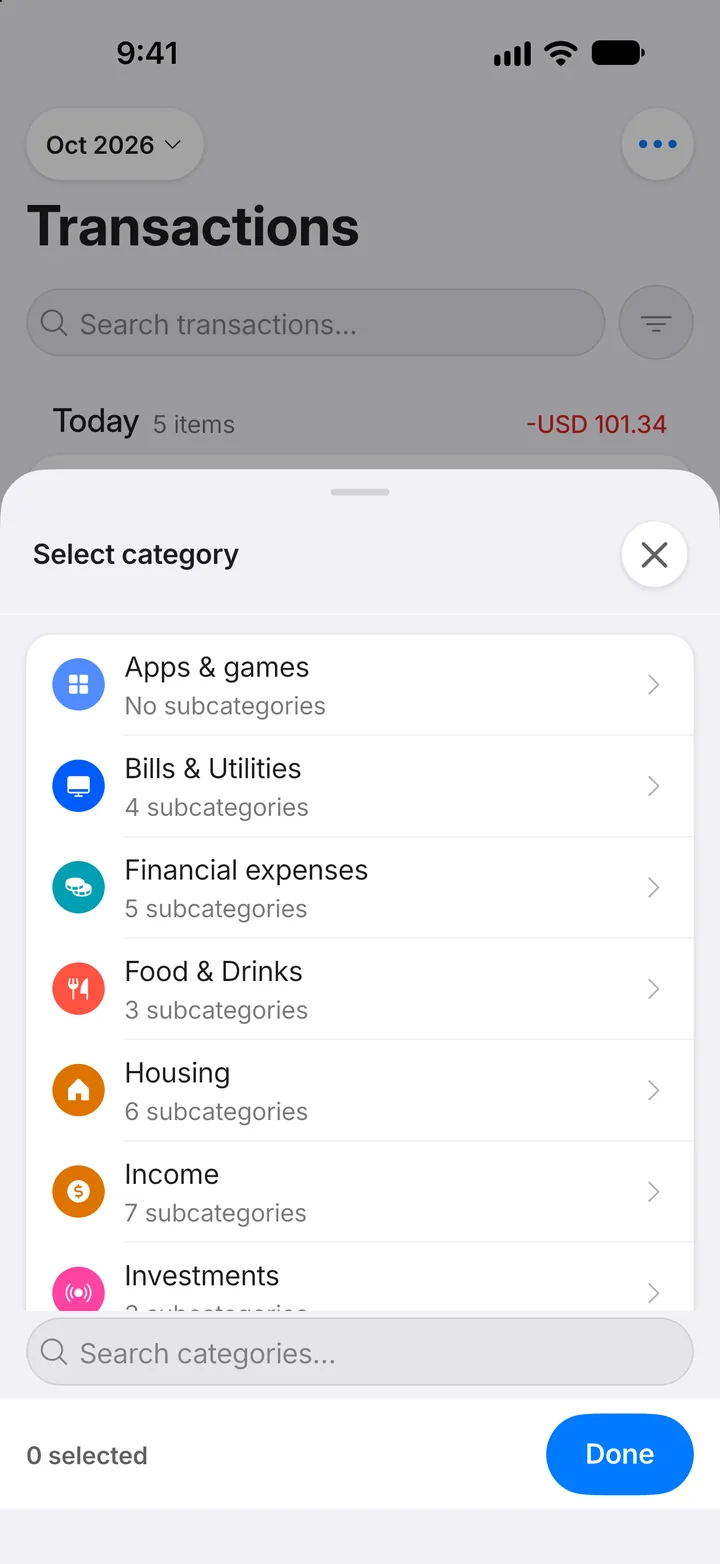
Step 5: Open a group
Tap the group that holds the categories you want.
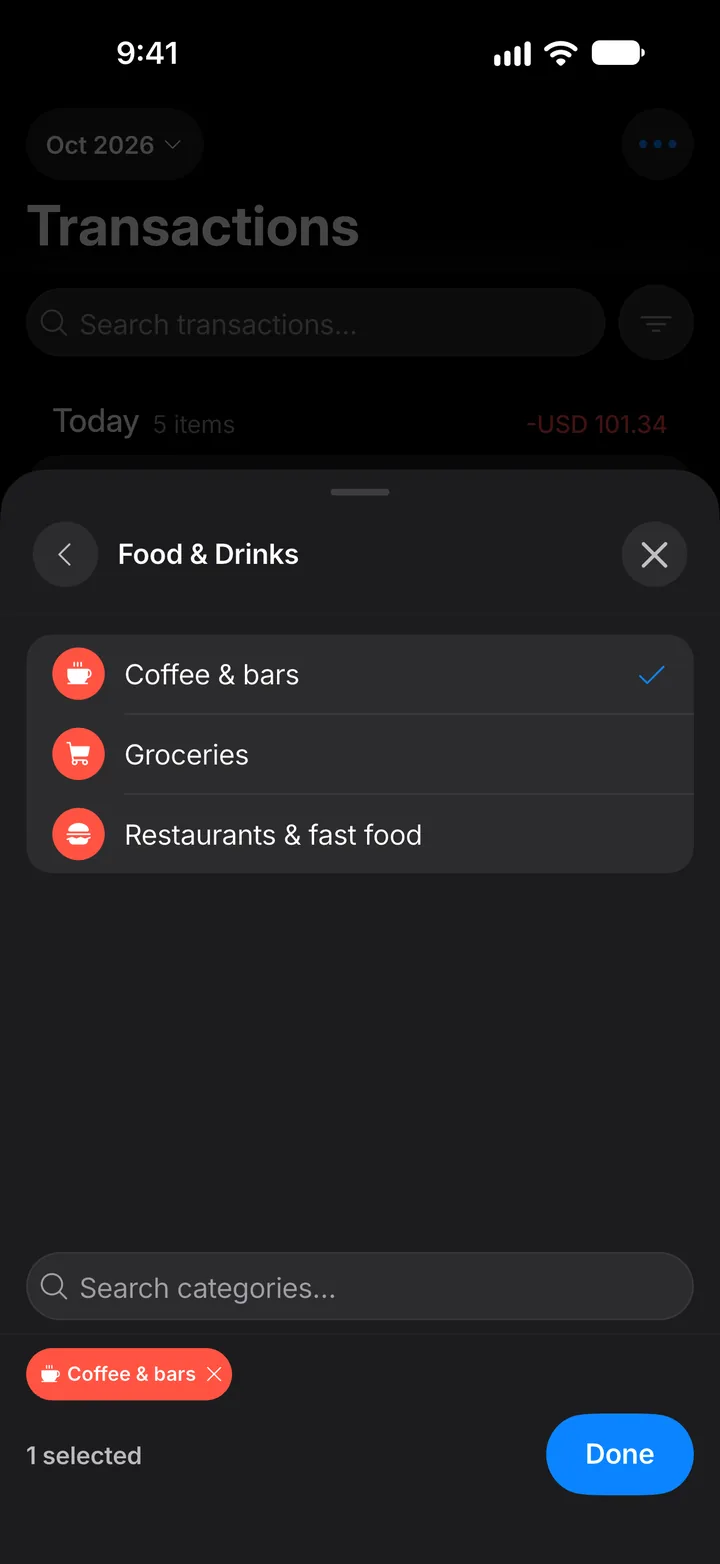
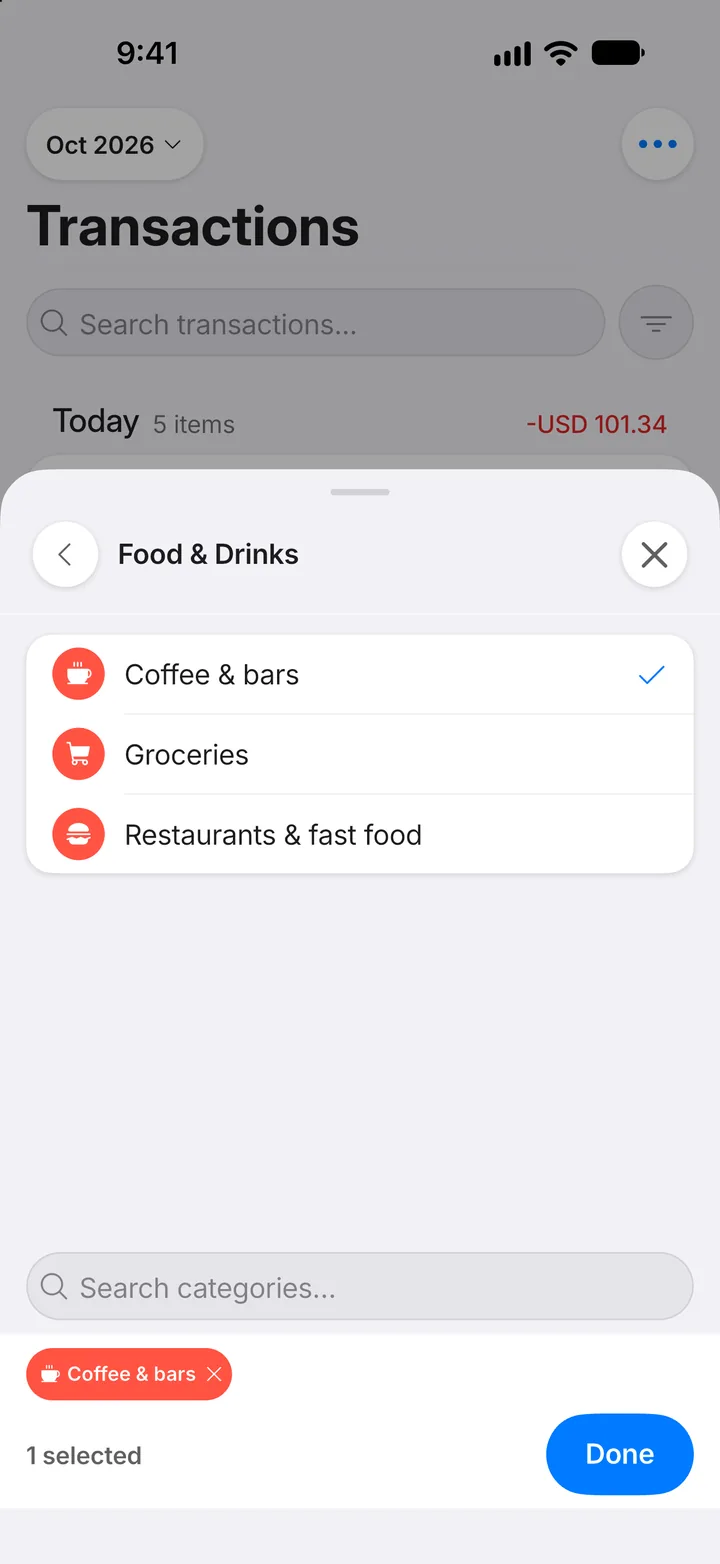
Step 6: Select and confirm
Tick the categories to include, then tap Done.
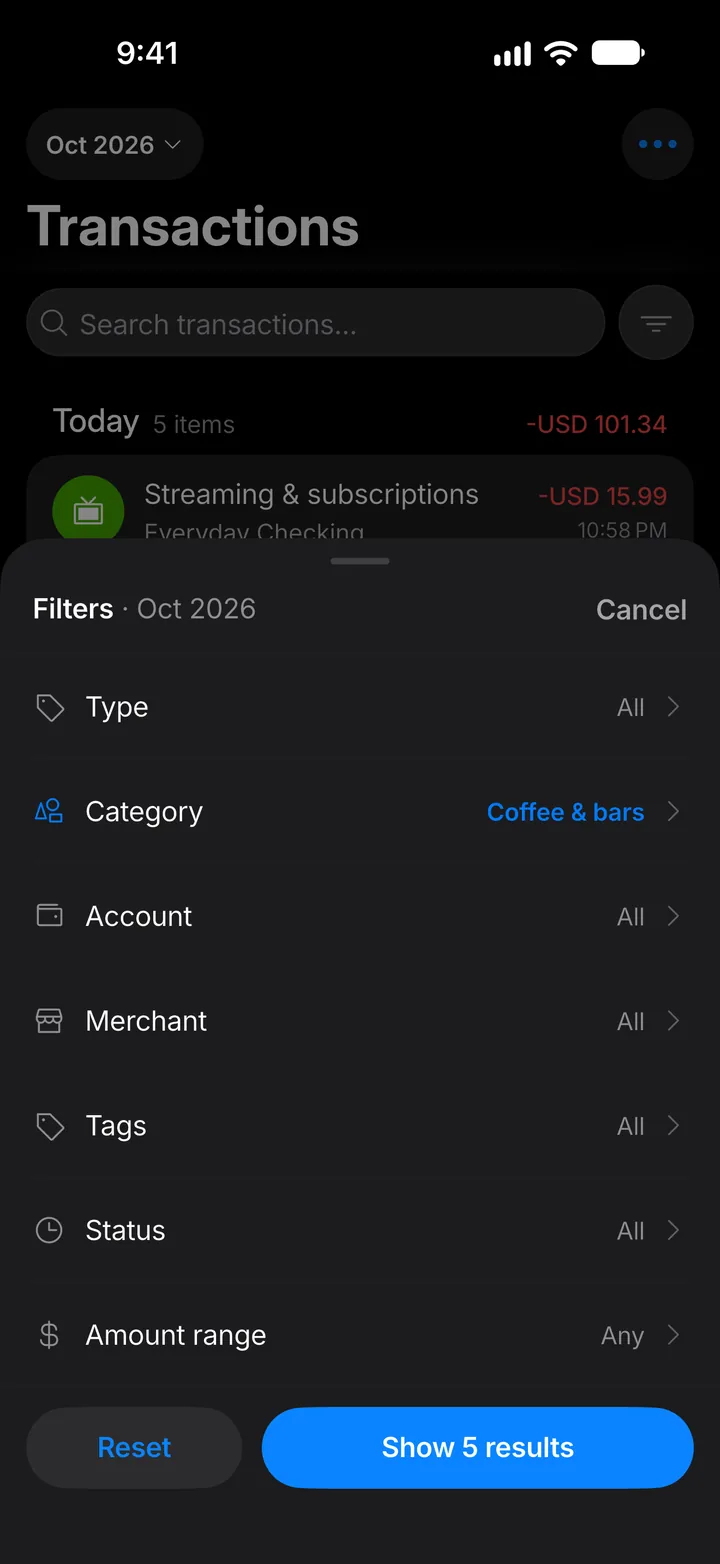
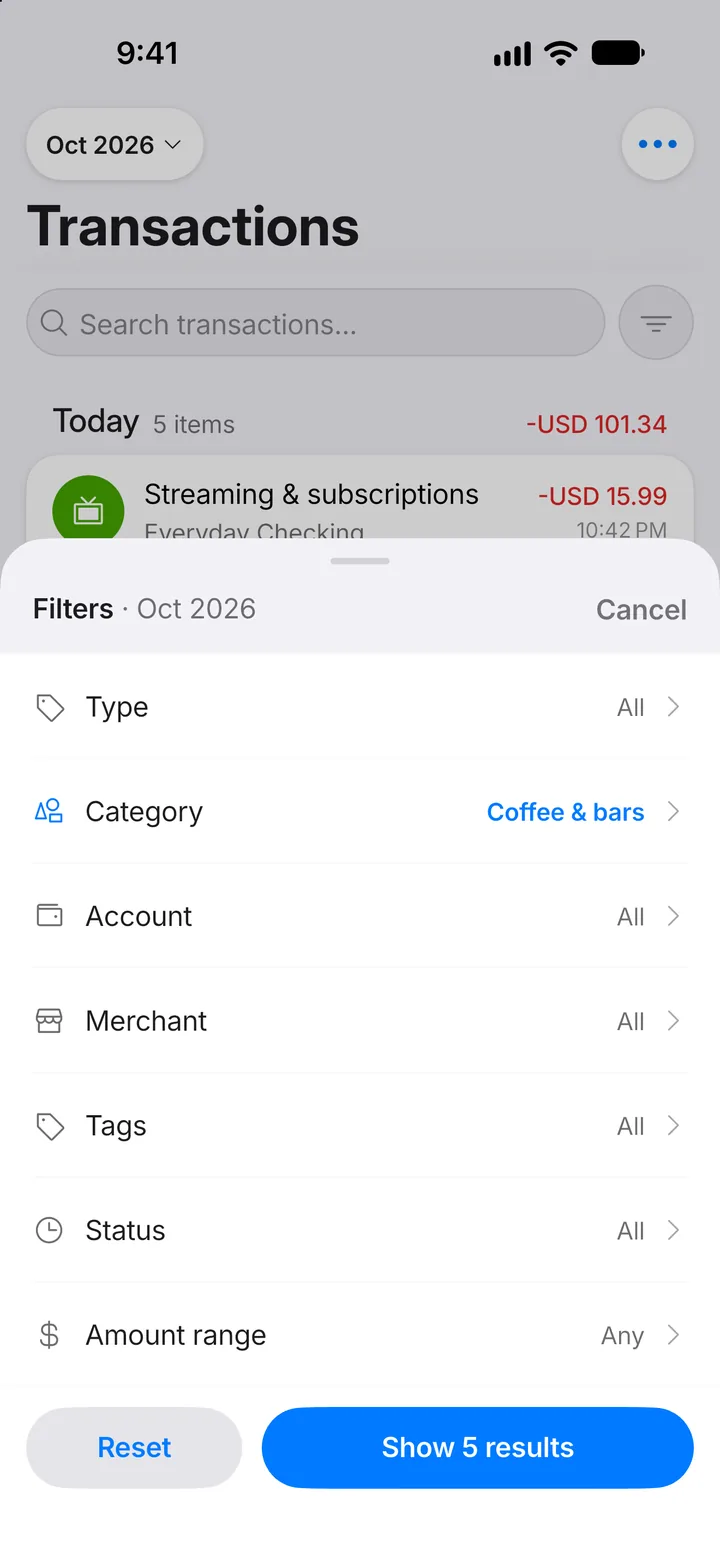
Step 7: Show the results
Tap the button at the bottom, which shows how many transactions match.
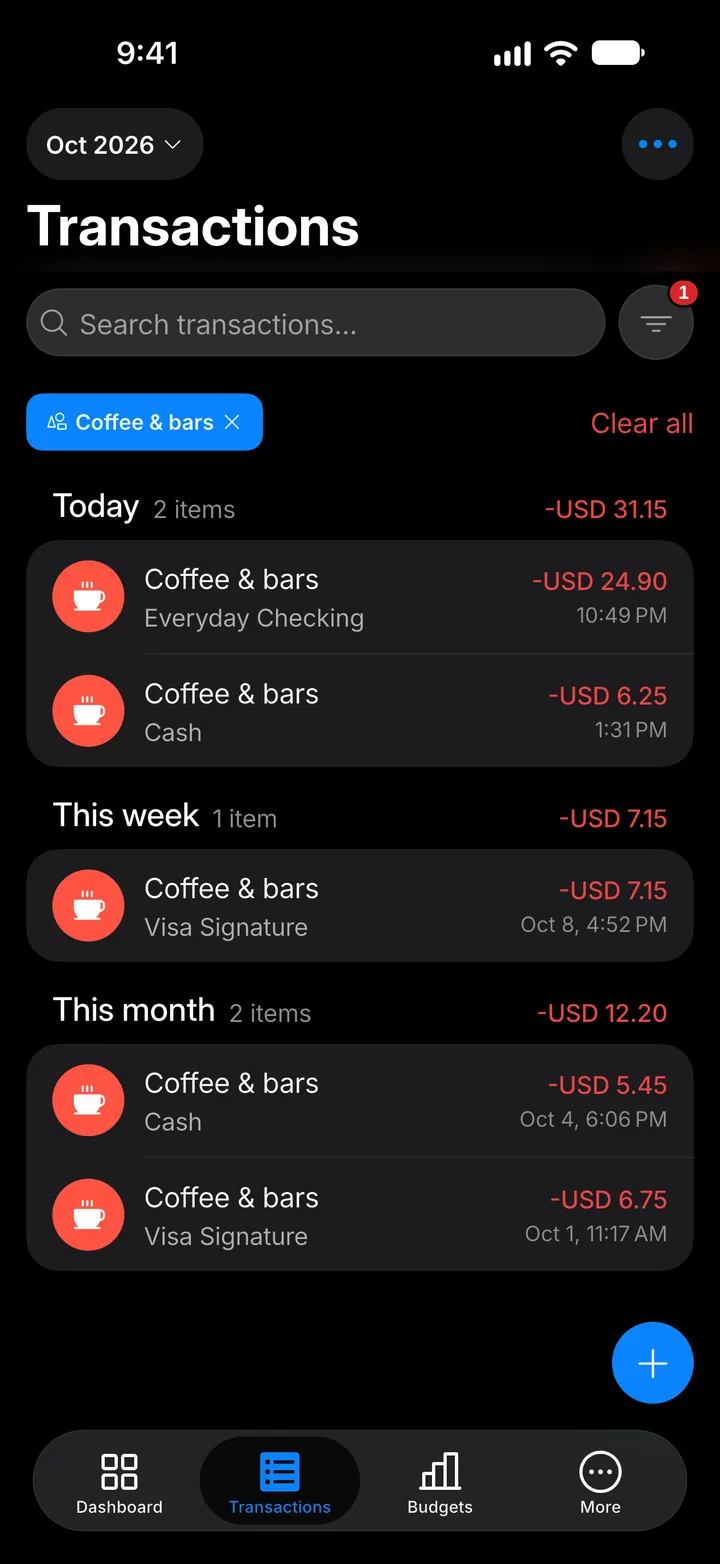
Step 8: Your filtered list
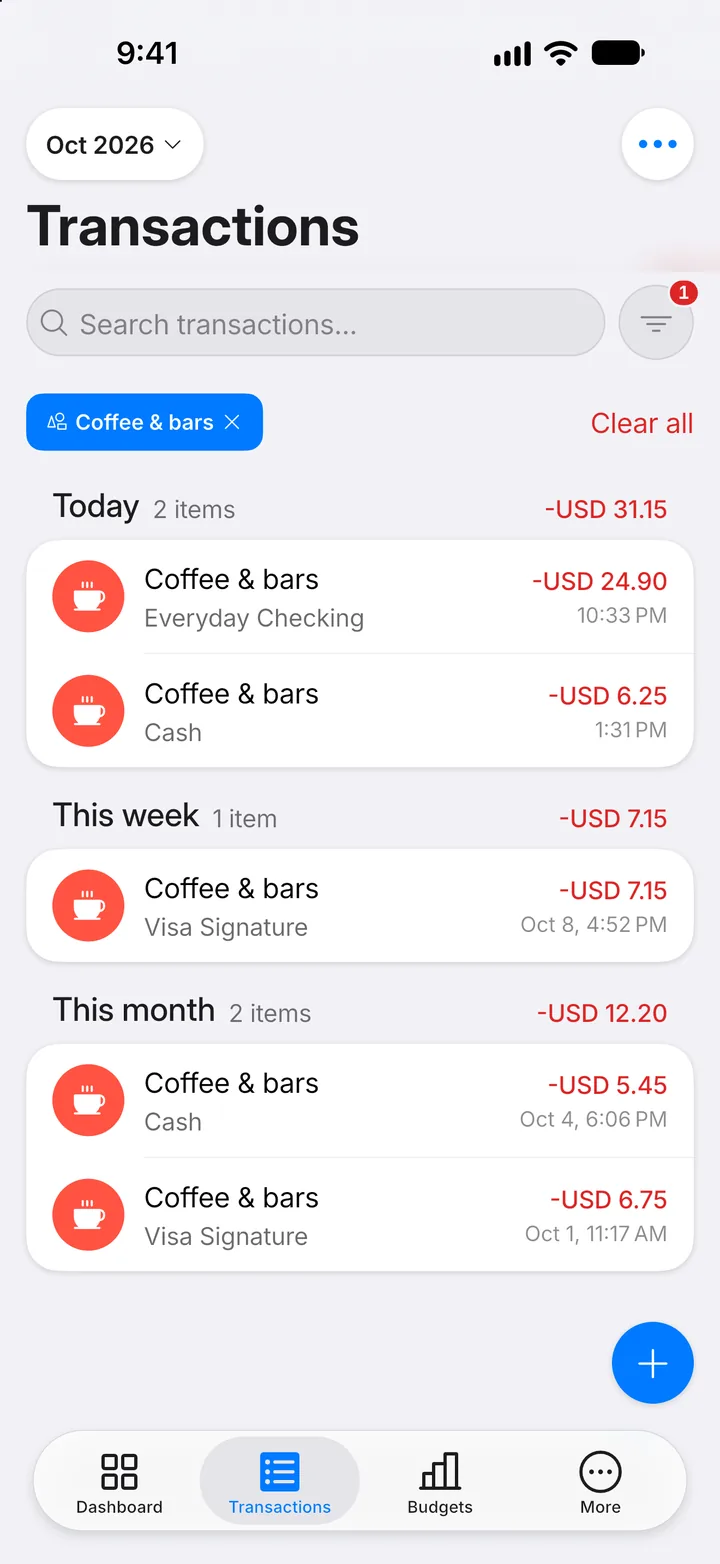
Only matching transactions are shown. Tap the ✕ on a filter chip to remove it, or Clear all to see everything again.