Add an expense or income
Record money going out or coming in, in a few taps from the Dashboard.
8 steps
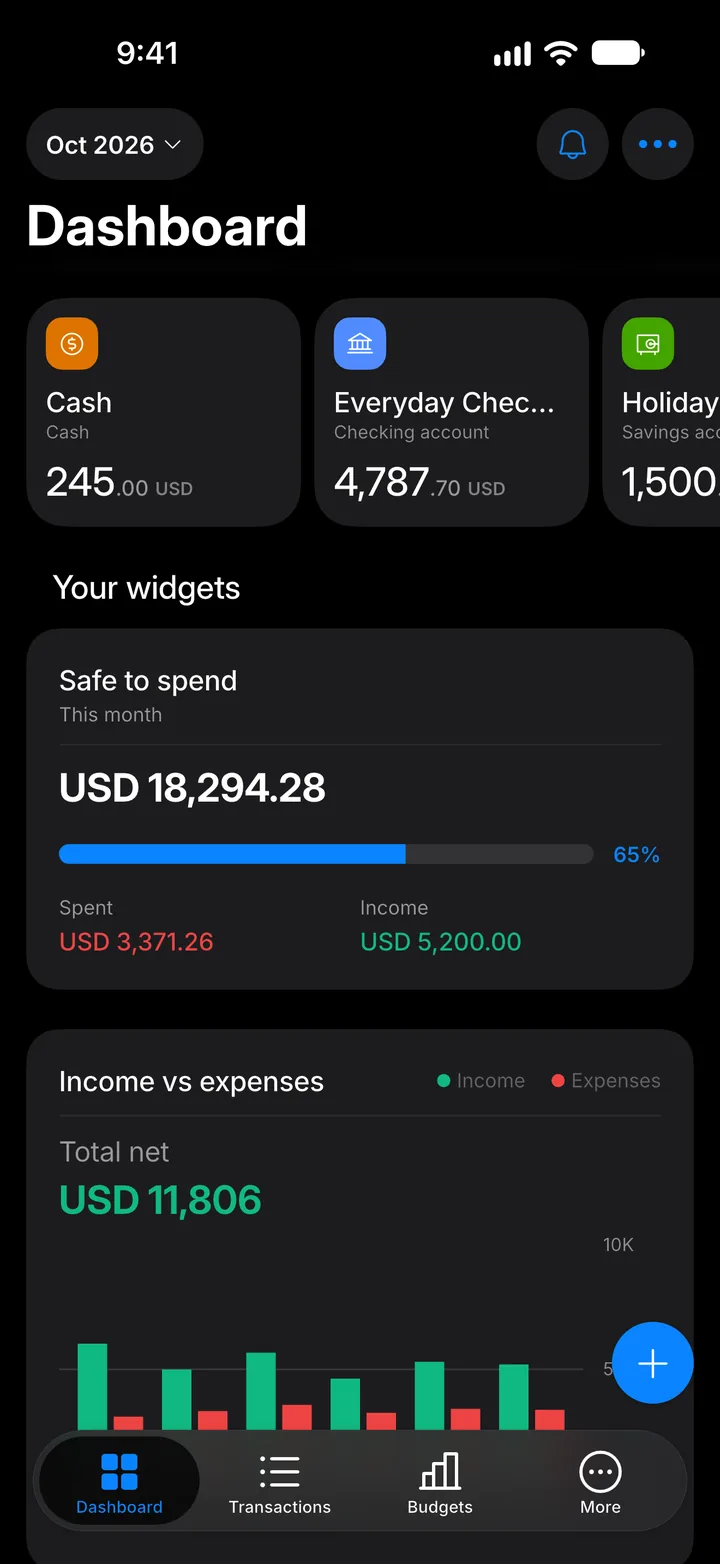
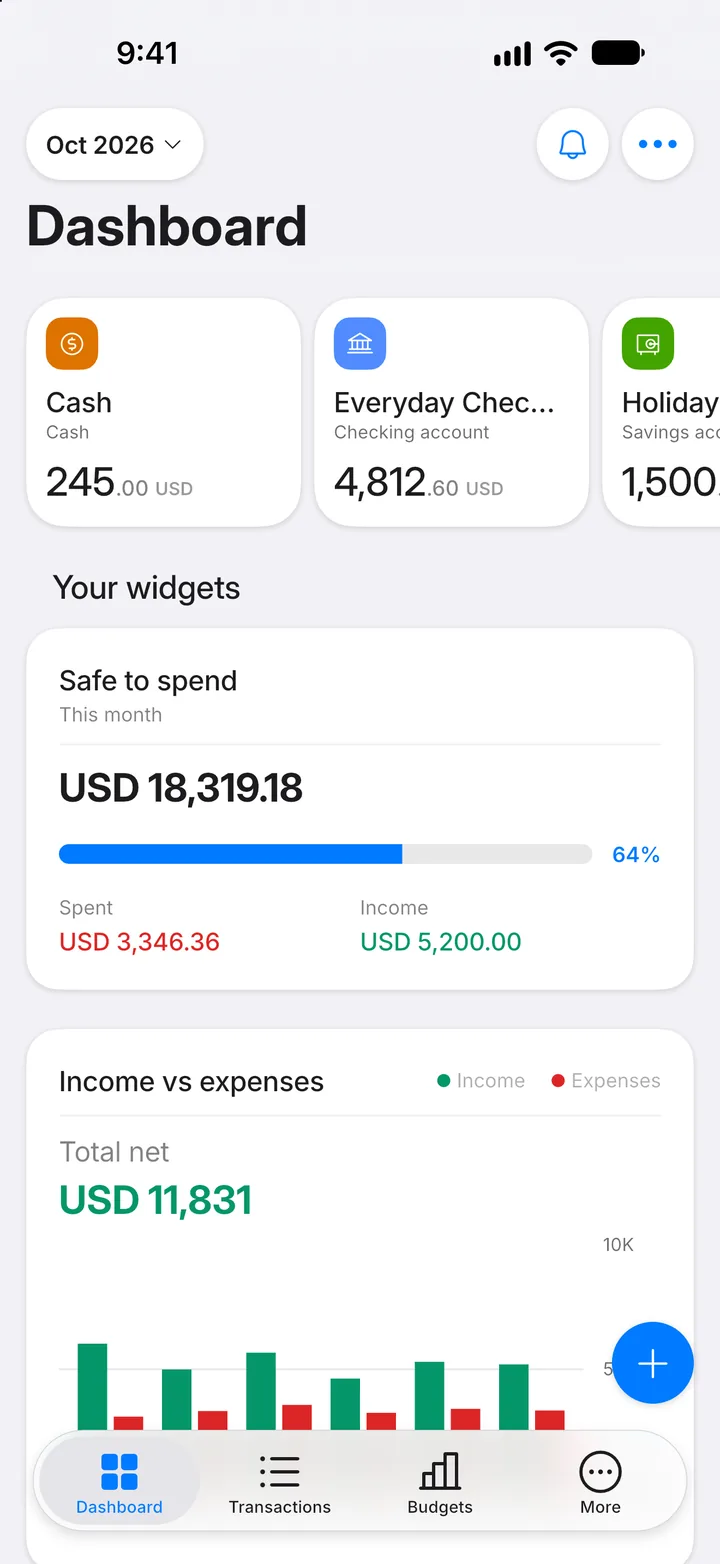
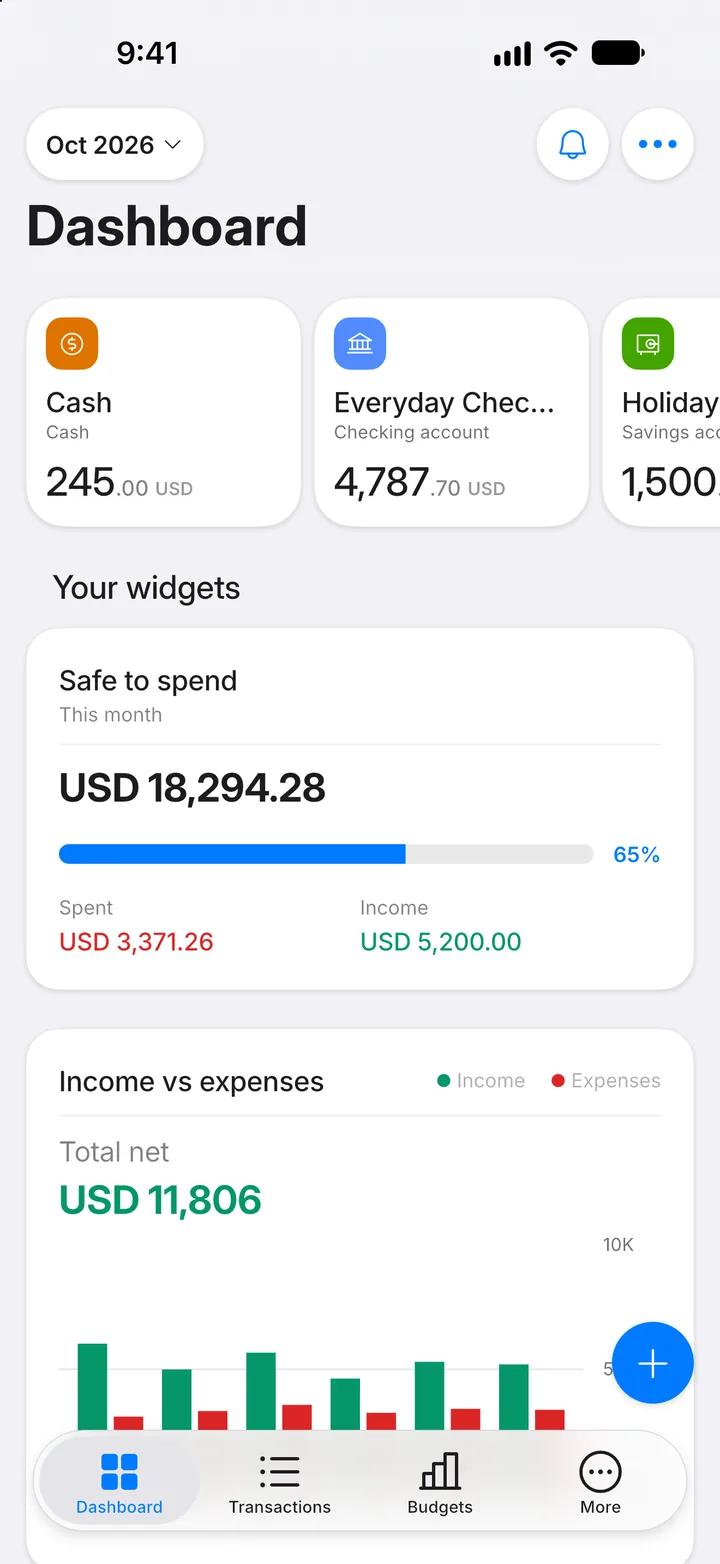
Step 1: Tap +
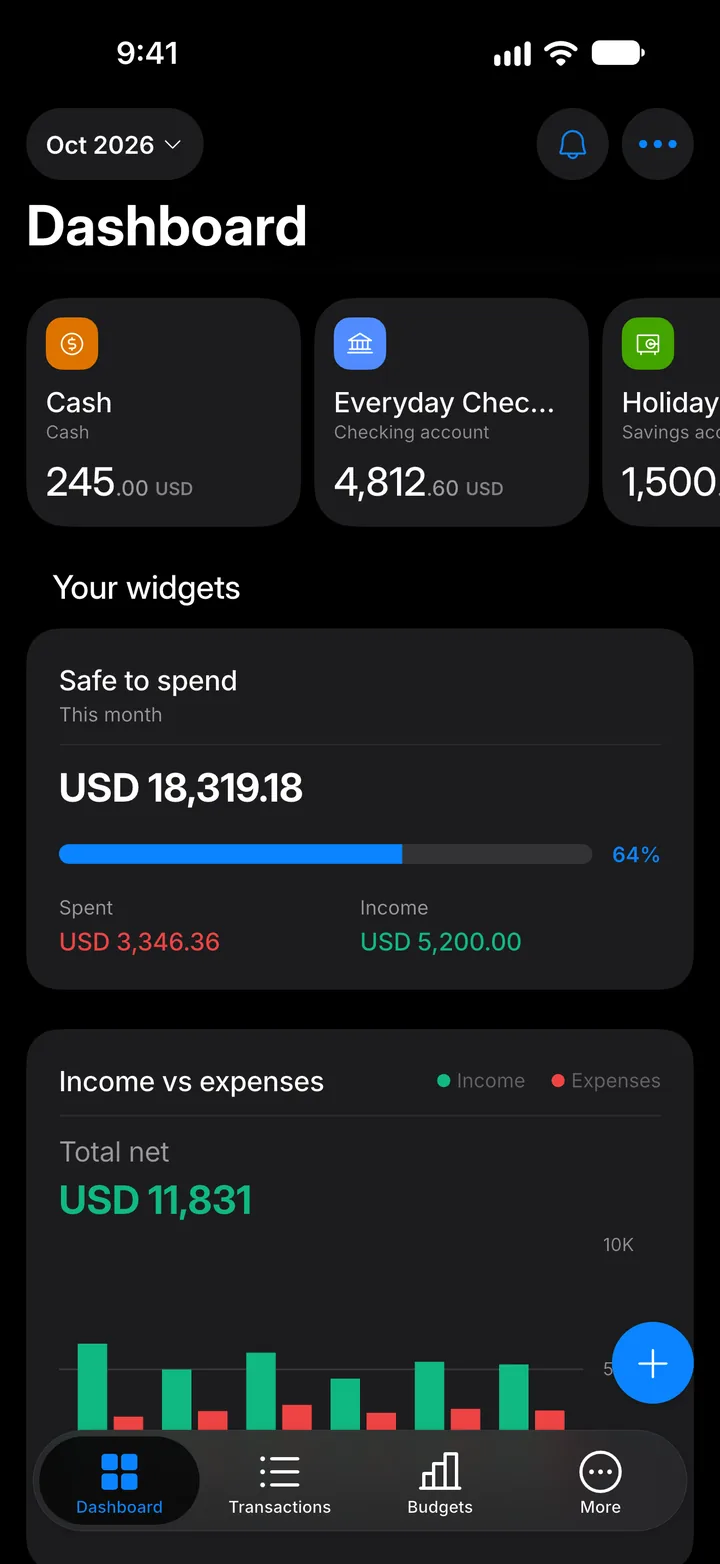
On the Dashboard, tap the + button at the bottom of the screen. The same button is on the Transactions tab.
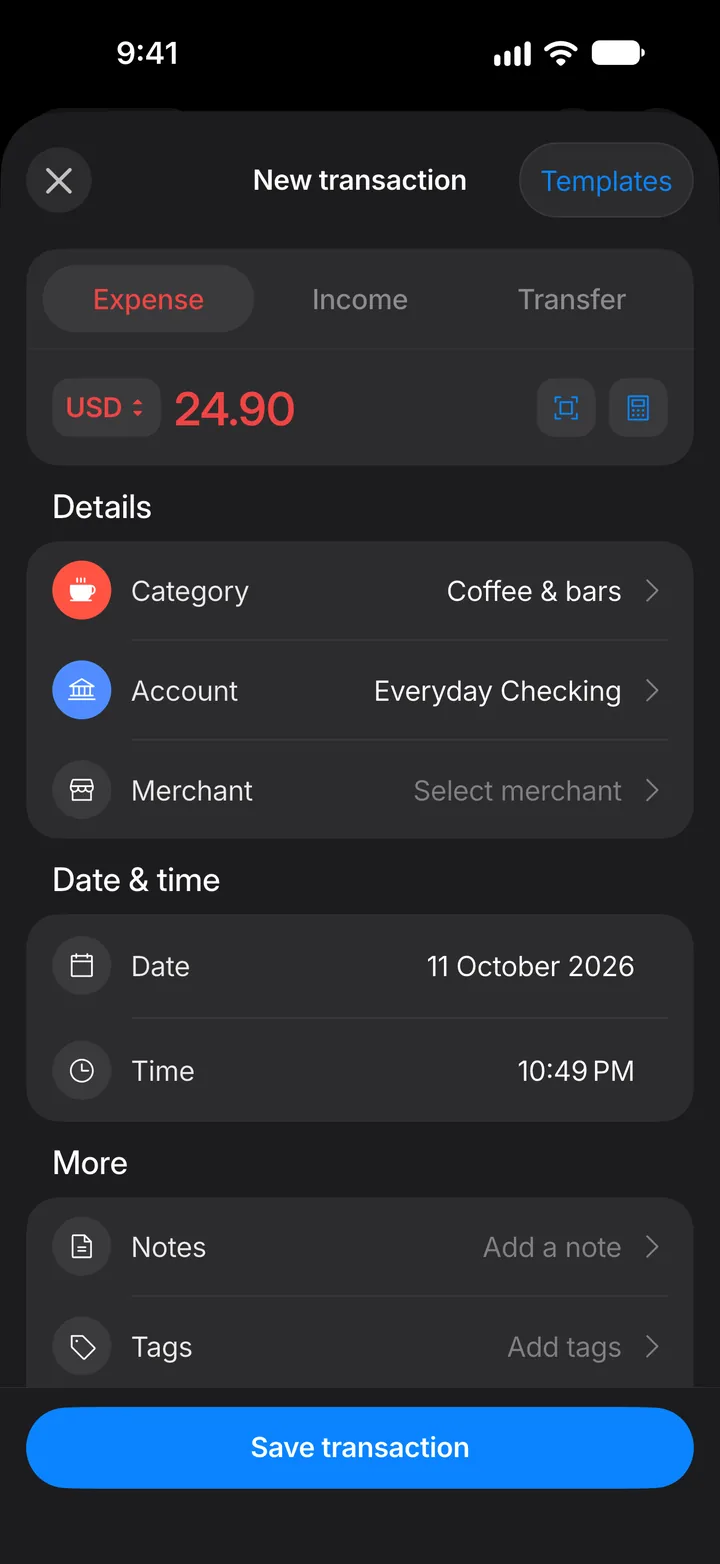
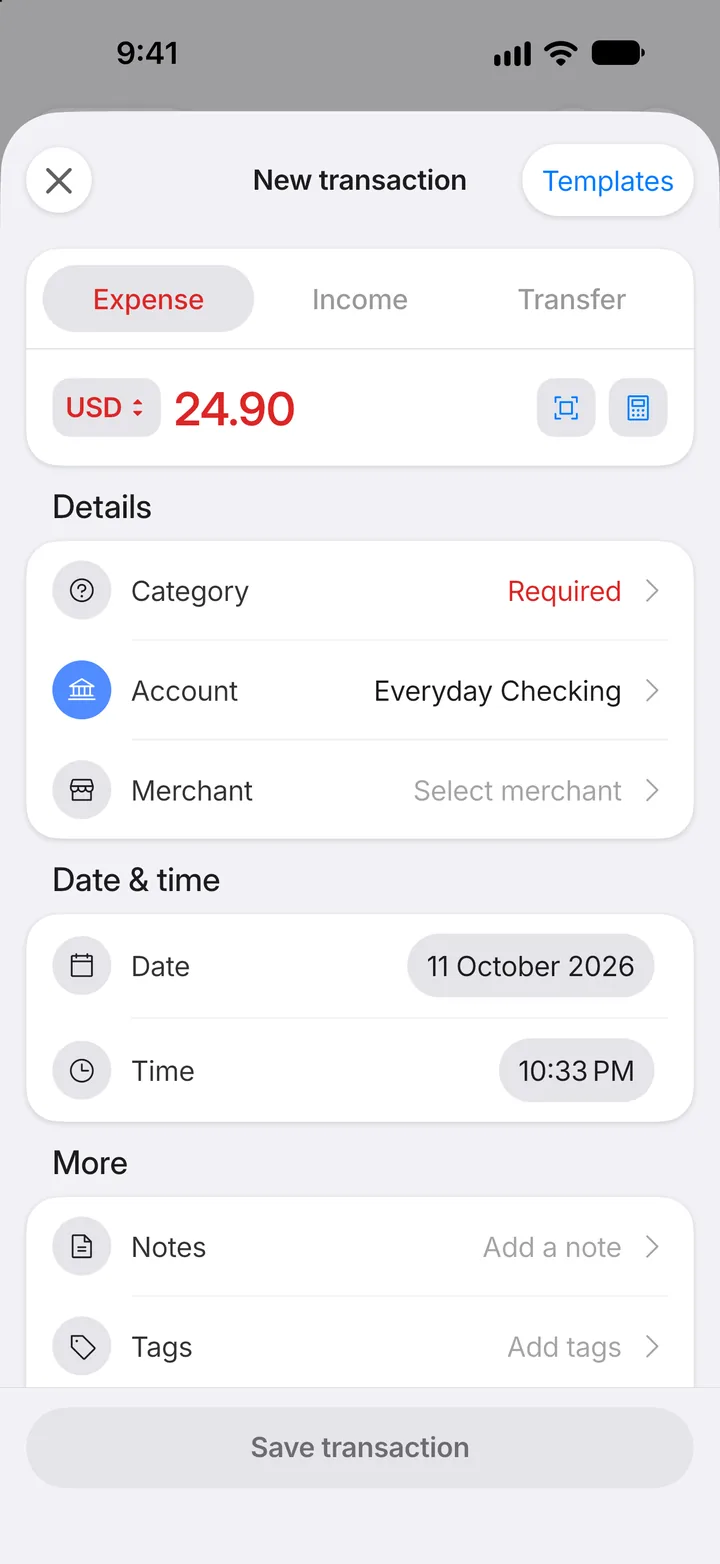
Step 2: Enter the amount
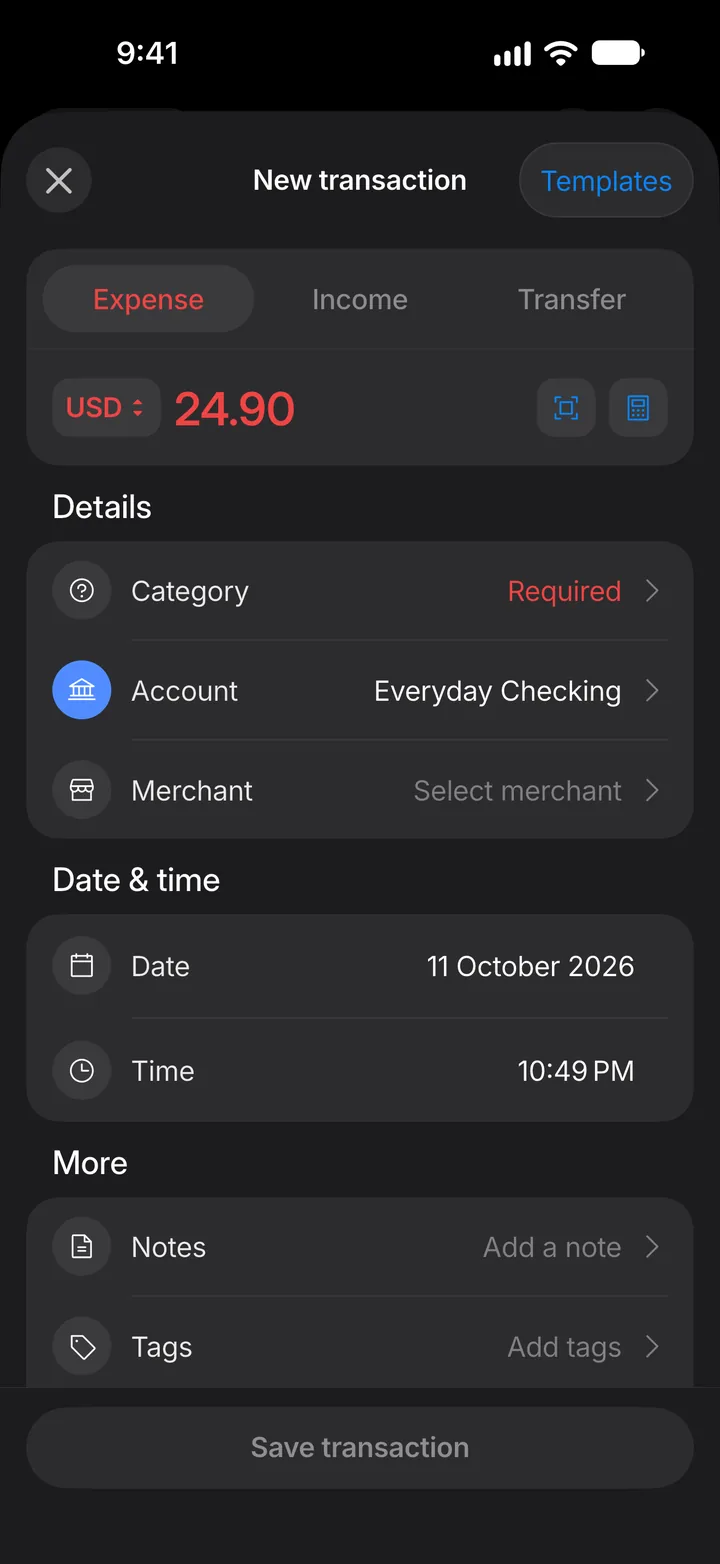
Choose Expense or Income at the top, then type the amount.
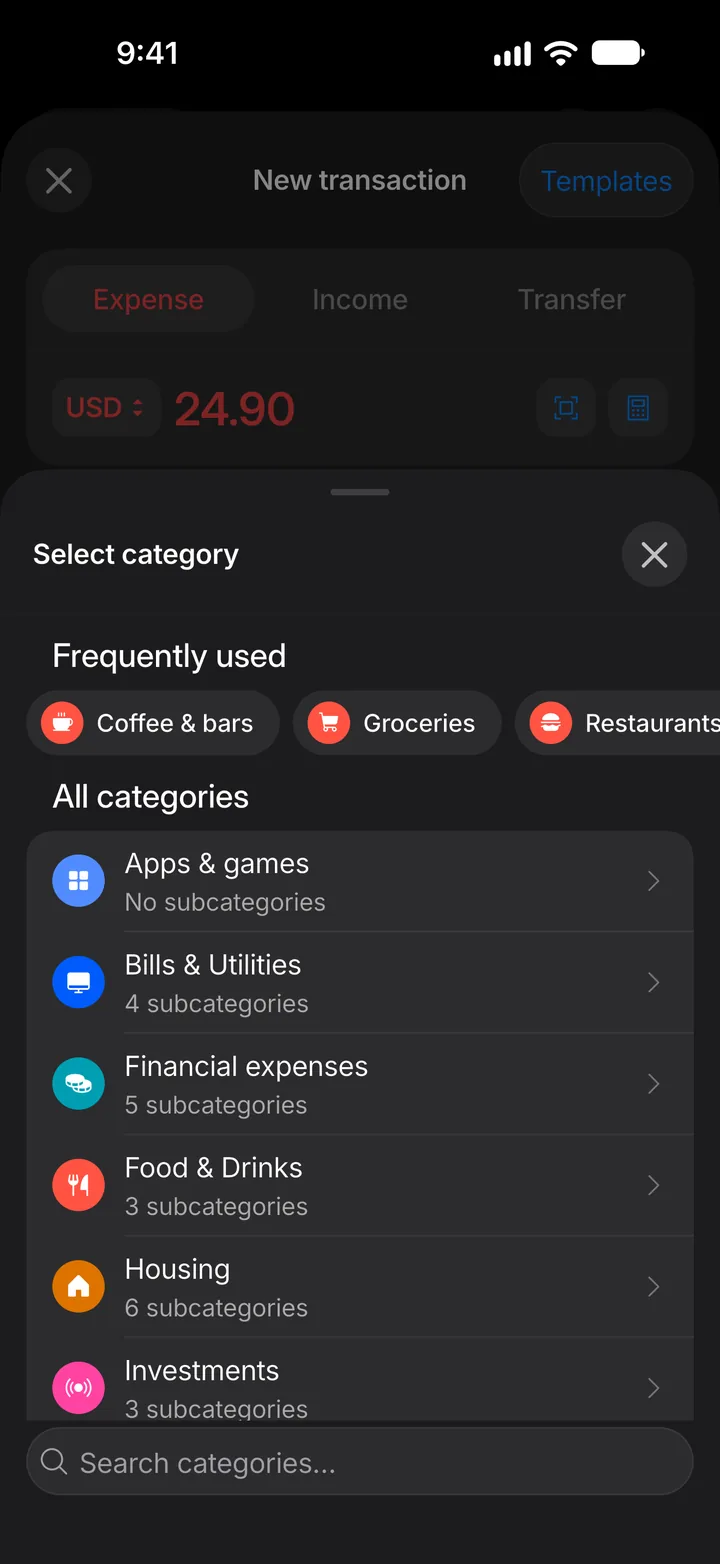
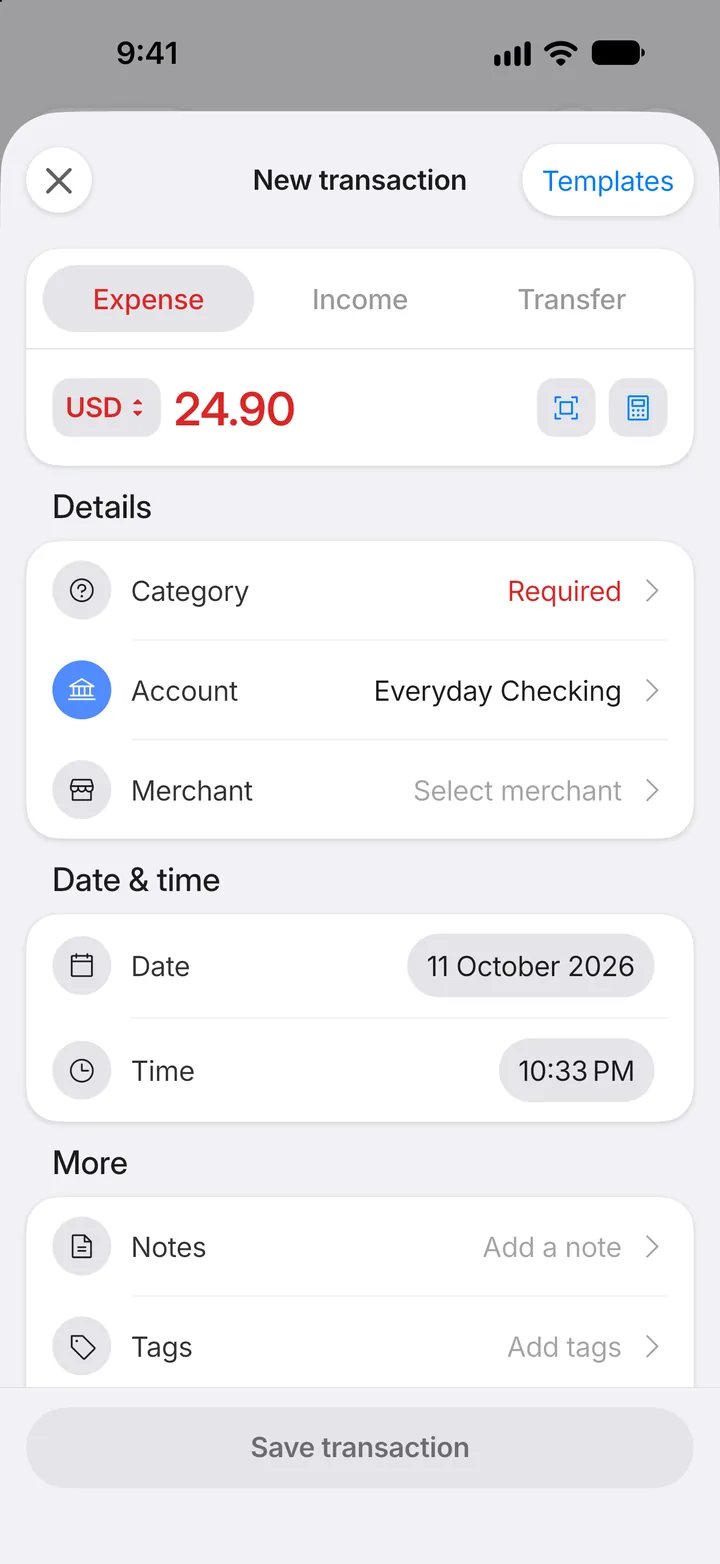
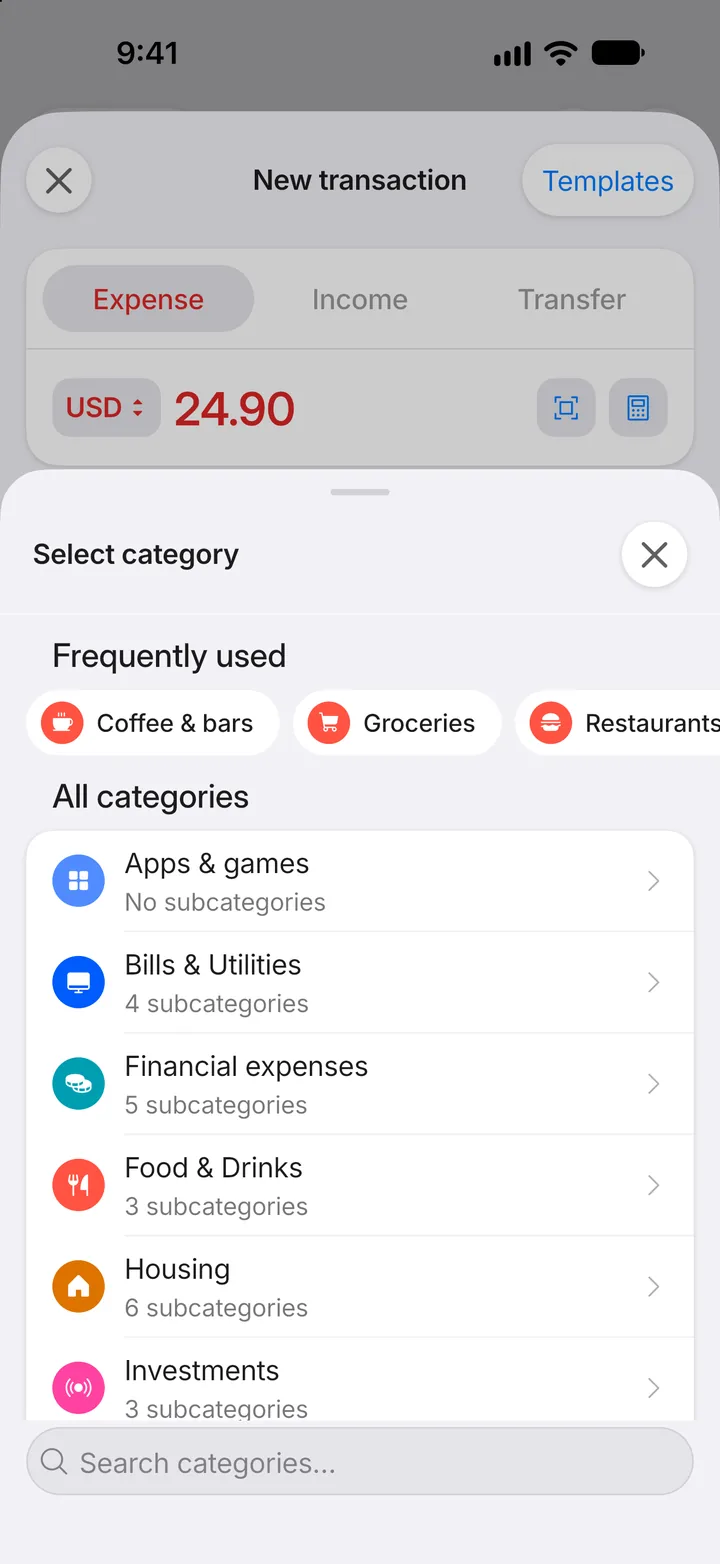
Step 3: Choose a category
Every transaction needs a category. Tap Category.
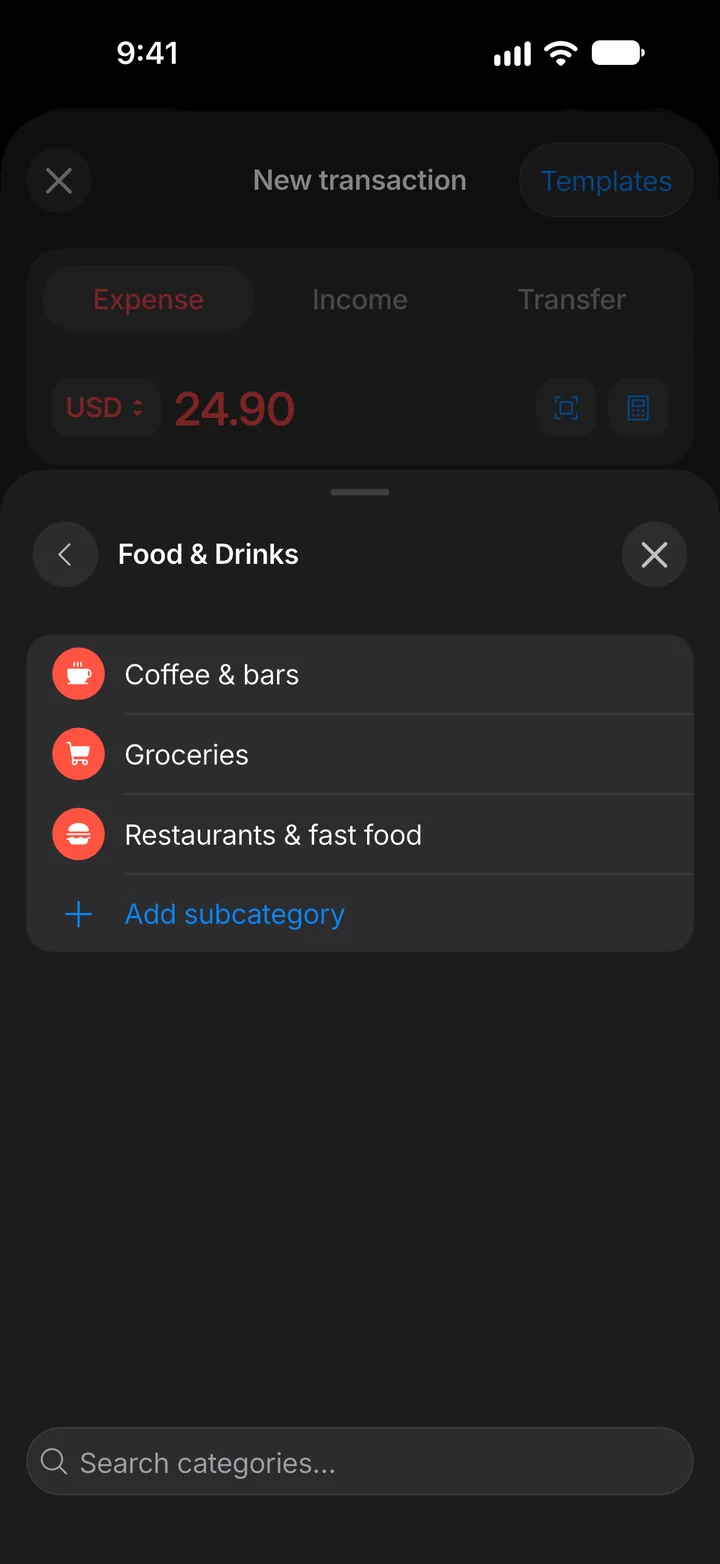
Step 4: Open a group
Categories are grouped. Tap the group your spending belongs to. The ones you use most also appear at the top, under Frequently used.
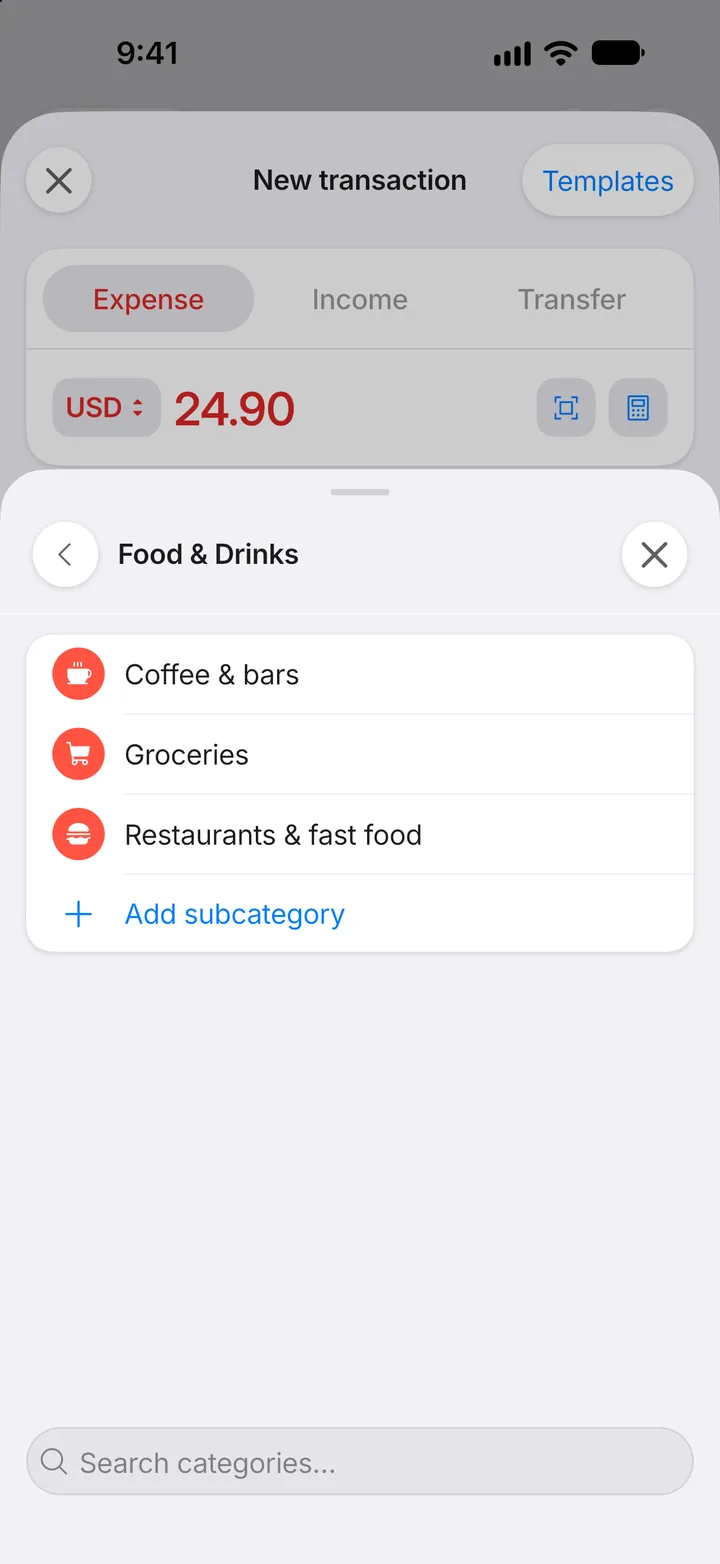
Step 5: Pick the category
Tap the category that fits. You go straight back to the form.
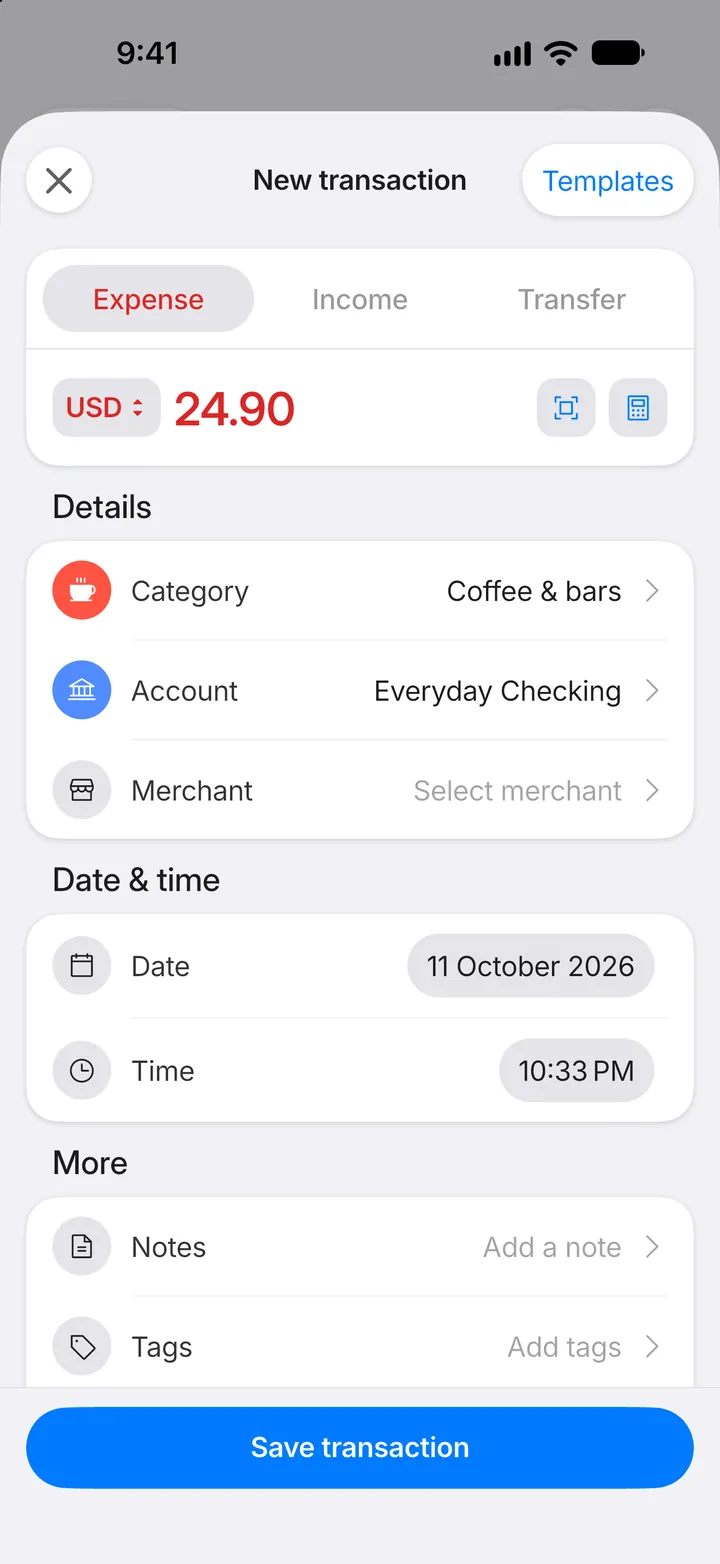
Step 6: Save
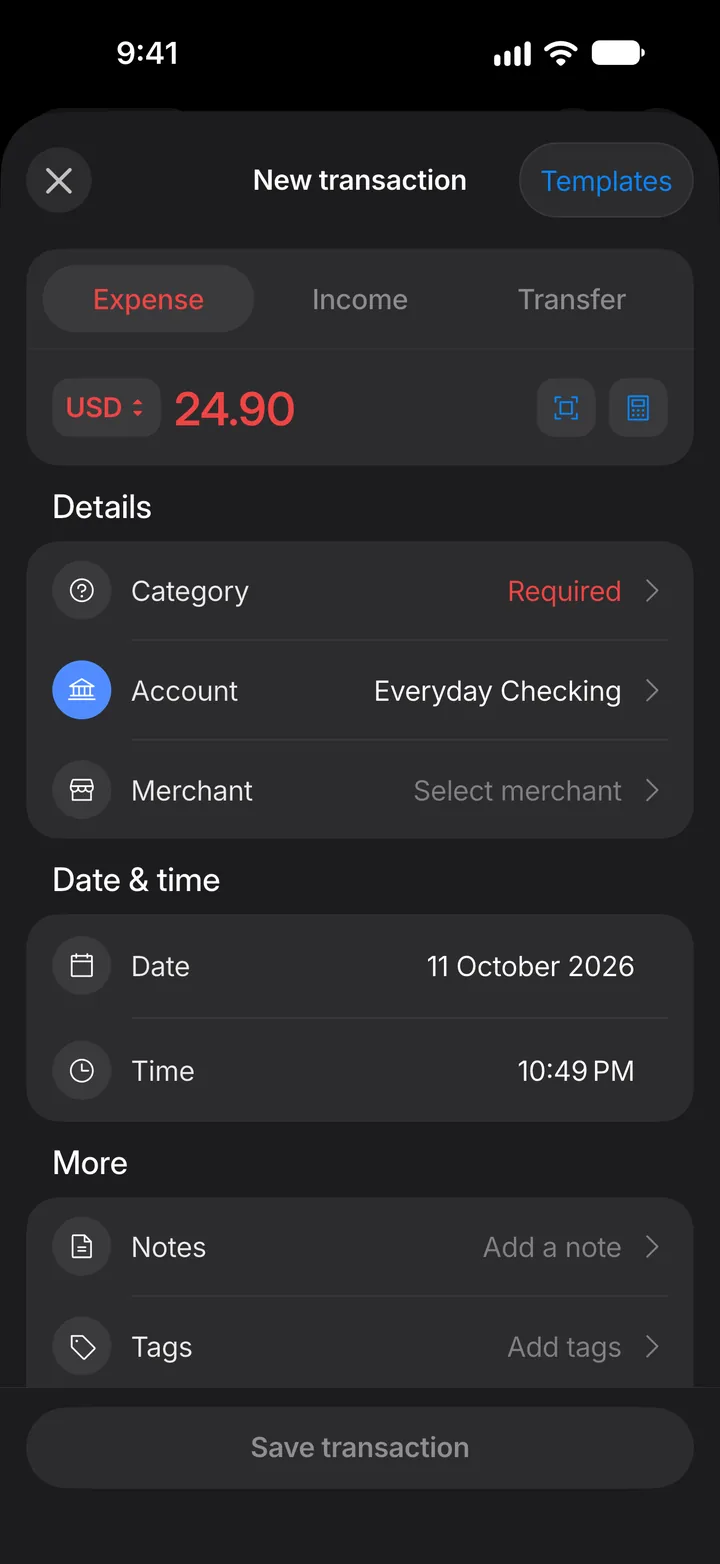
Check the Account, date and time, and add a merchant or a note if you like. Then tap Save transaction.
Step 7: Open your transactions
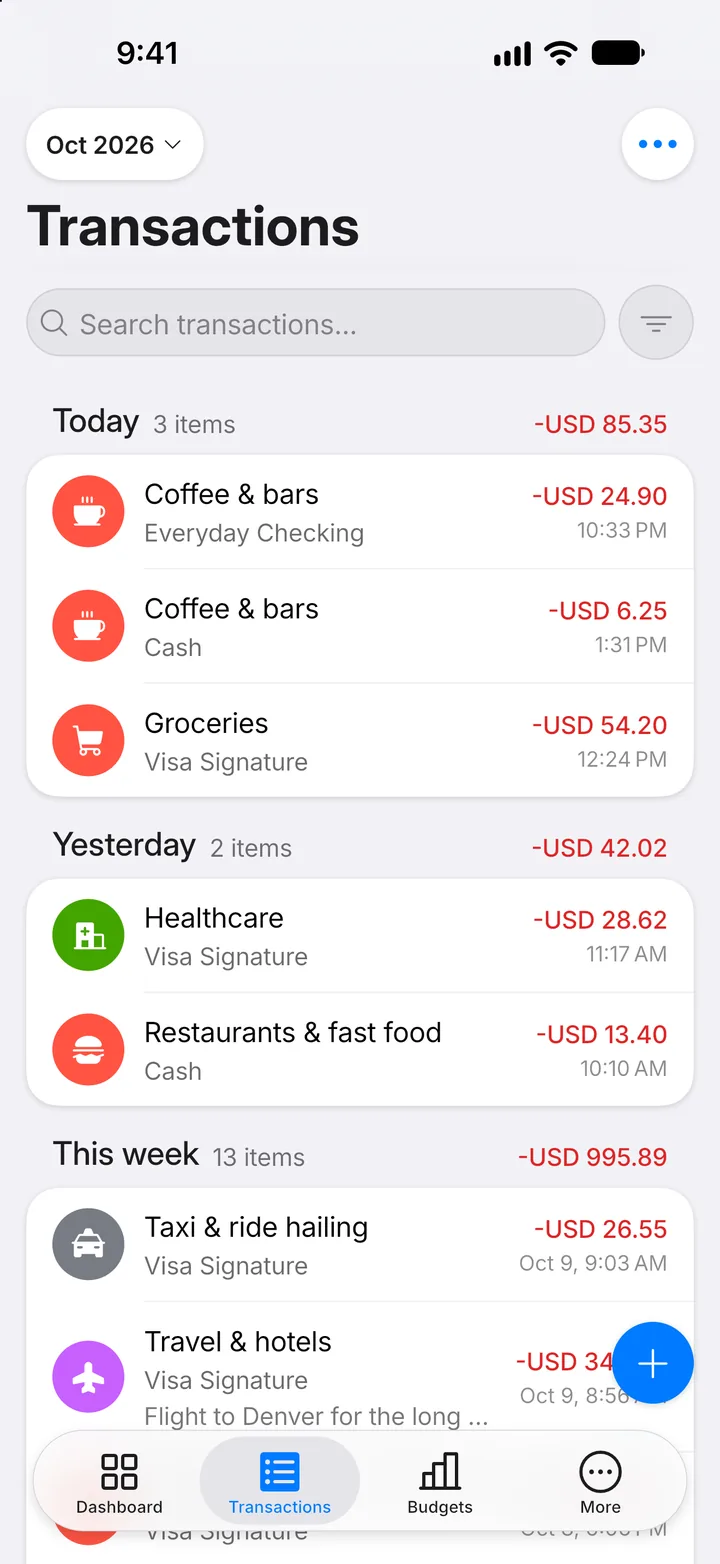
That's it — the transaction is saved. To see it, tap the Transactions tab.
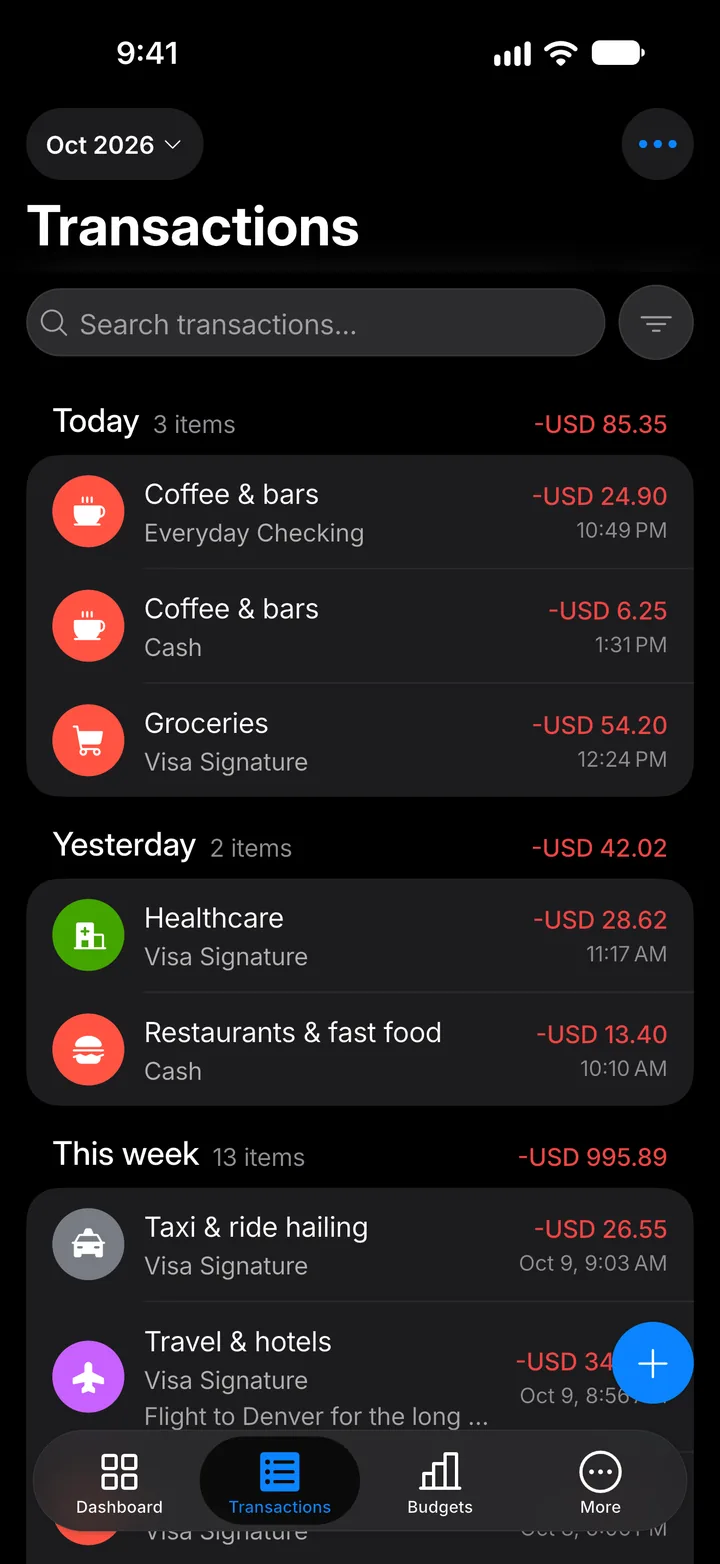
Step 8: Find it in the list
The newest transactions are at the top, grouped by day. Tap any of them to see the details or make a change.