Attach a photo or receipt
Keep the receipt with the transaction it belongs to.
5 steps
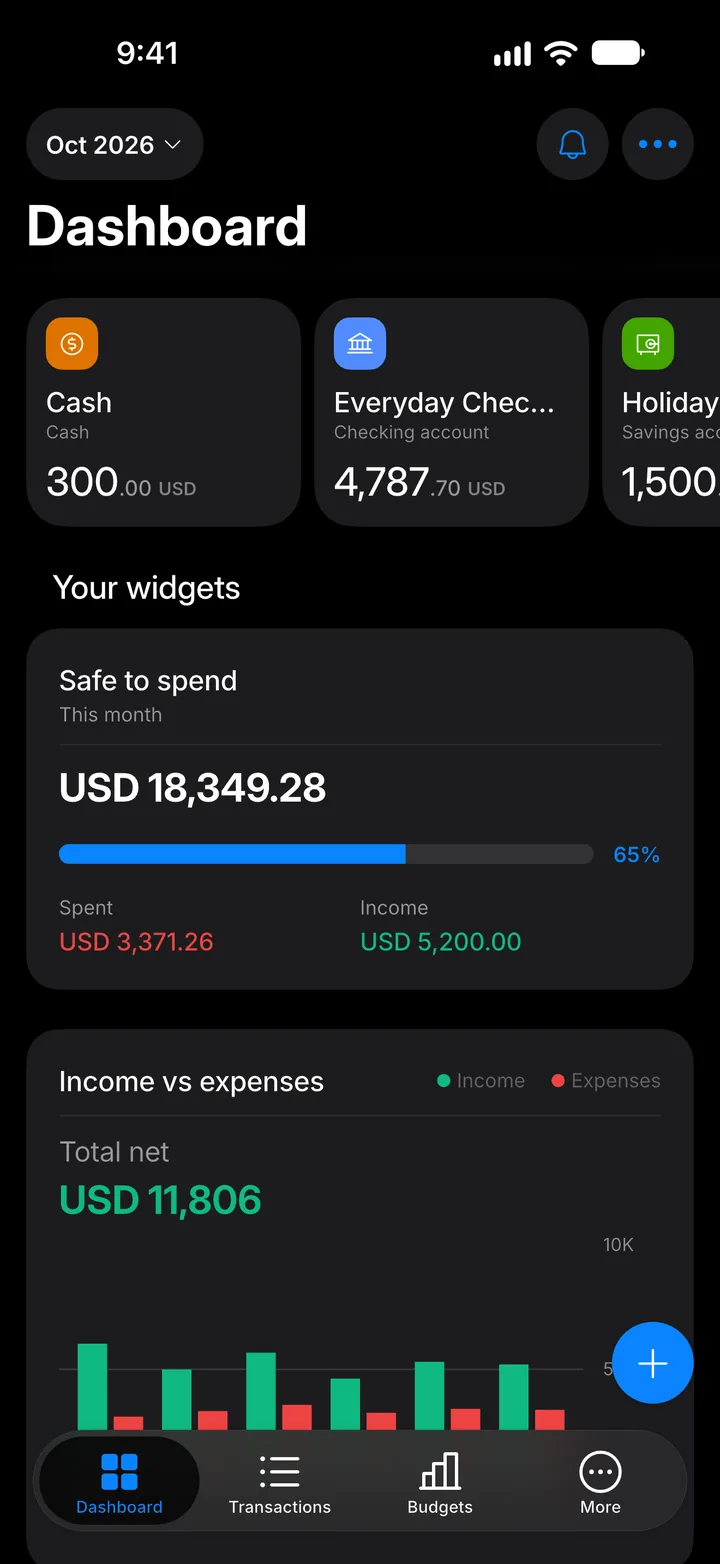
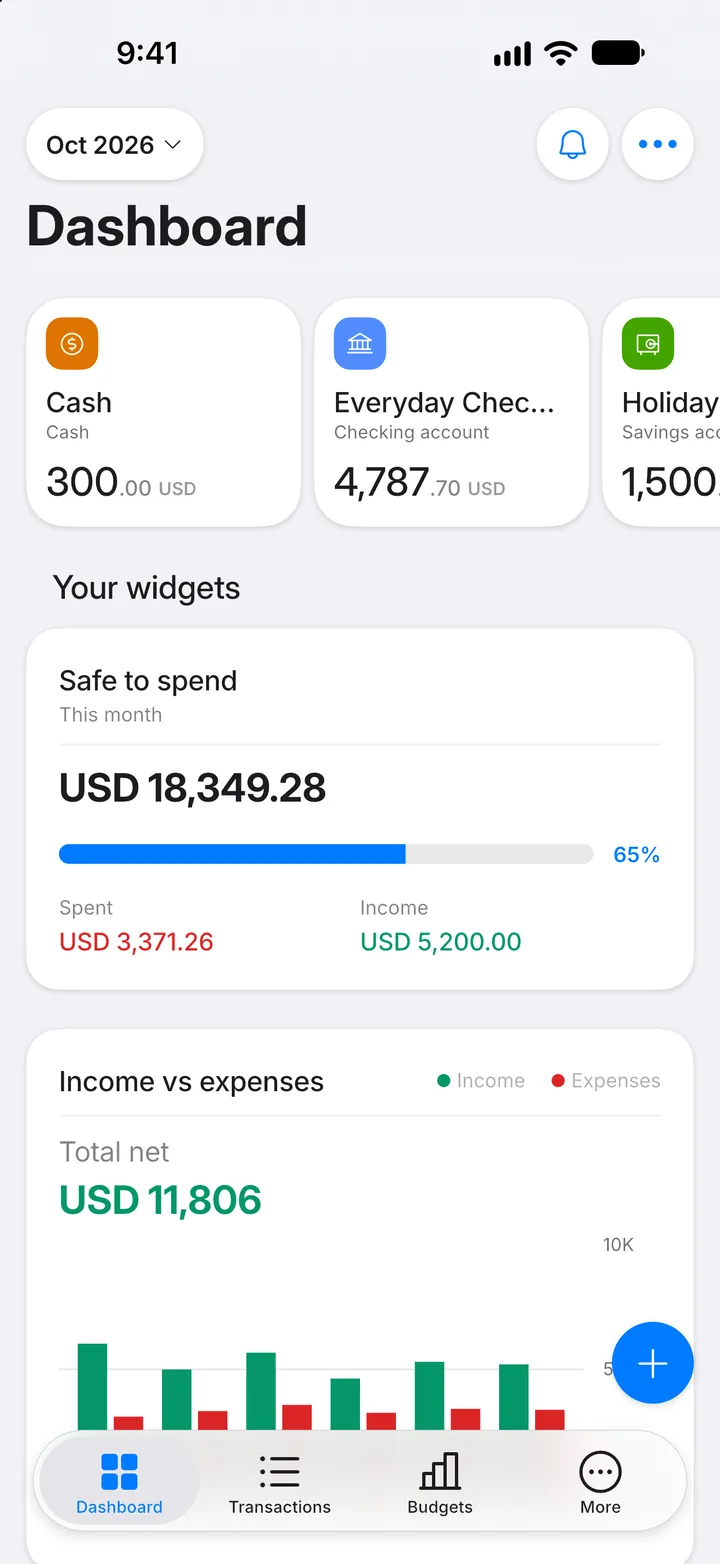
Step 1: Tap +
Start a new transaction, or open one you've already saved and tap Edit transaction.
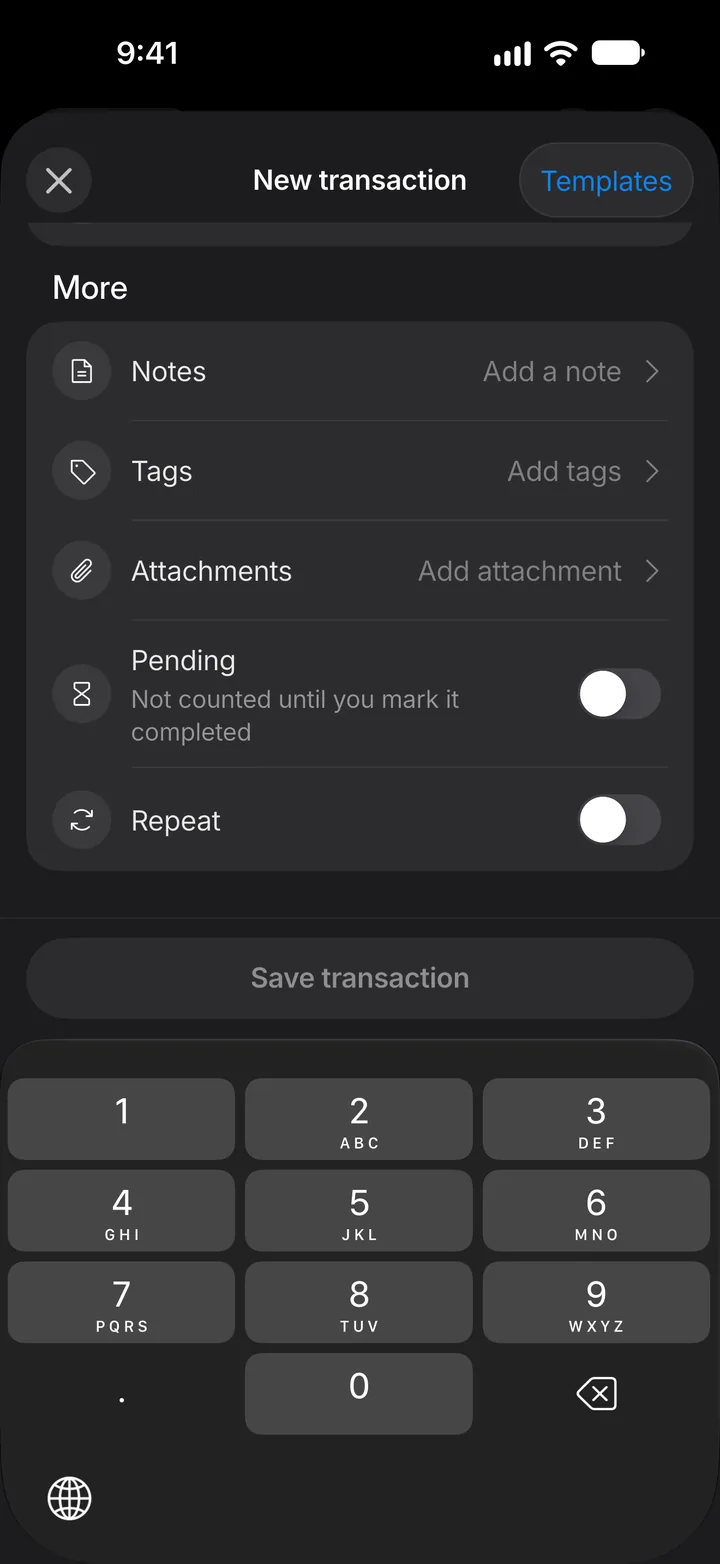
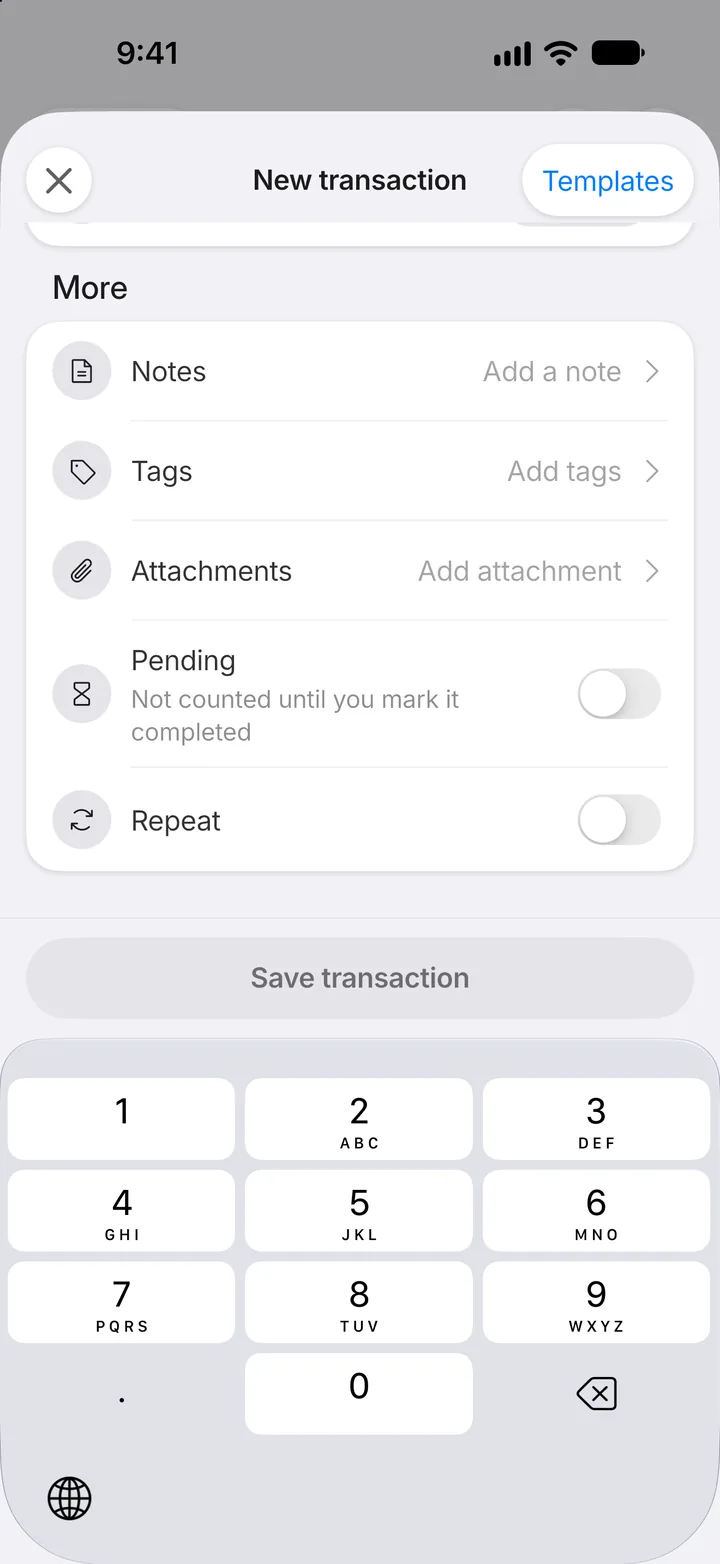
Step 2: Tap Attachments
Scroll down and tap Attachments.
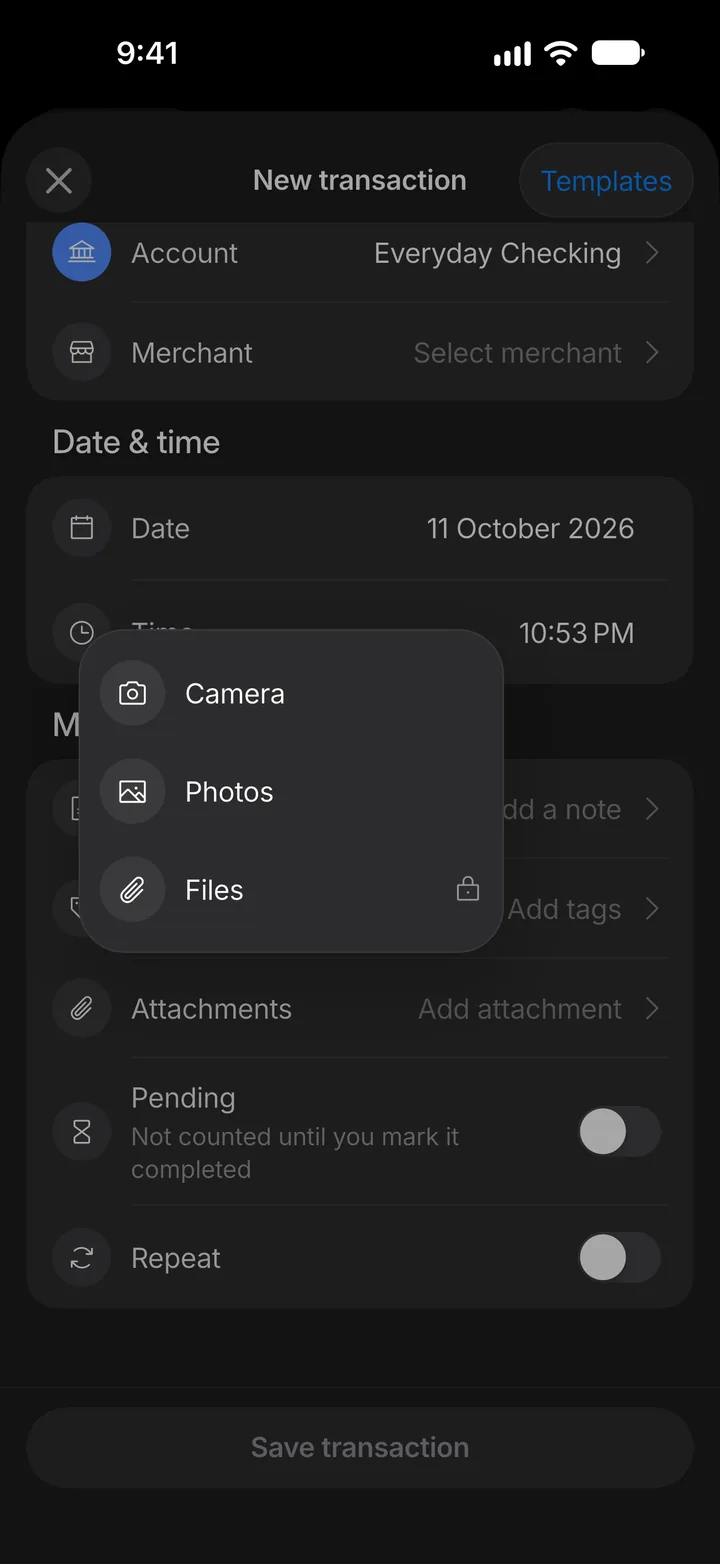
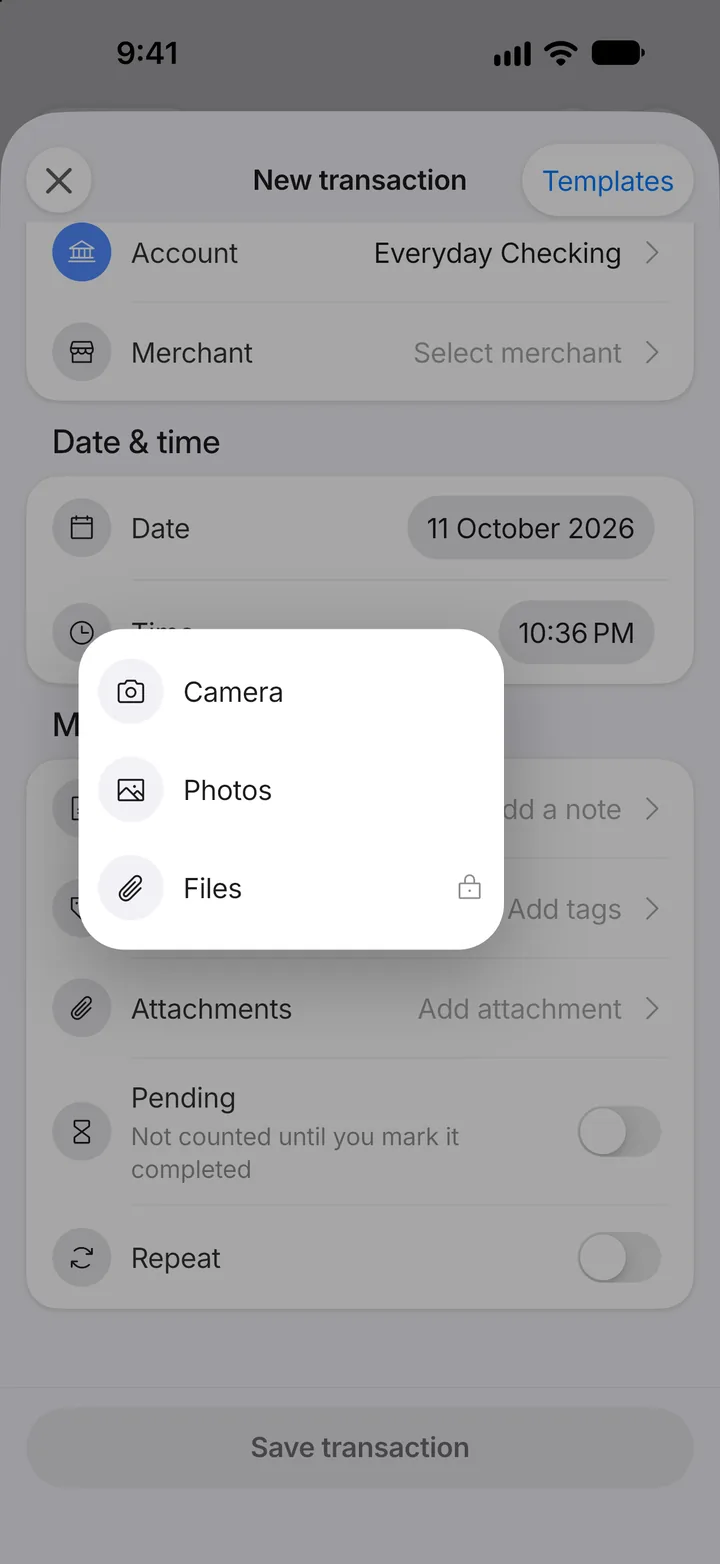
Step 3: Choose where it comes from
Tap Camera to take a photo now, or Photos to pick one you already have.
Step 4: Allow access
The first time, your phone asks for permission to use the camera or your photos. Allow it so Expenselix can add the picture.
Step 5: Save
The photo appears on the form. Tap Save transaction to keep it with the transaction.