Scan a receipt
Point your camera at a receipt and let Expenselix fill in the transaction for you.
6 stepsProThis feature needs Expenselix Pro.
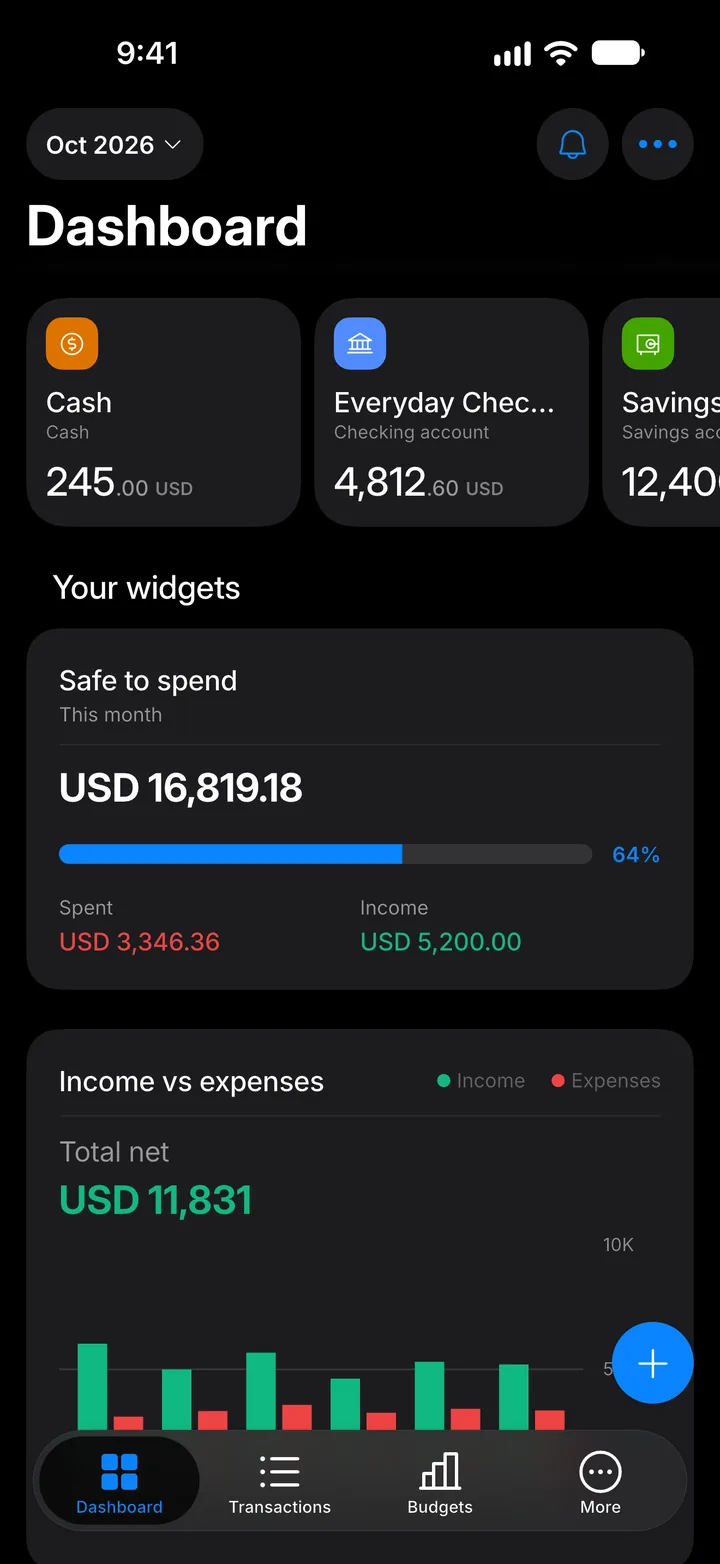
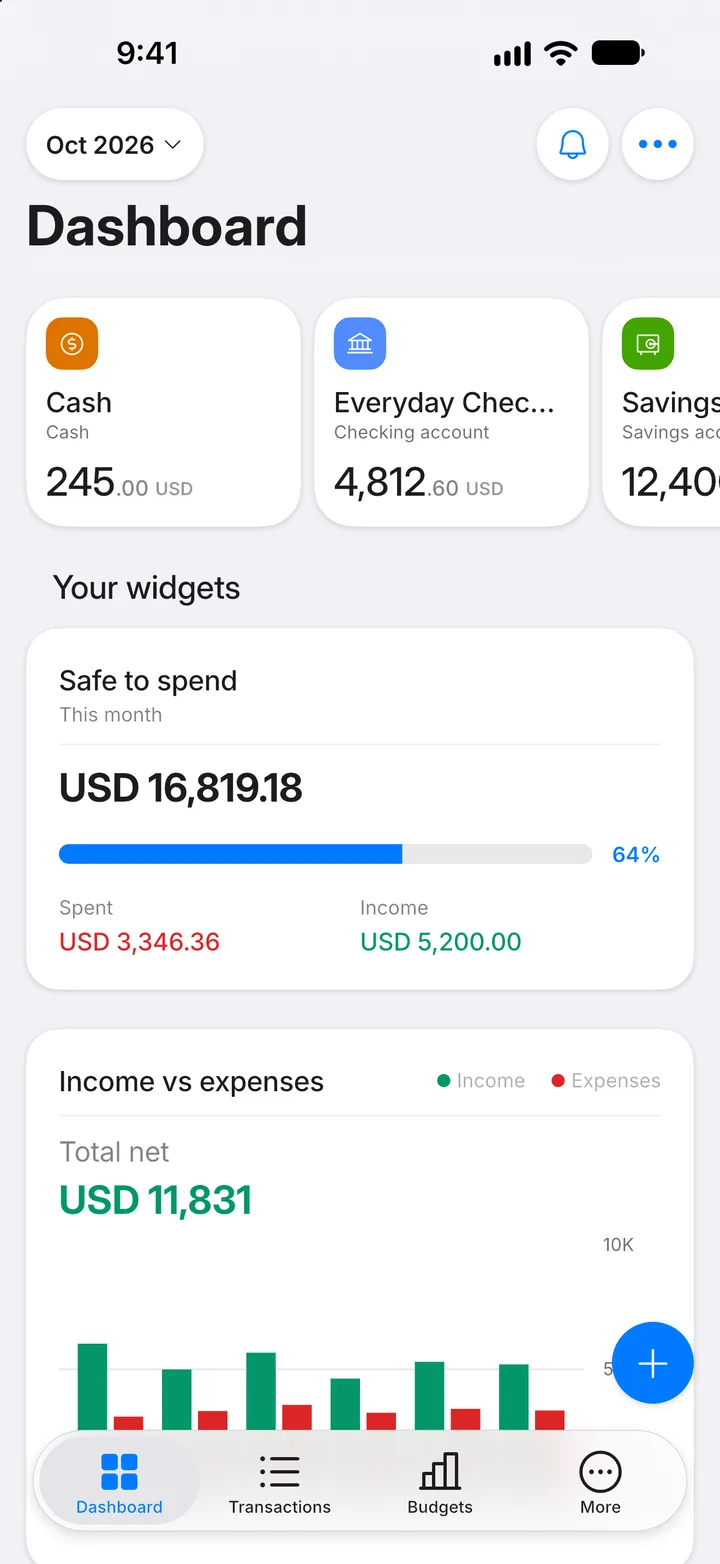
Step 1: Tap +
On the Dashboard, tap the + button to start a new transaction.
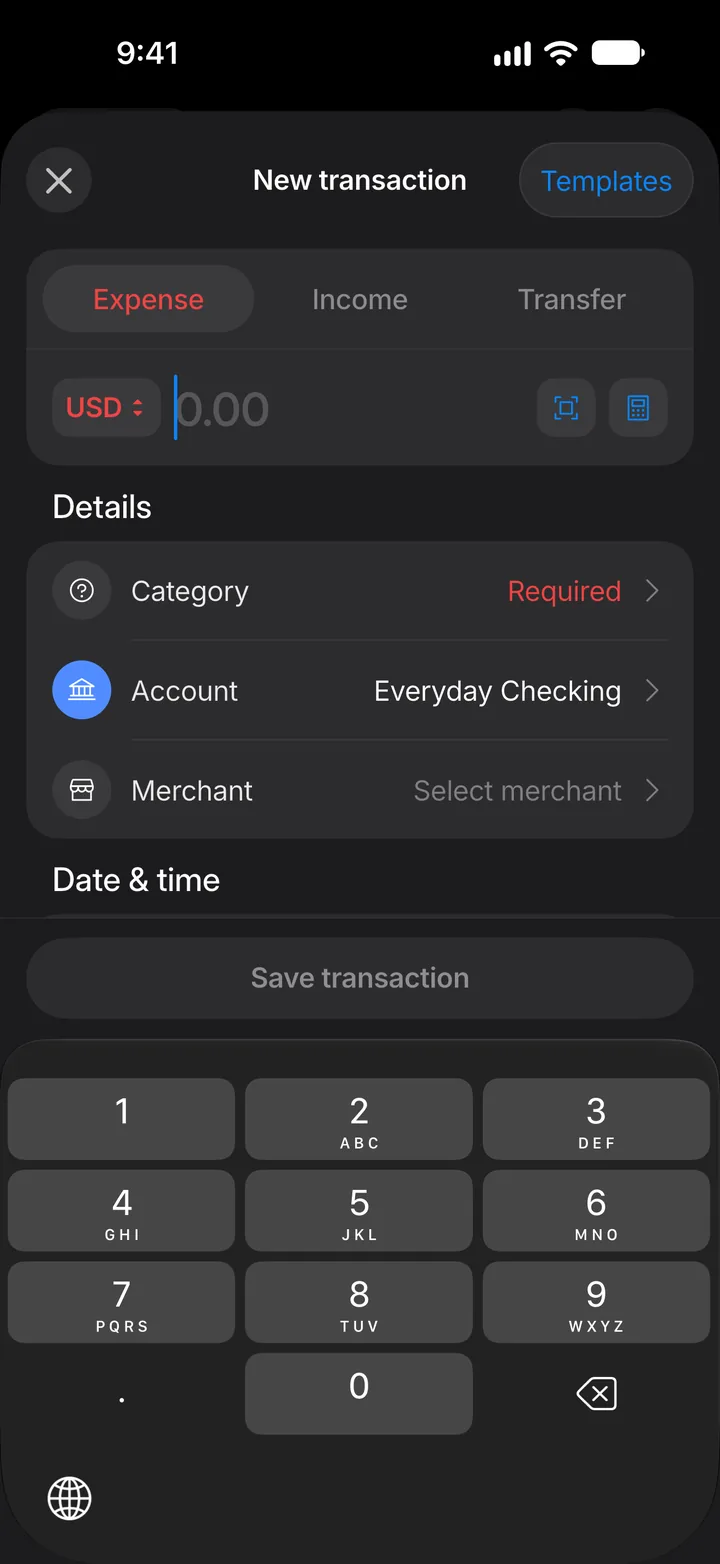
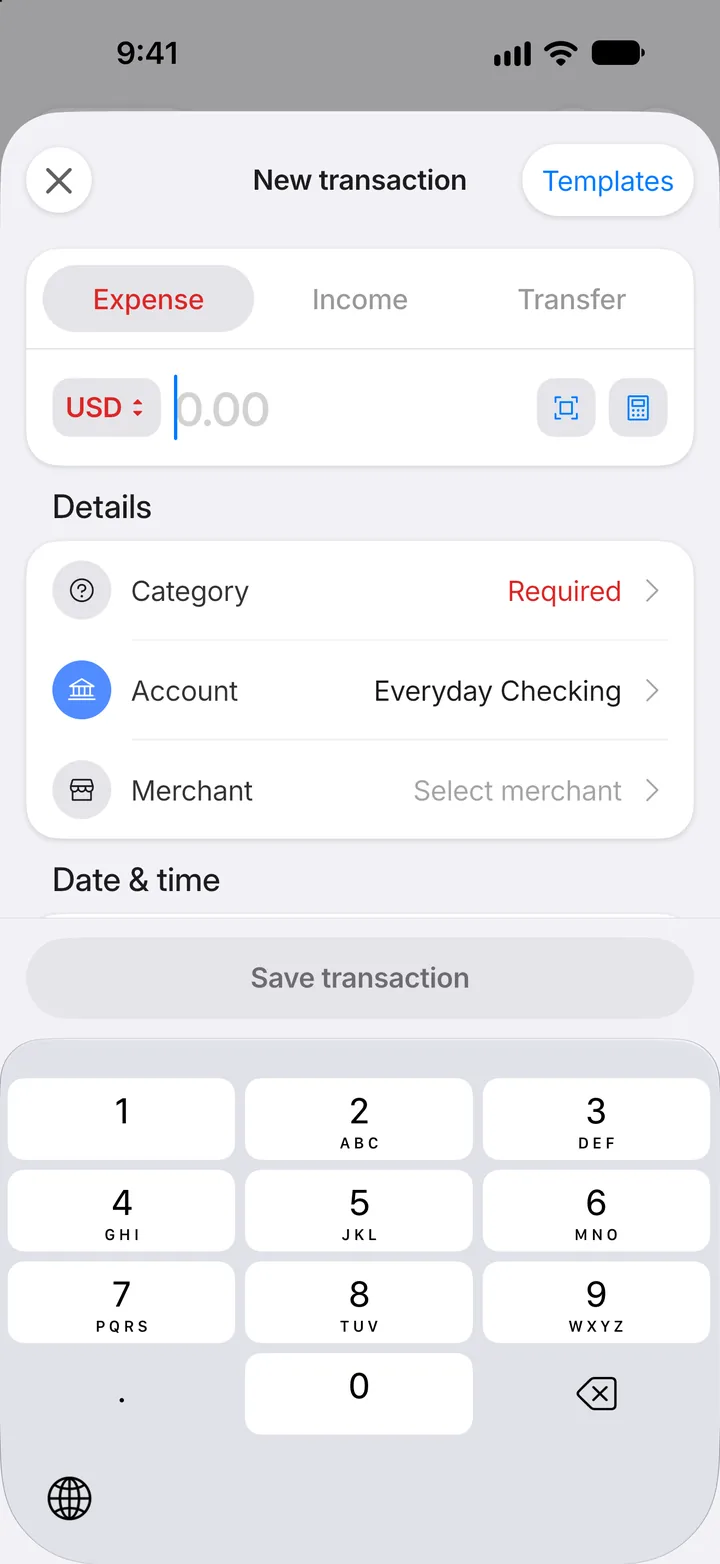
Step 2: Tap the scan button
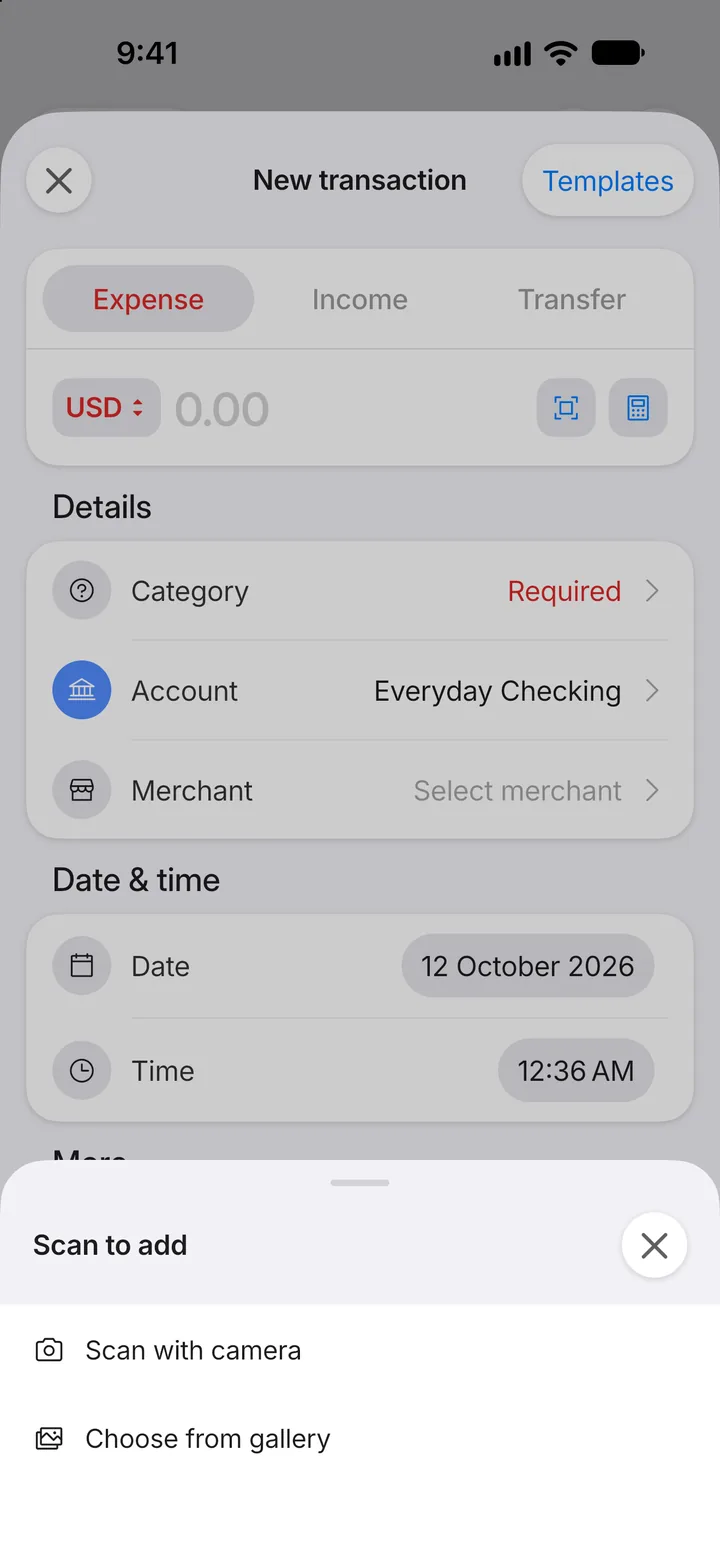
Tap the scan button next to the amount.
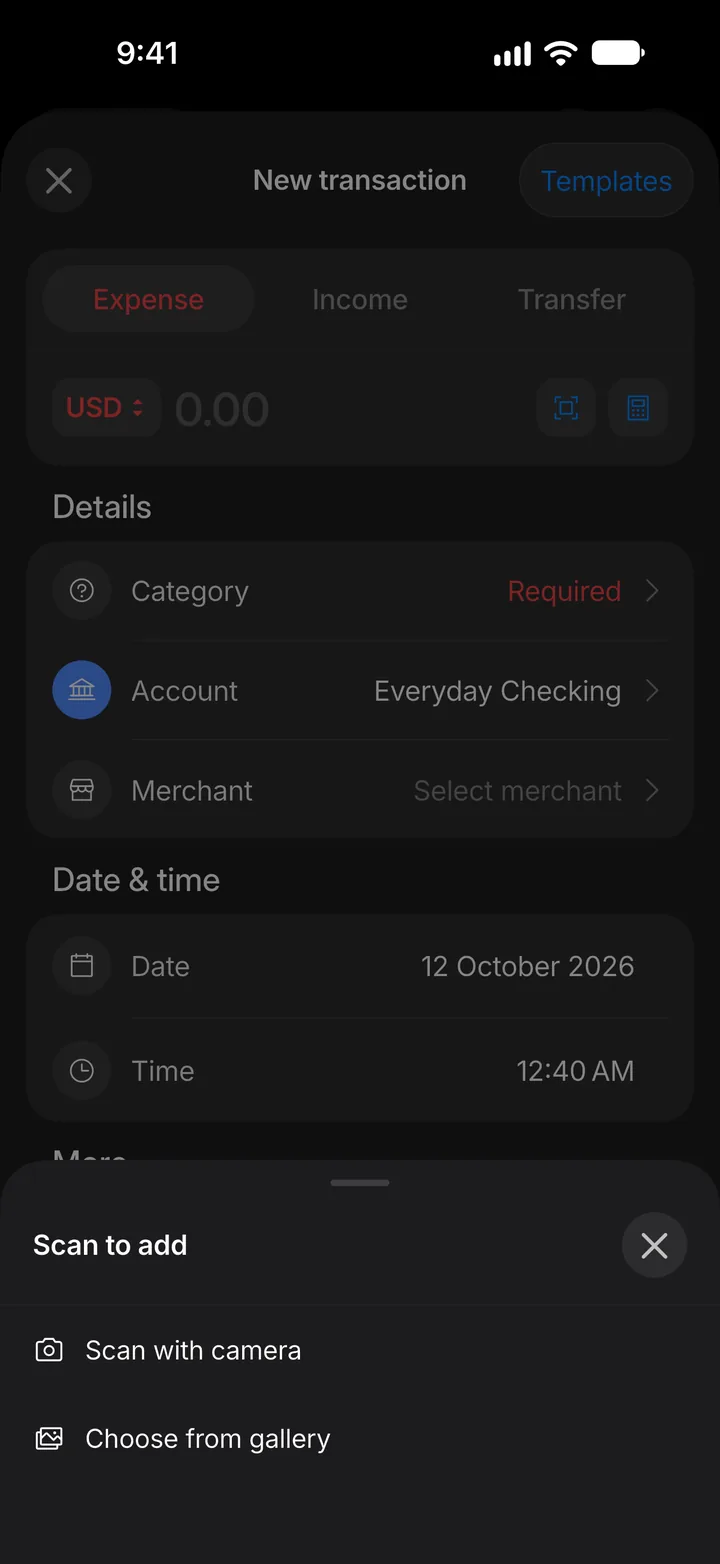
Step 3: Choose a source
Tap Scan with camera for a paper receipt, or Choose from gallery for a photo or screenshot you already have.
Step 4: Take the photo
Line the receipt up in the camera and take the picture. The receipt is read on your phone.
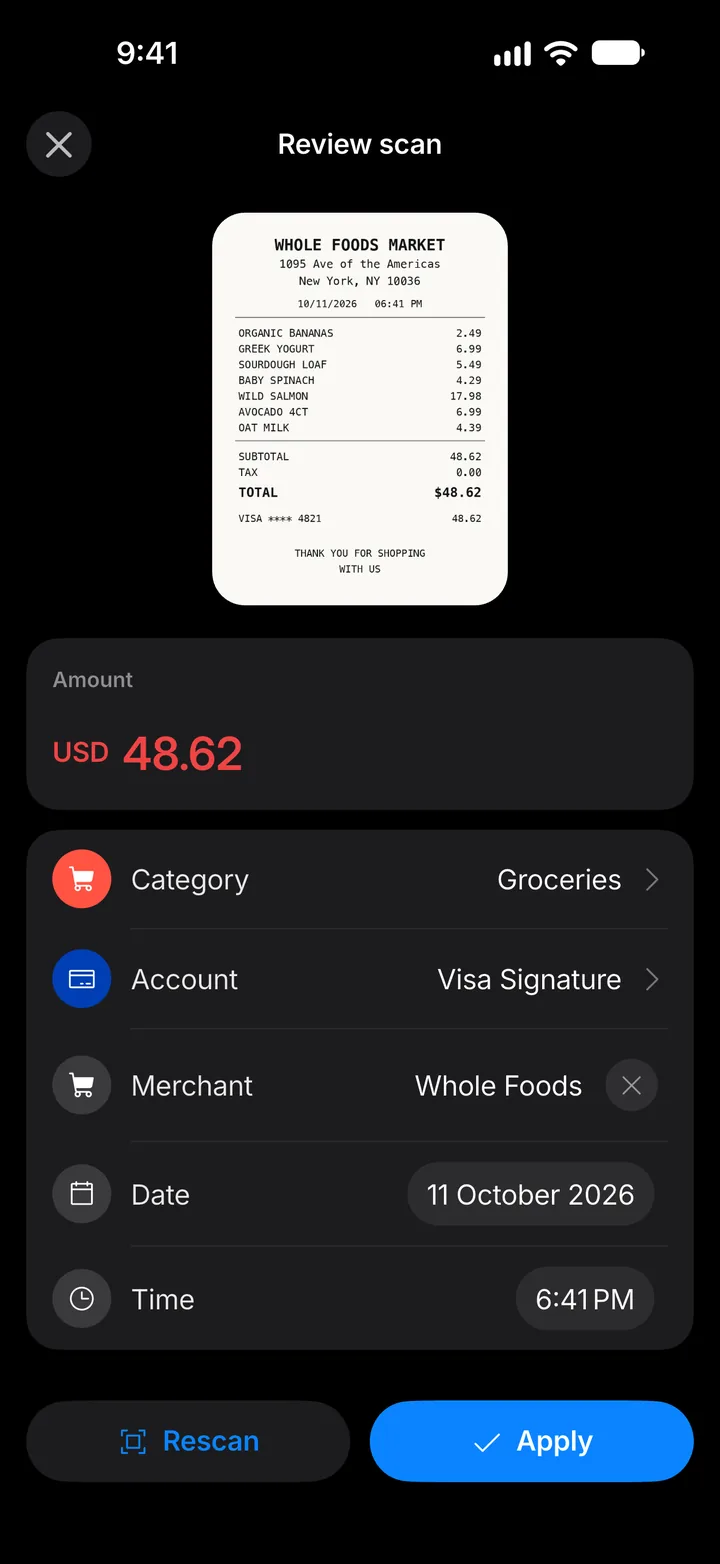
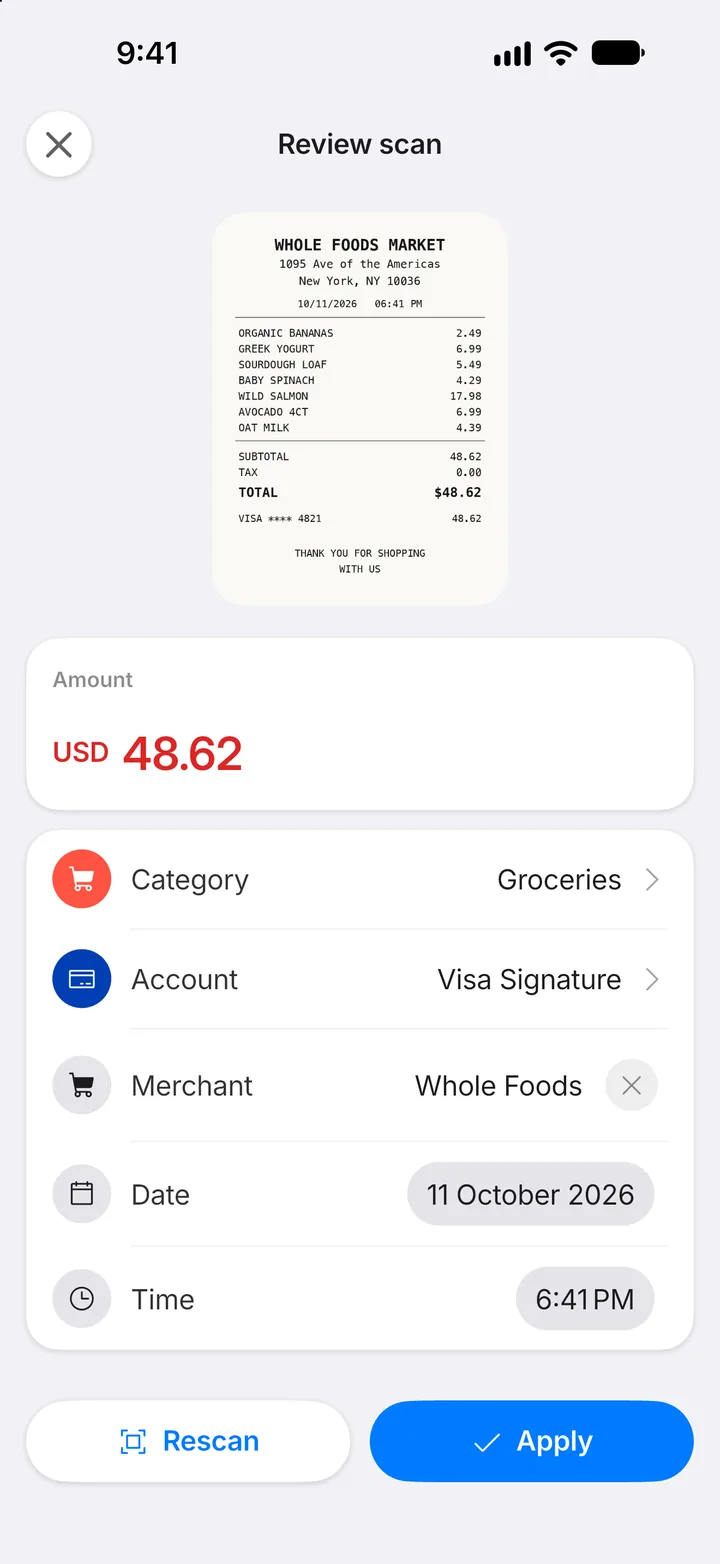
Step 5: Check what was read
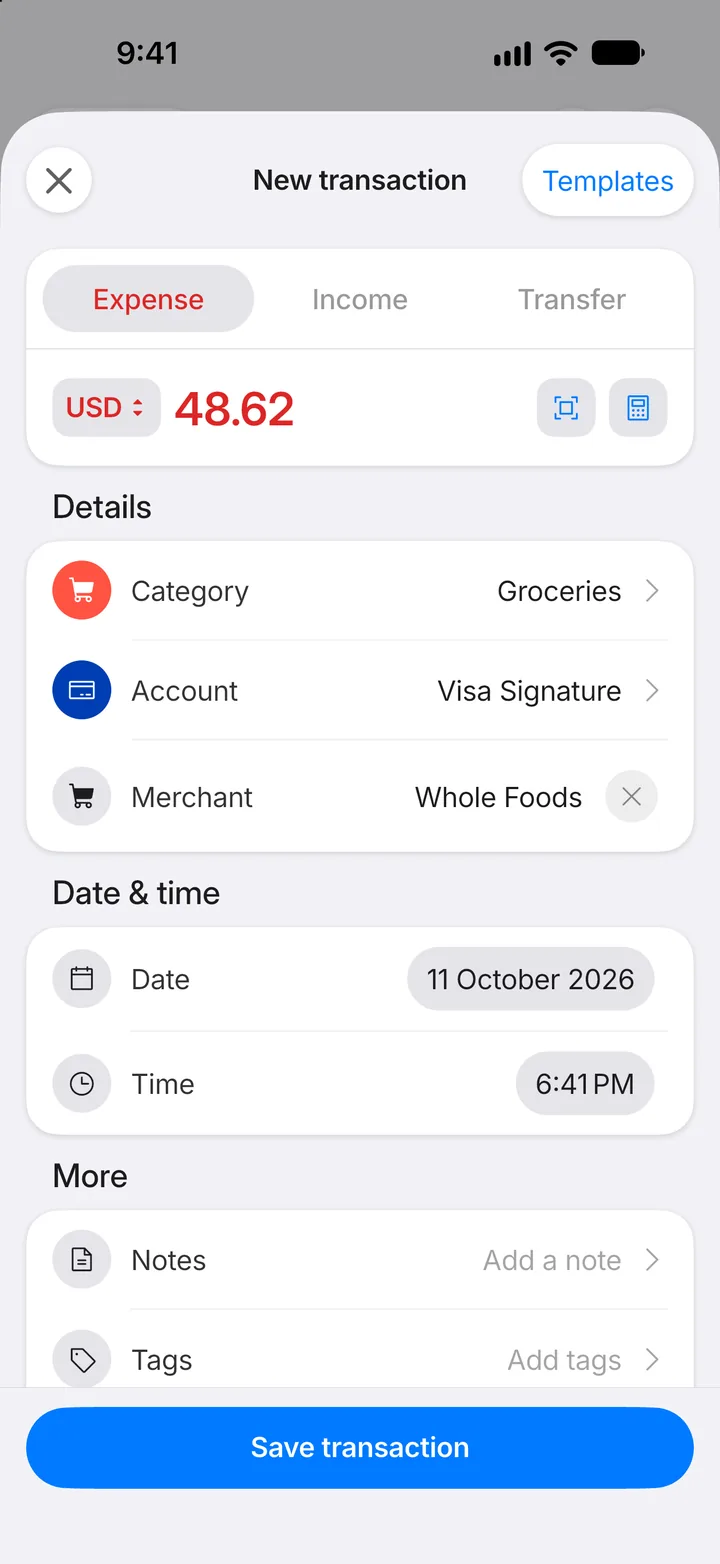
Expenselix fills in the amount, date, merchant and a suggested category. Fix anything it got wrong, then tap Apply.
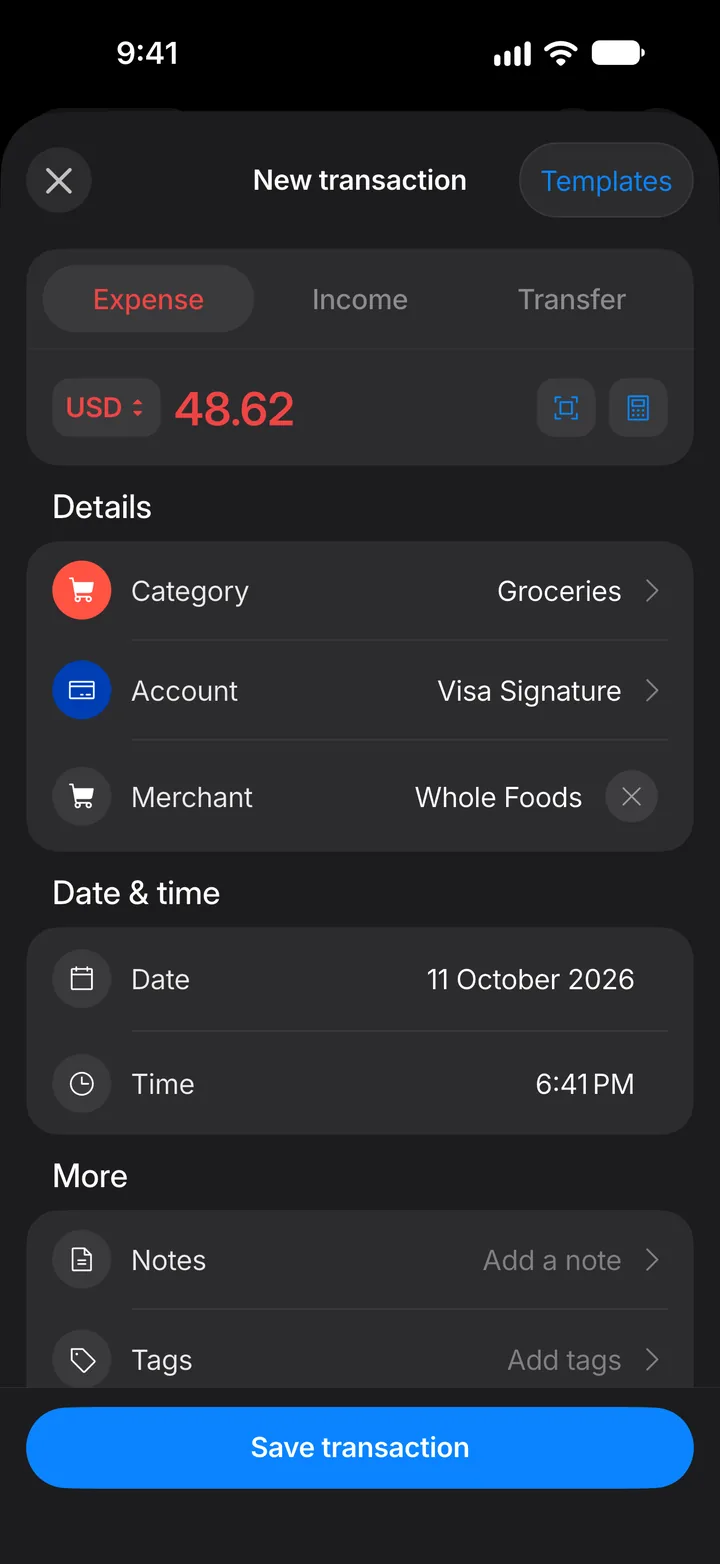
Step 6: Save
The form is filled in, and the receipt is kept as an attachment. Tap Save transaction.