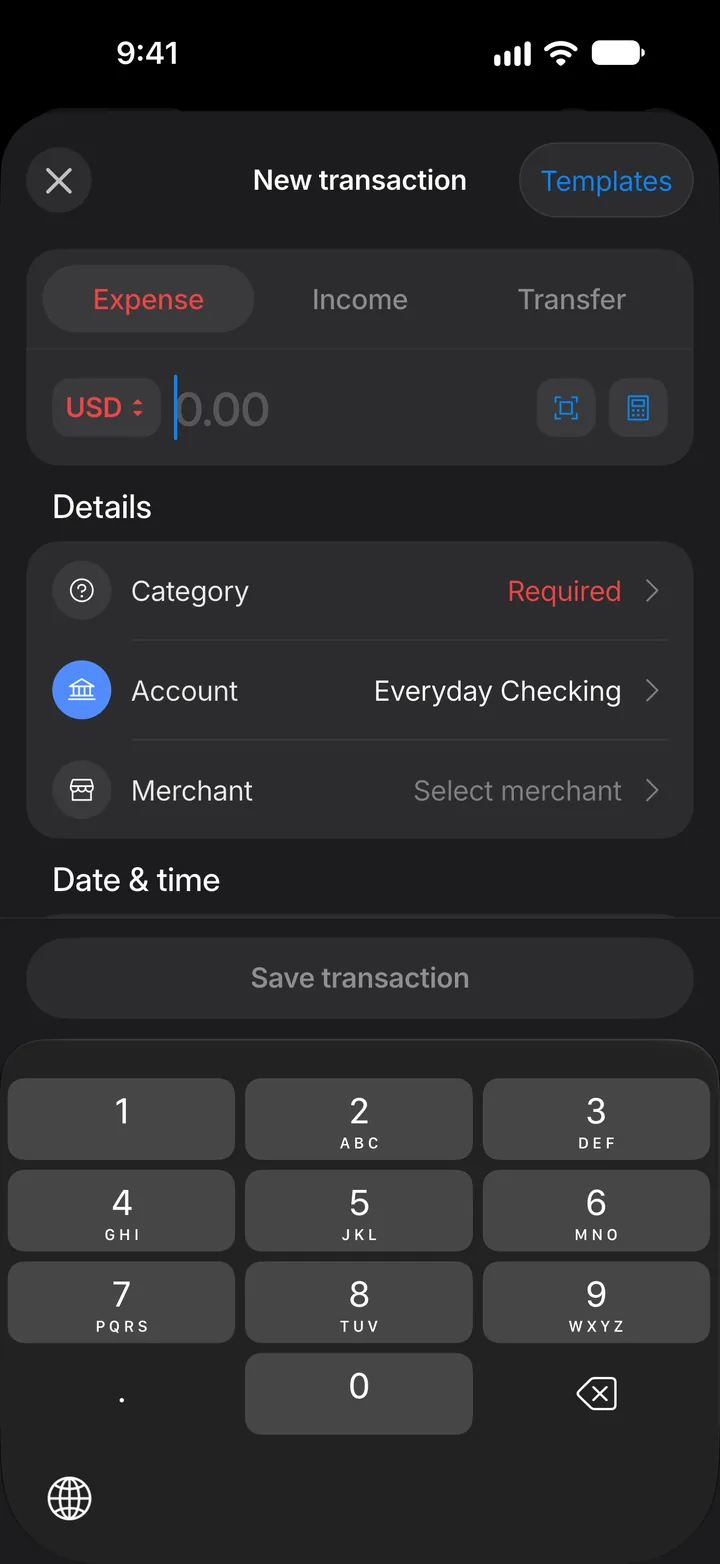
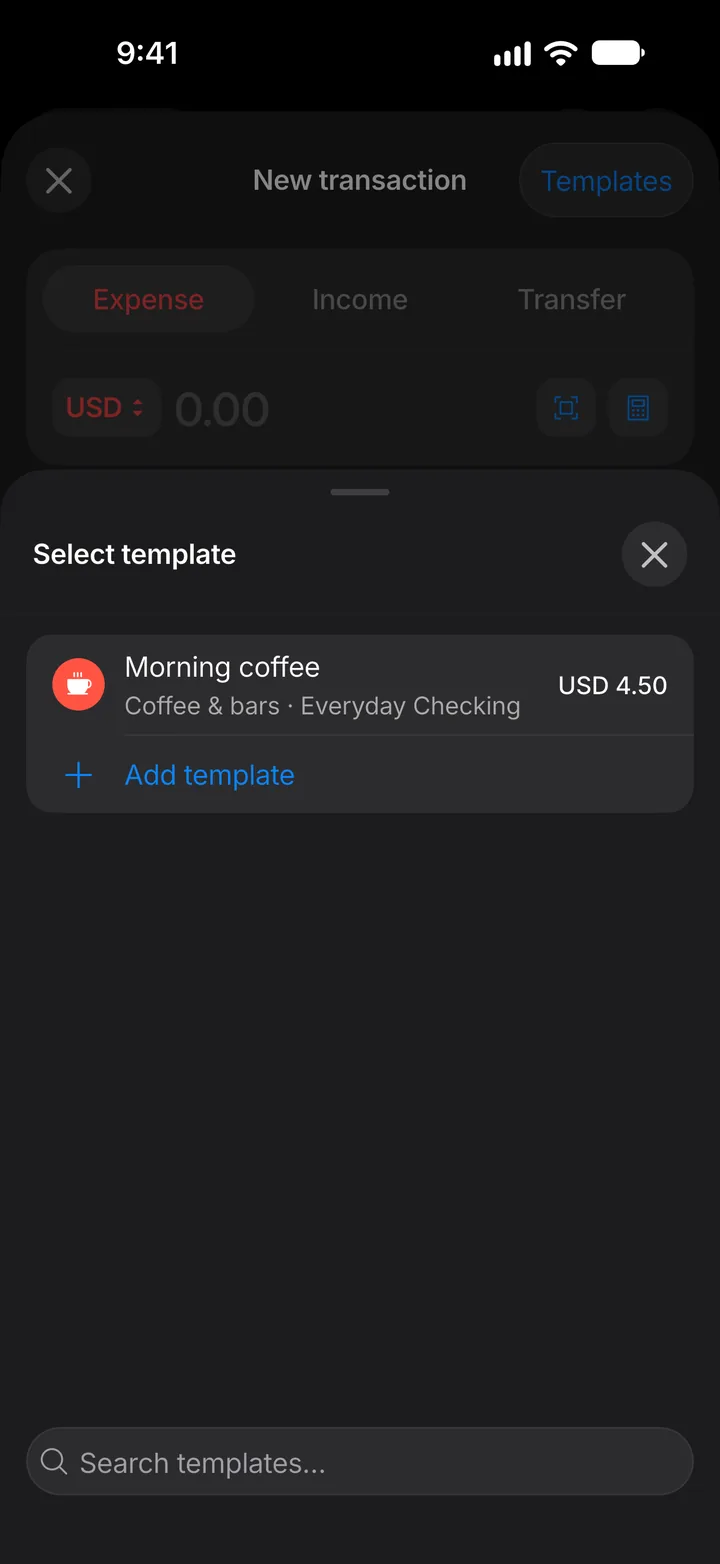
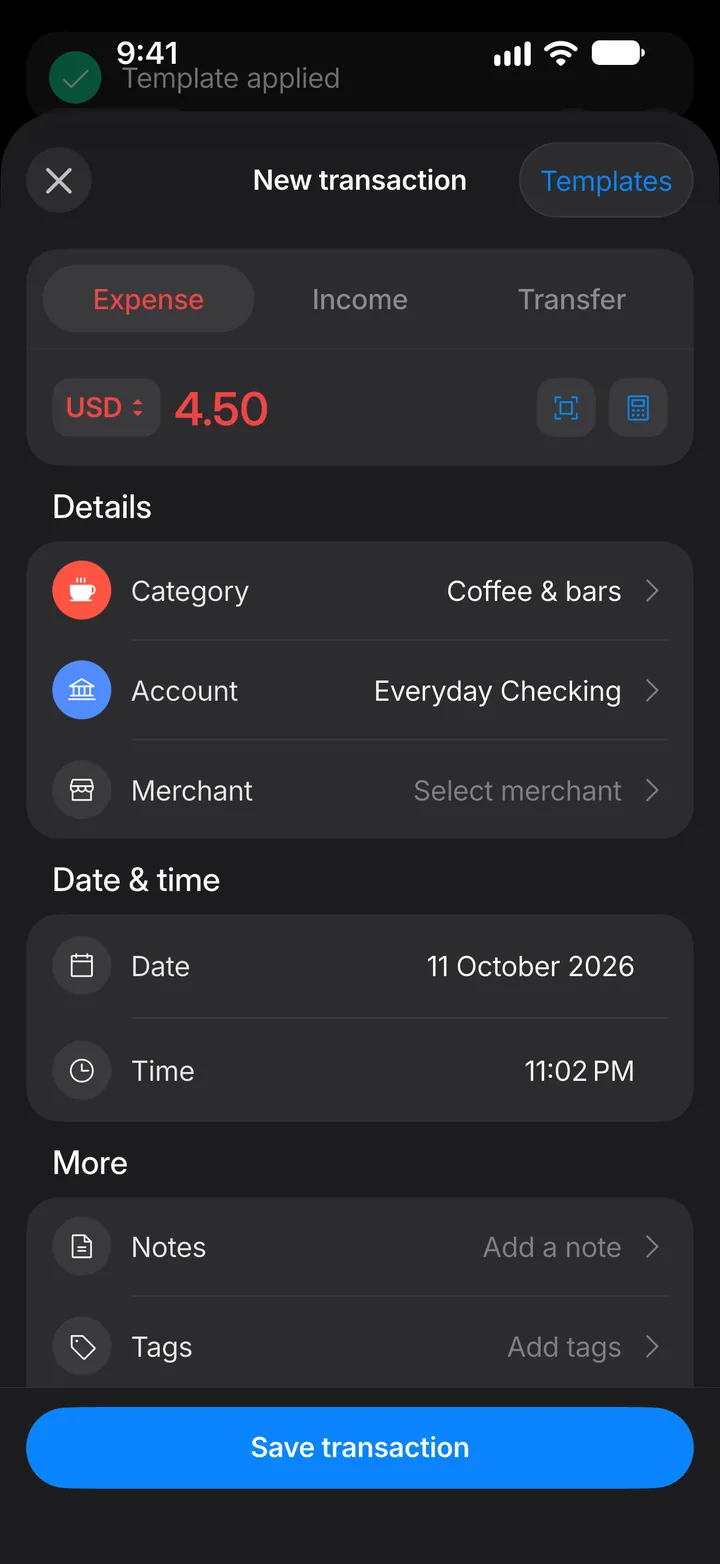
Use templates for repeat transactions
Save a transaction you enter often, like your morning coffee, and fill it in with one tap.
10 steps
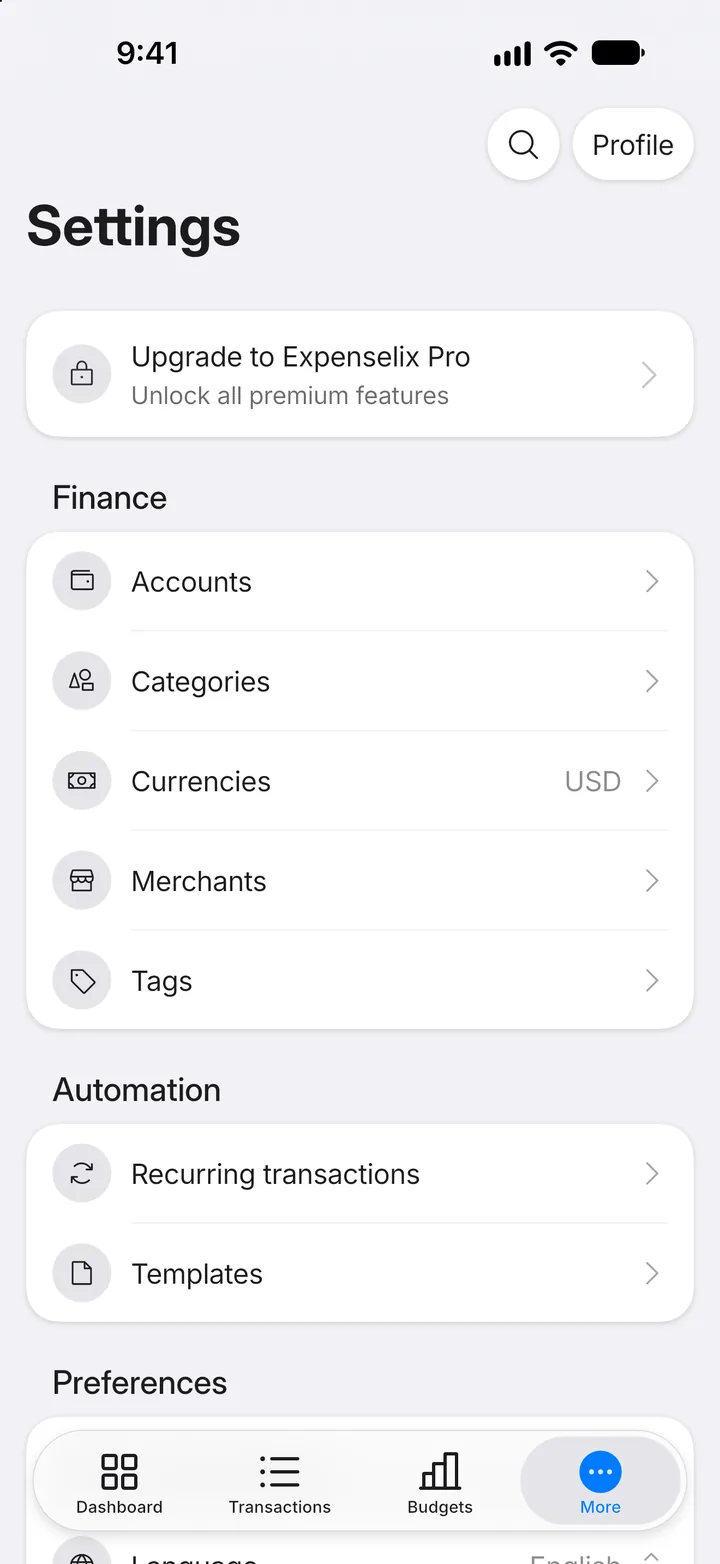
Step 1: Open More
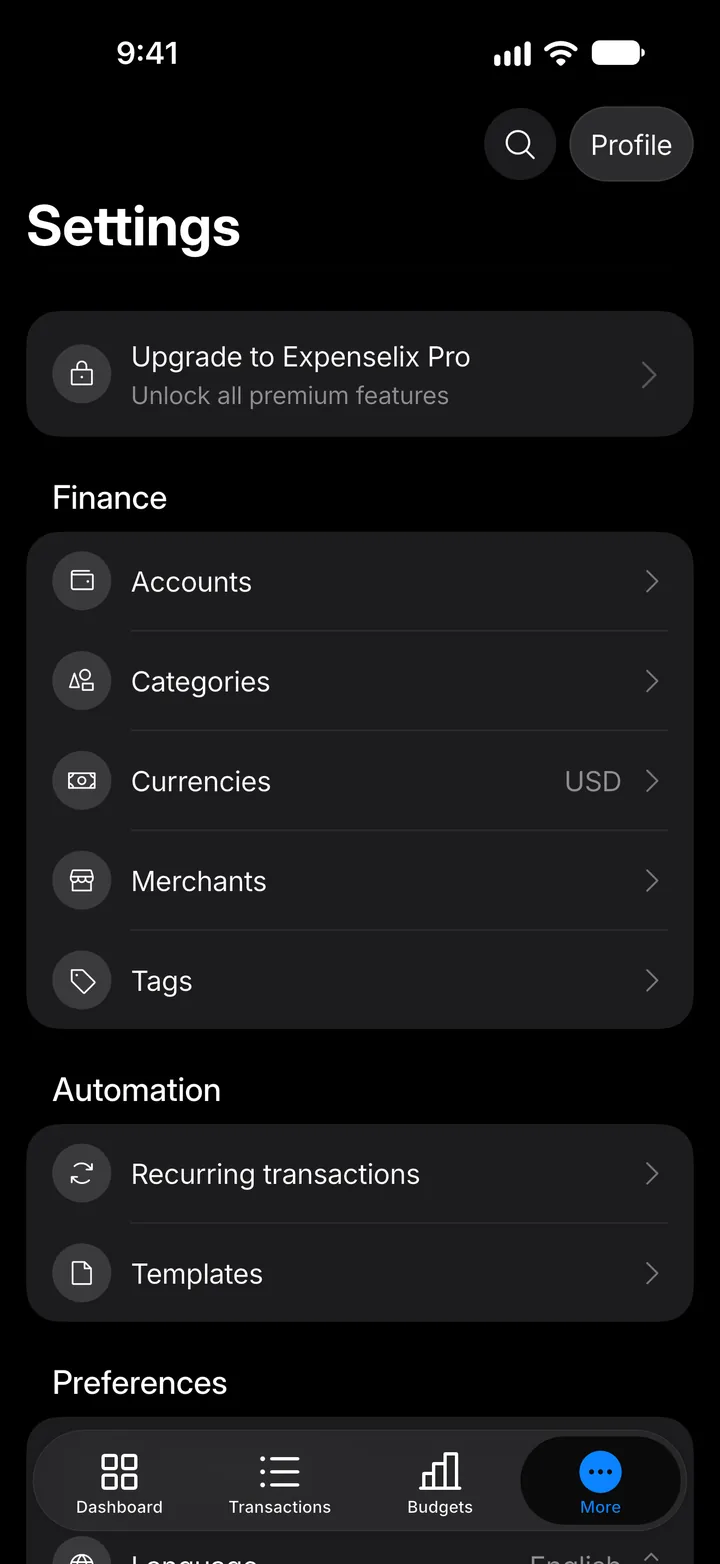
Tap the More tab.
Step 2: Open Templates
Under Automation, tap Templates.
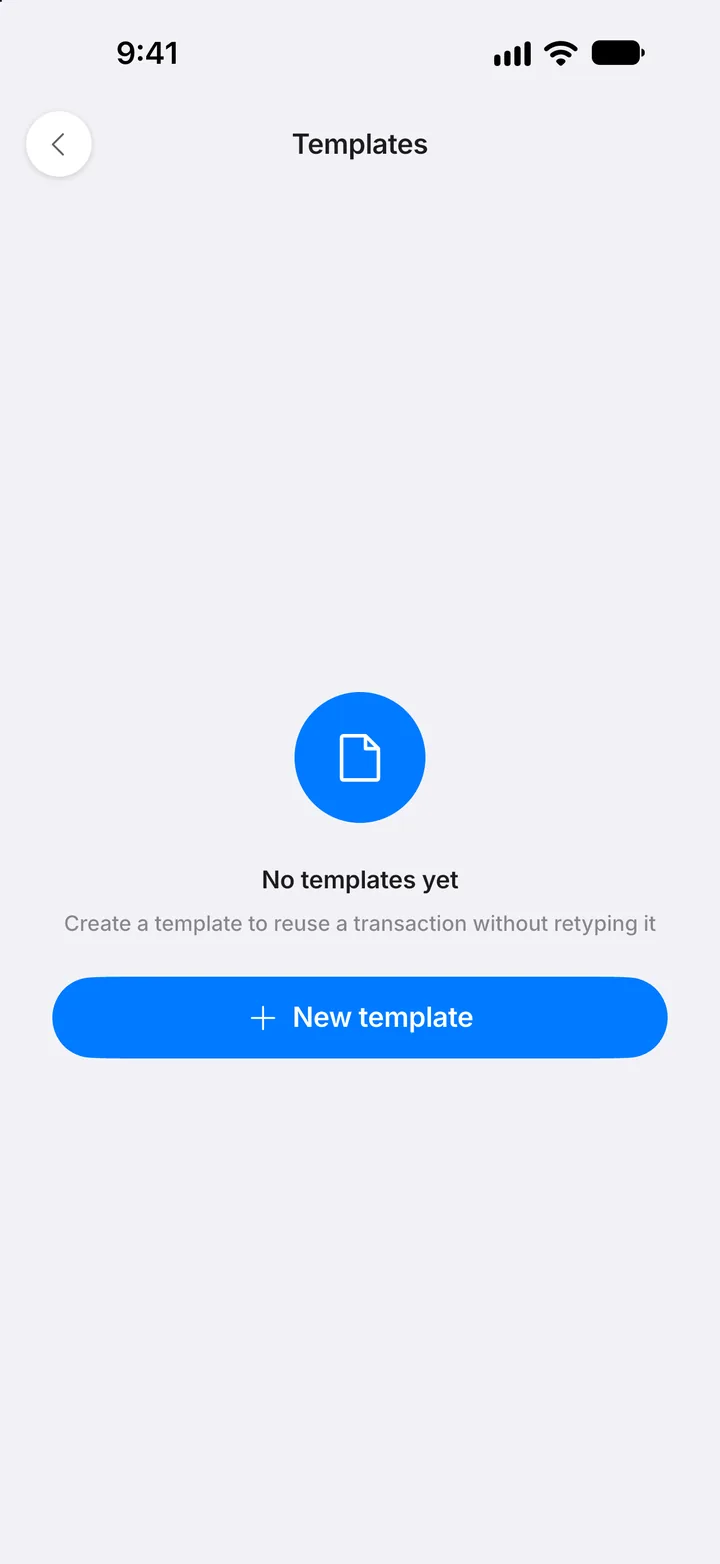
Step 3: Create a template
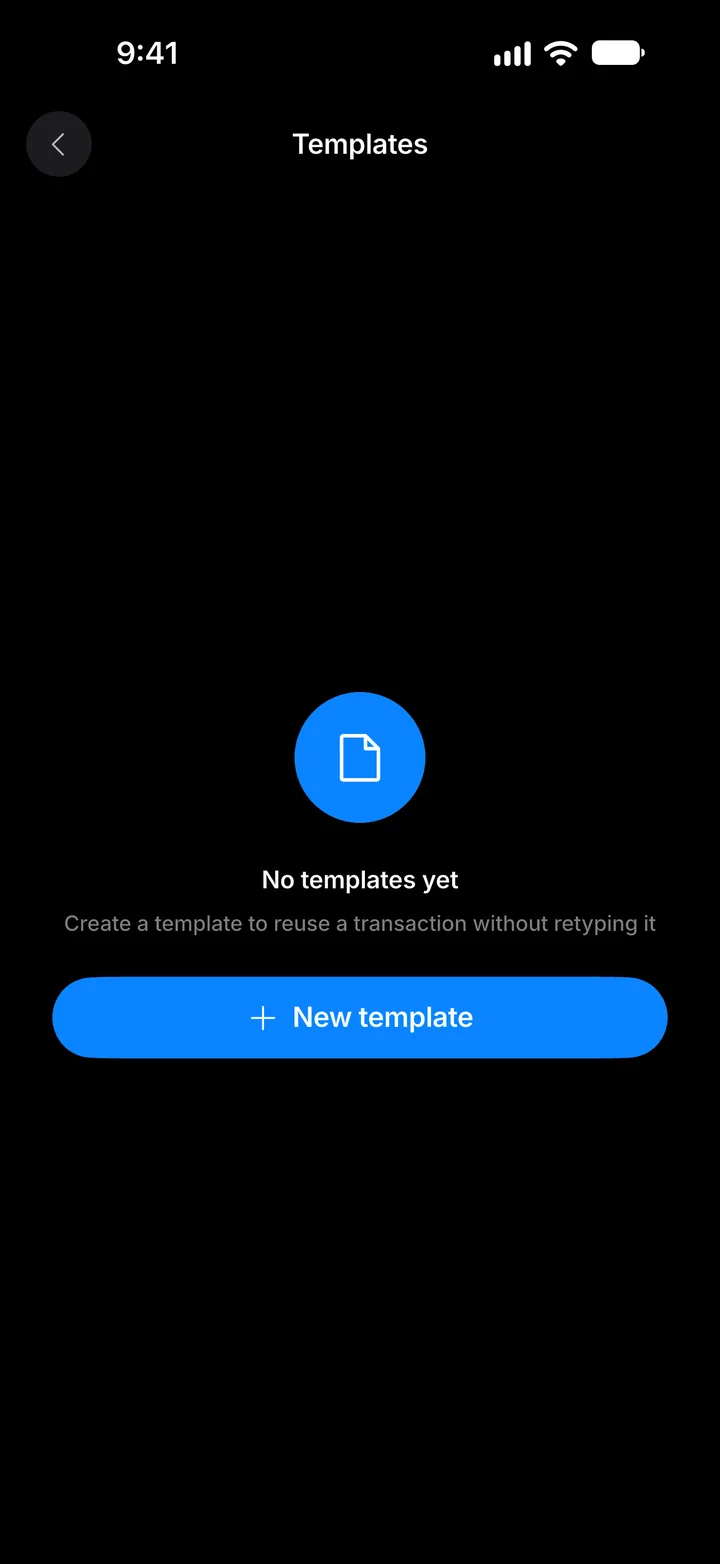
Tap New template.
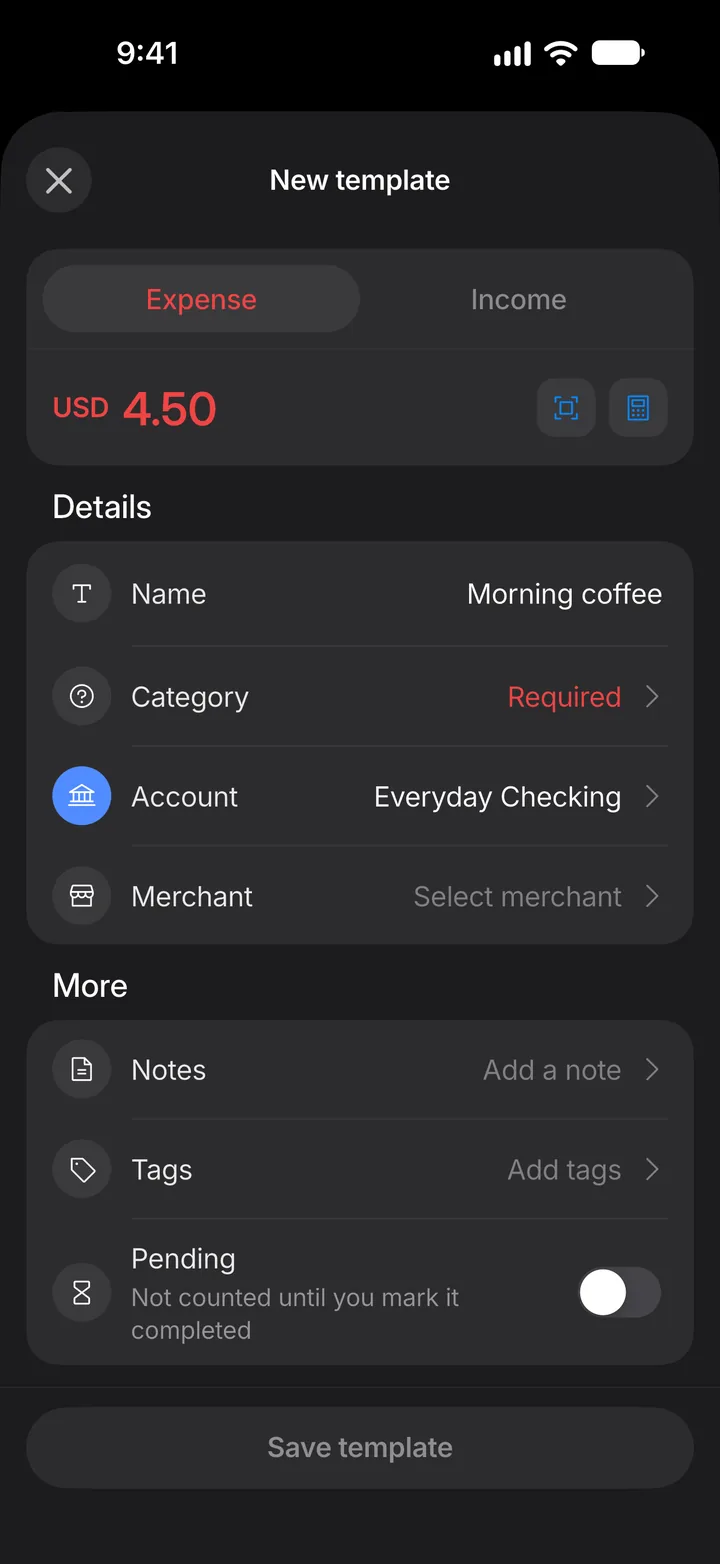
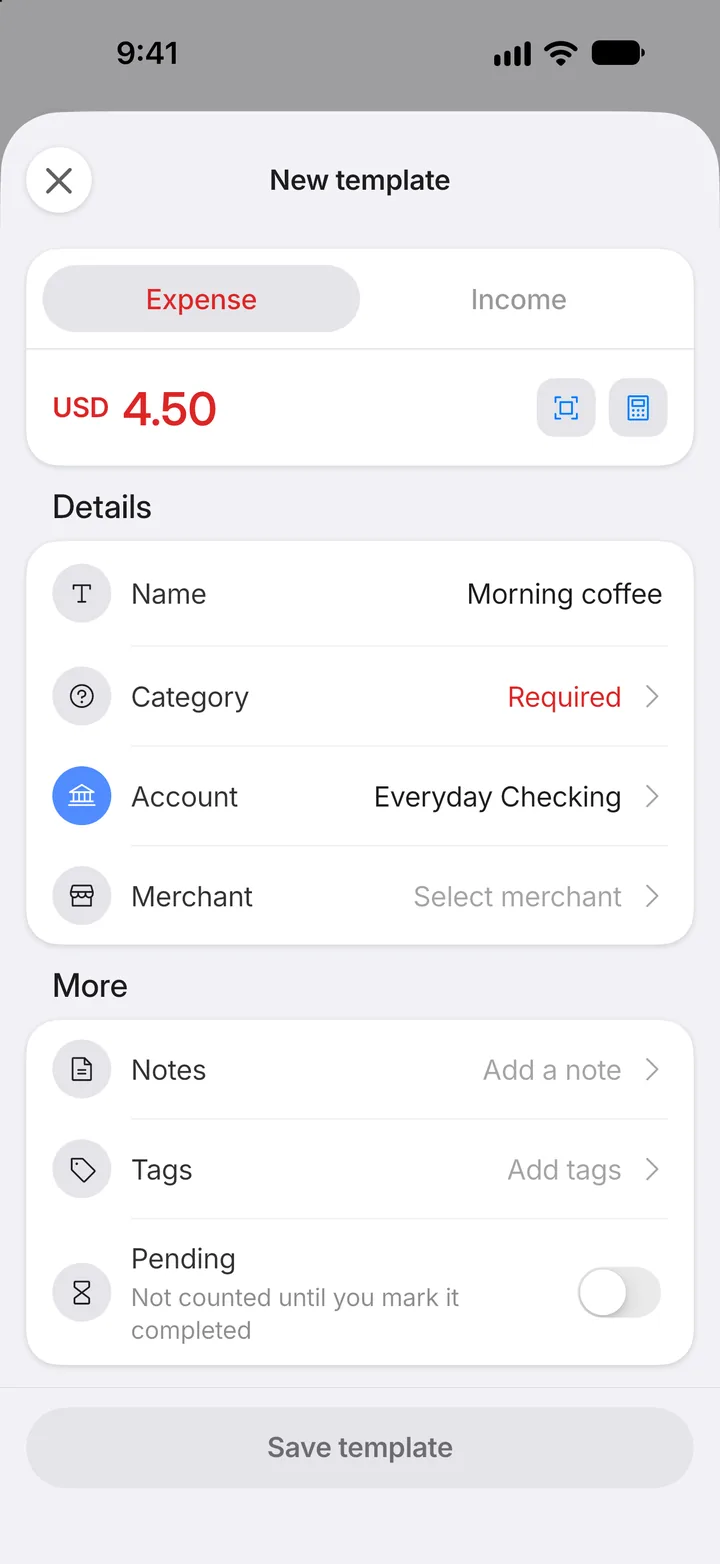
Step 4: Fill it in
Give it a name, then the amount and anything else you want filled in for you.
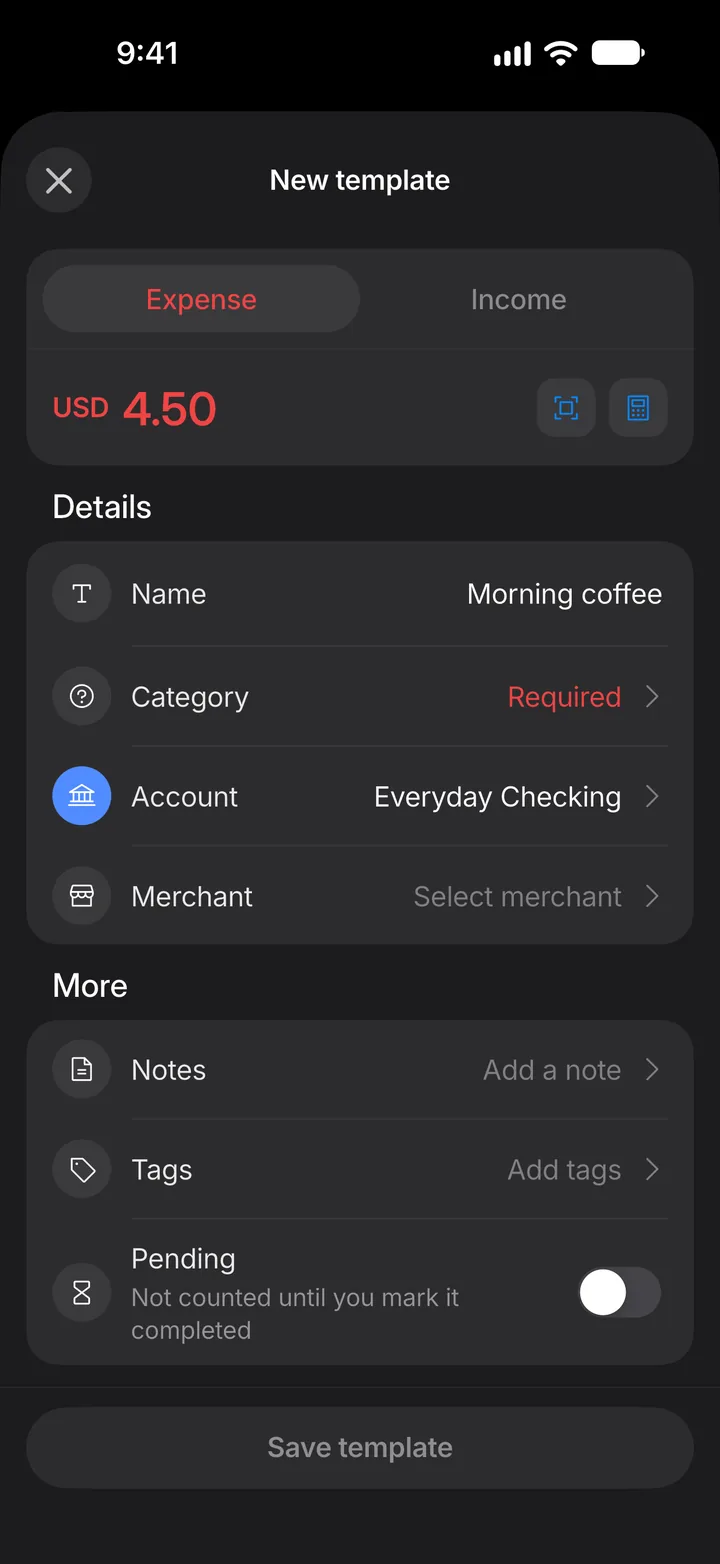
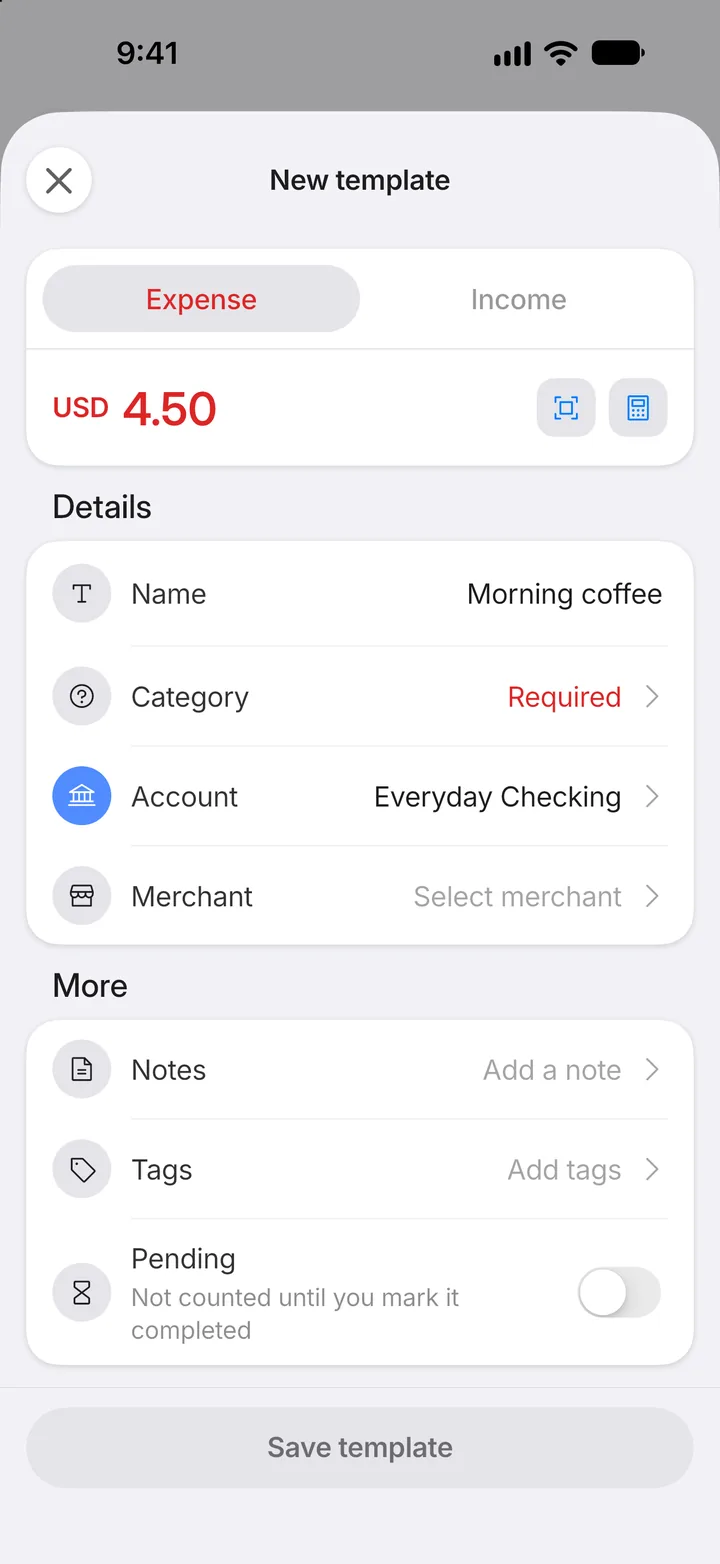
Step 5: Choose a category
Tap Category and pick one.
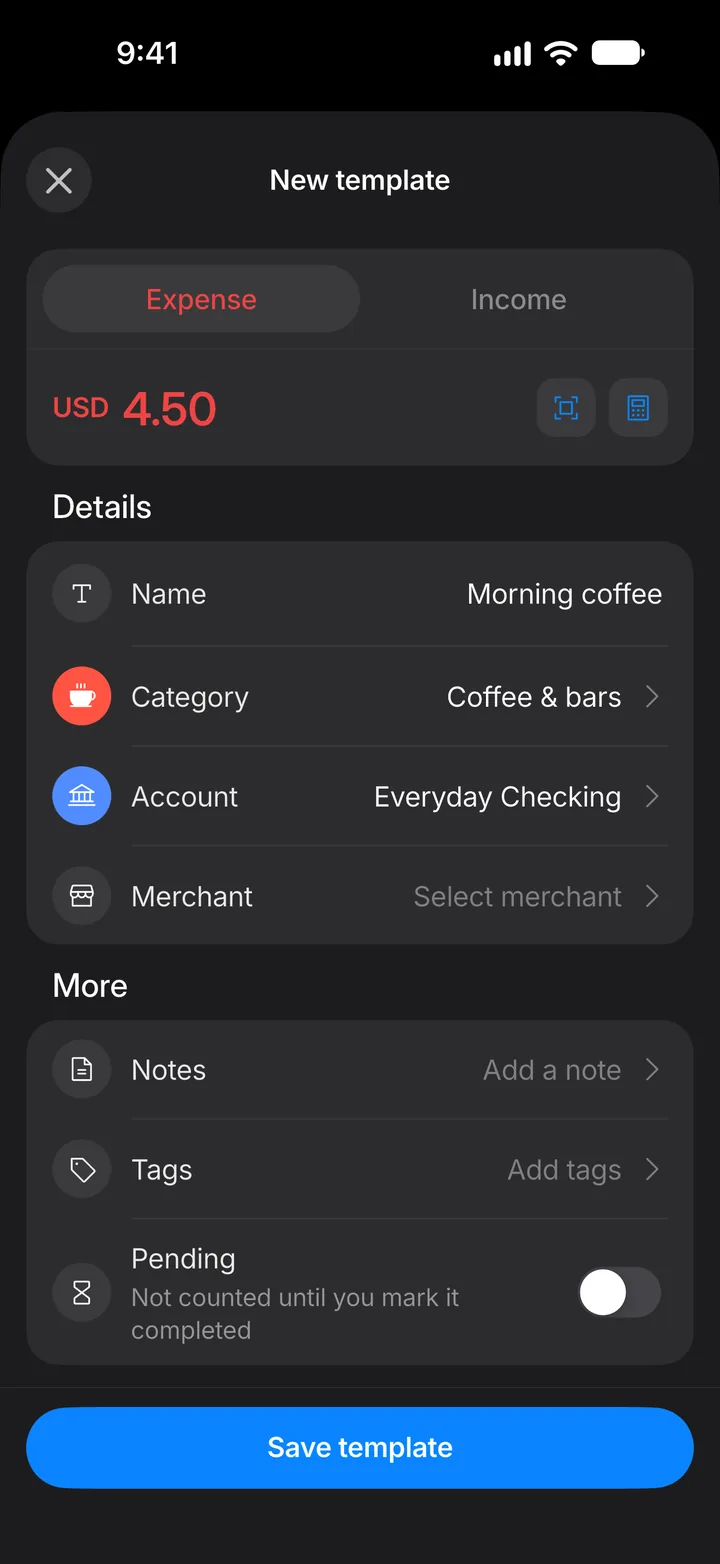
Step 6: Save the template
Tap Save template.
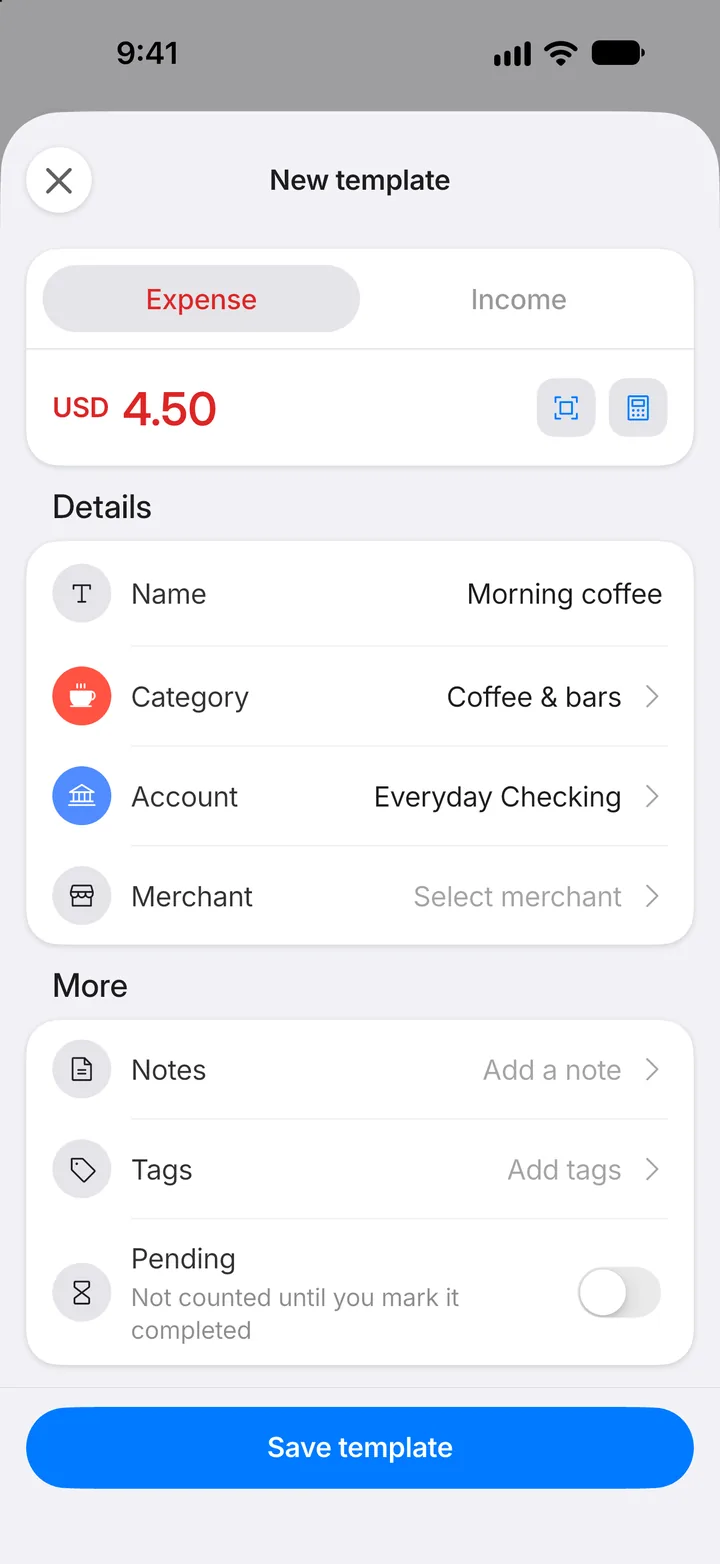
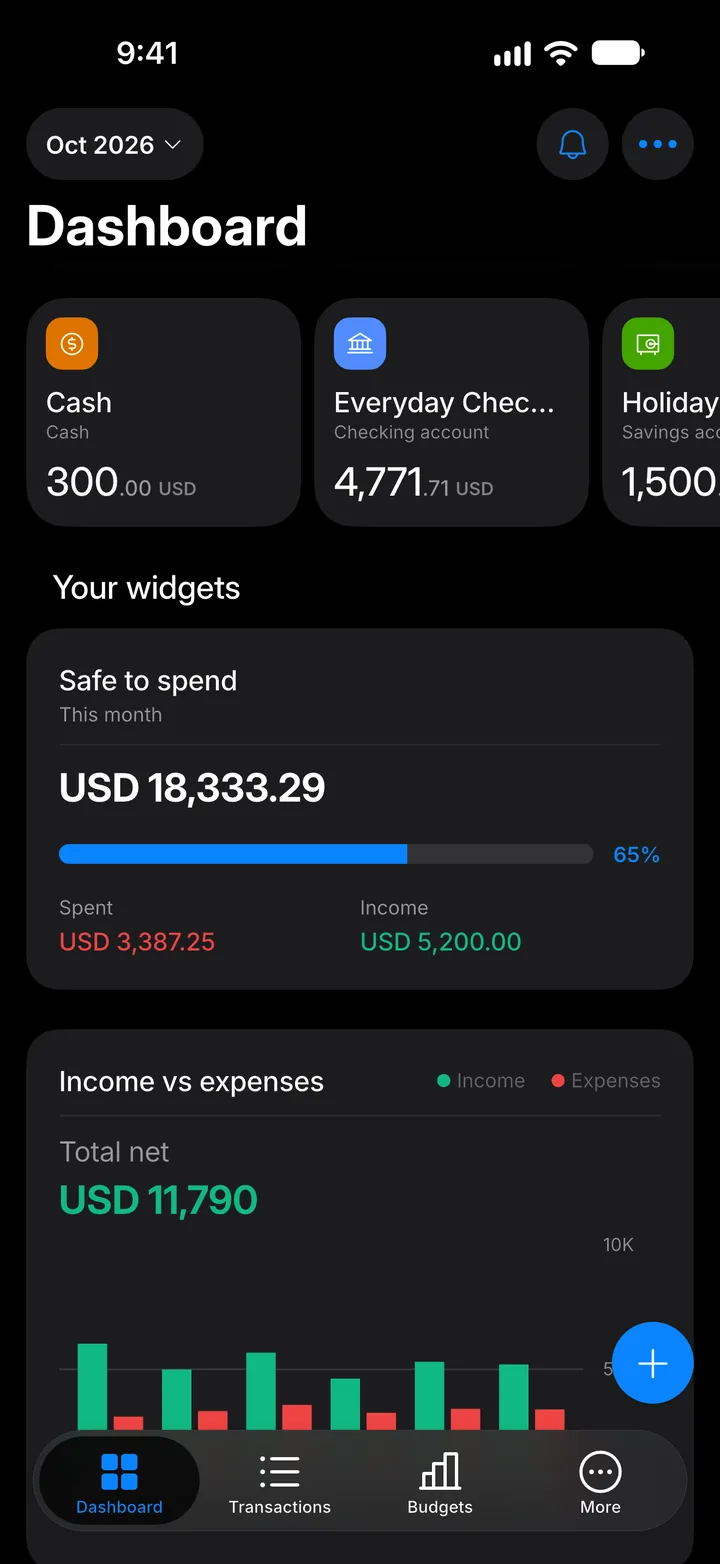
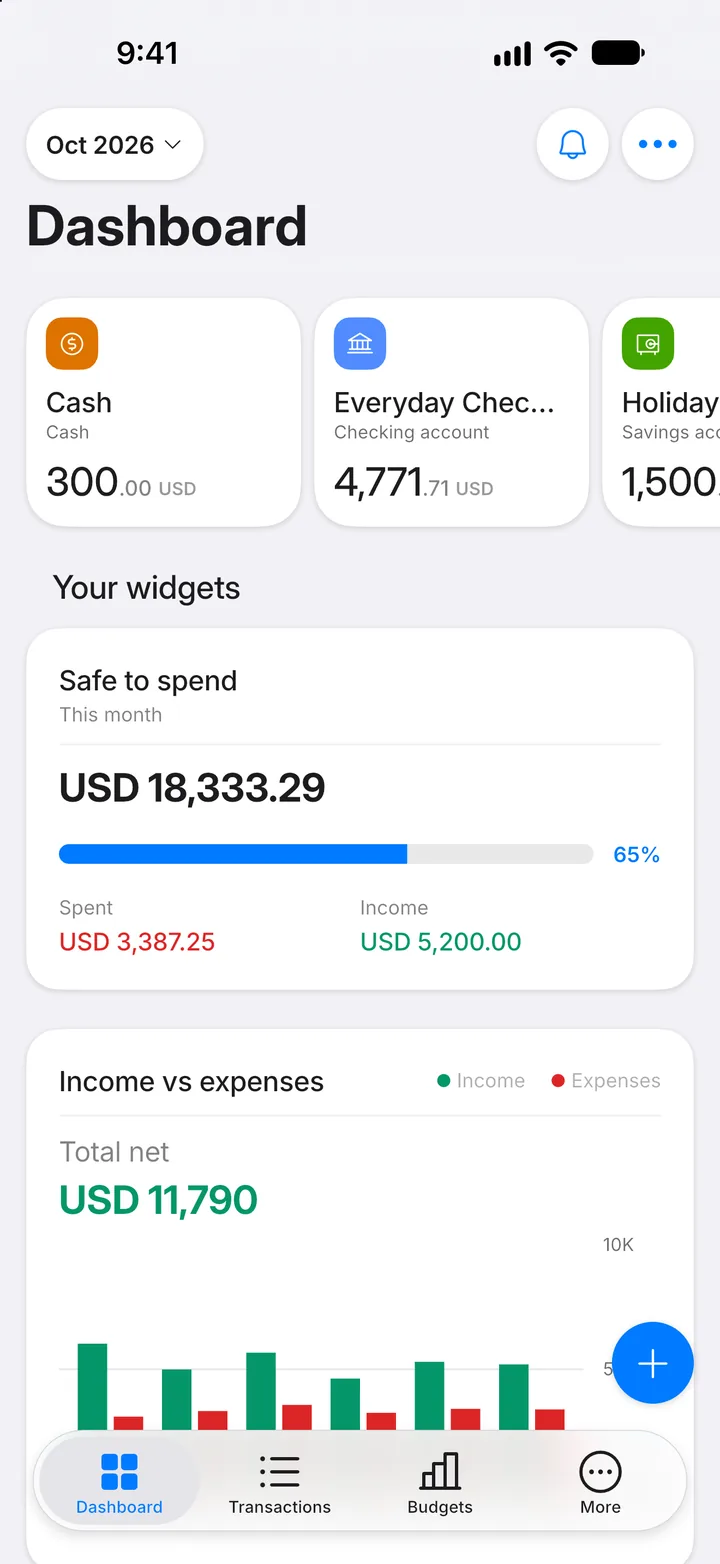
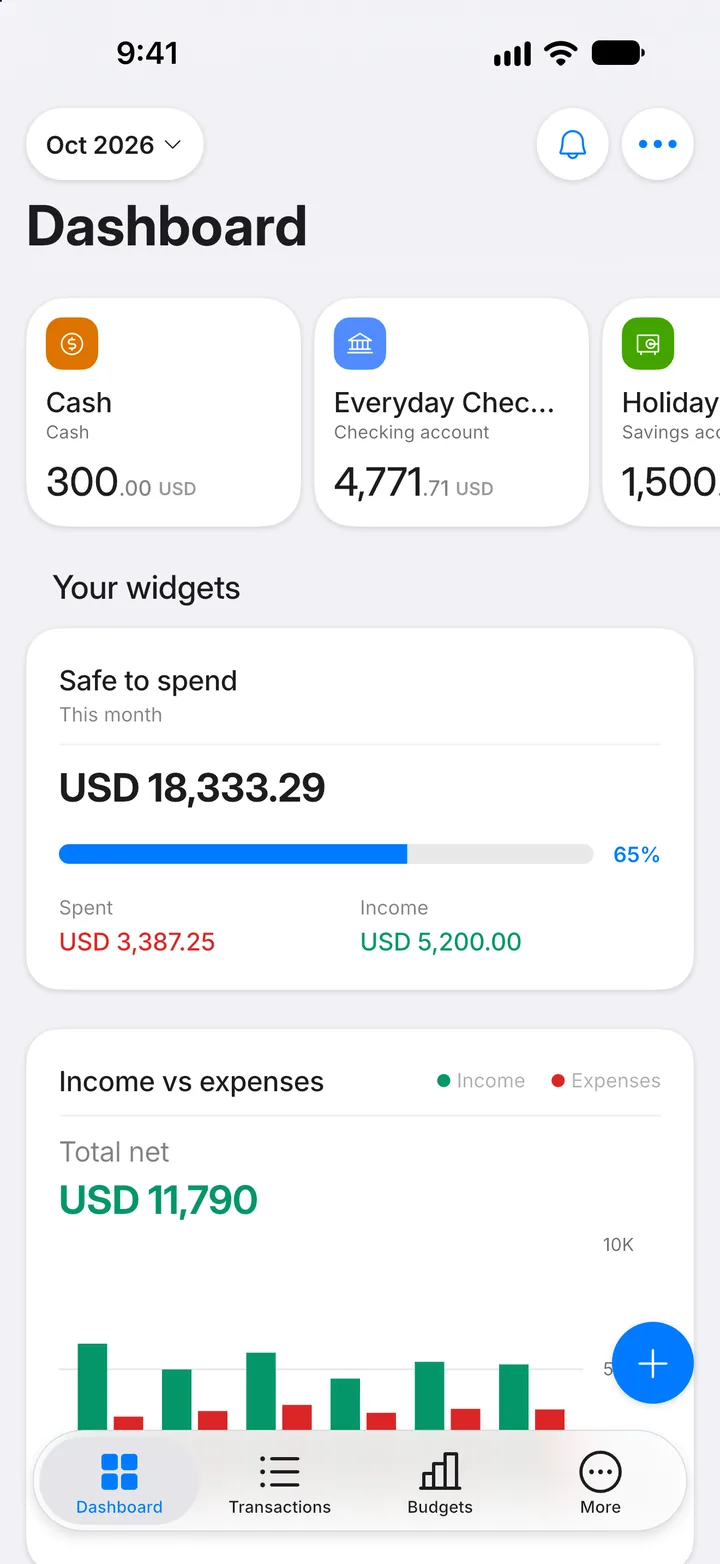
Step 7: Use it: tap +
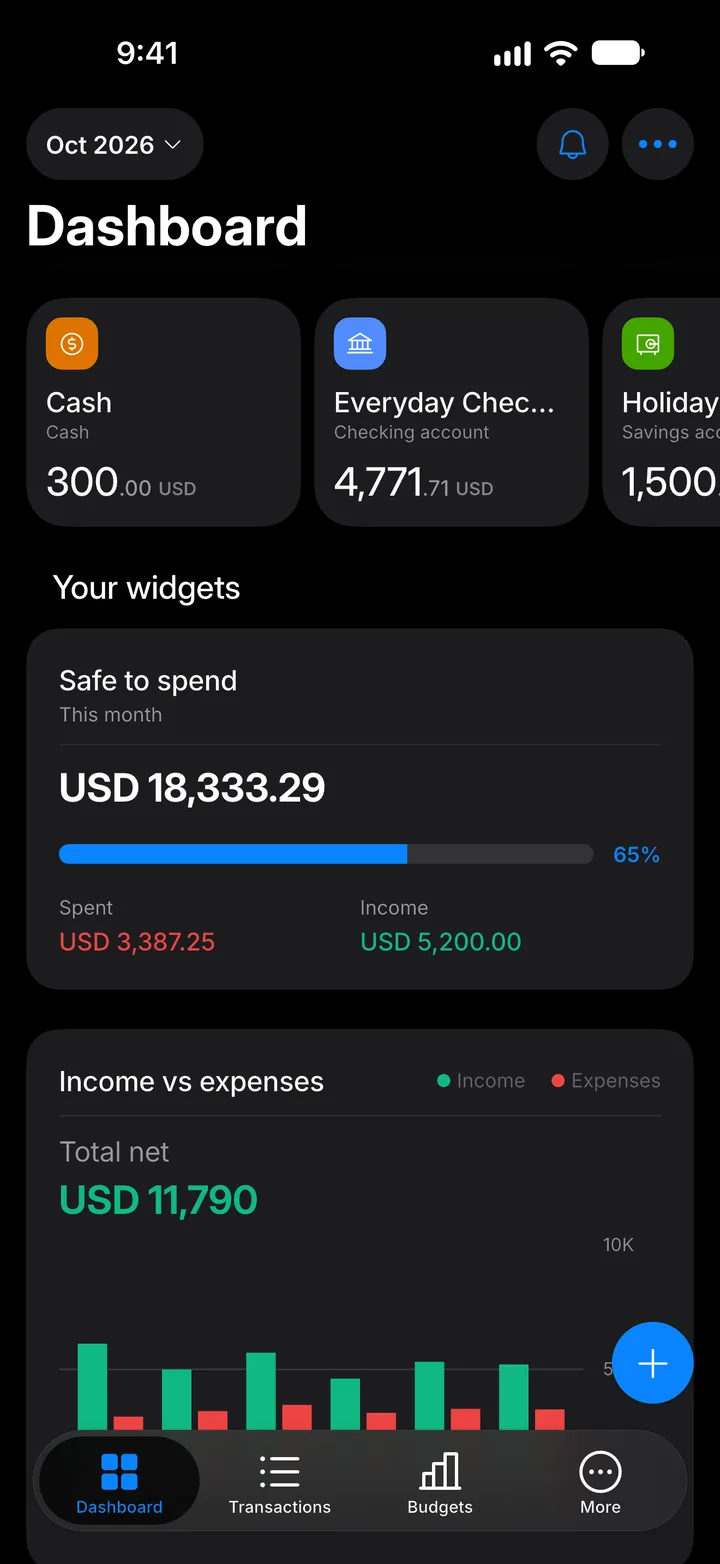
Next time, on the Dashboard, tap the + button.
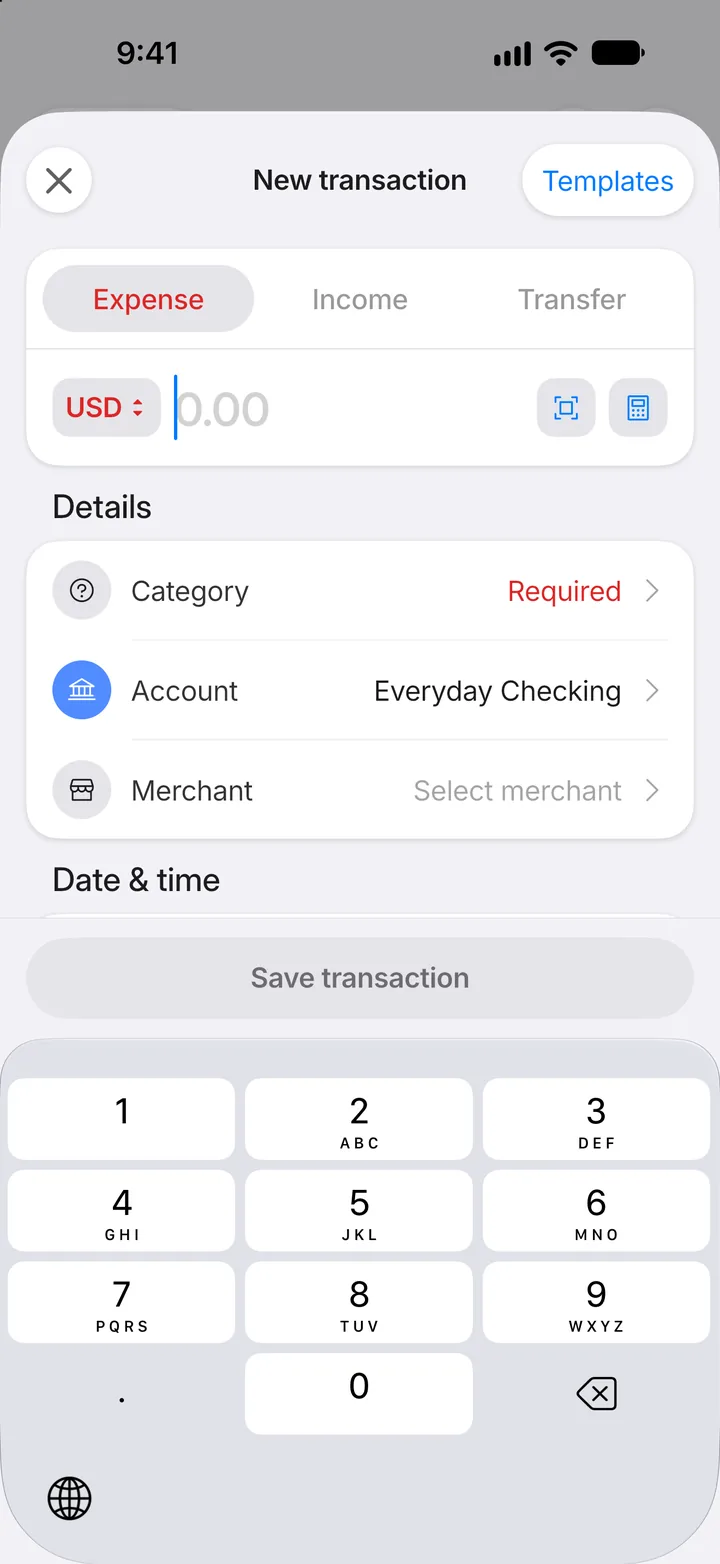
Step 8: Open your templates
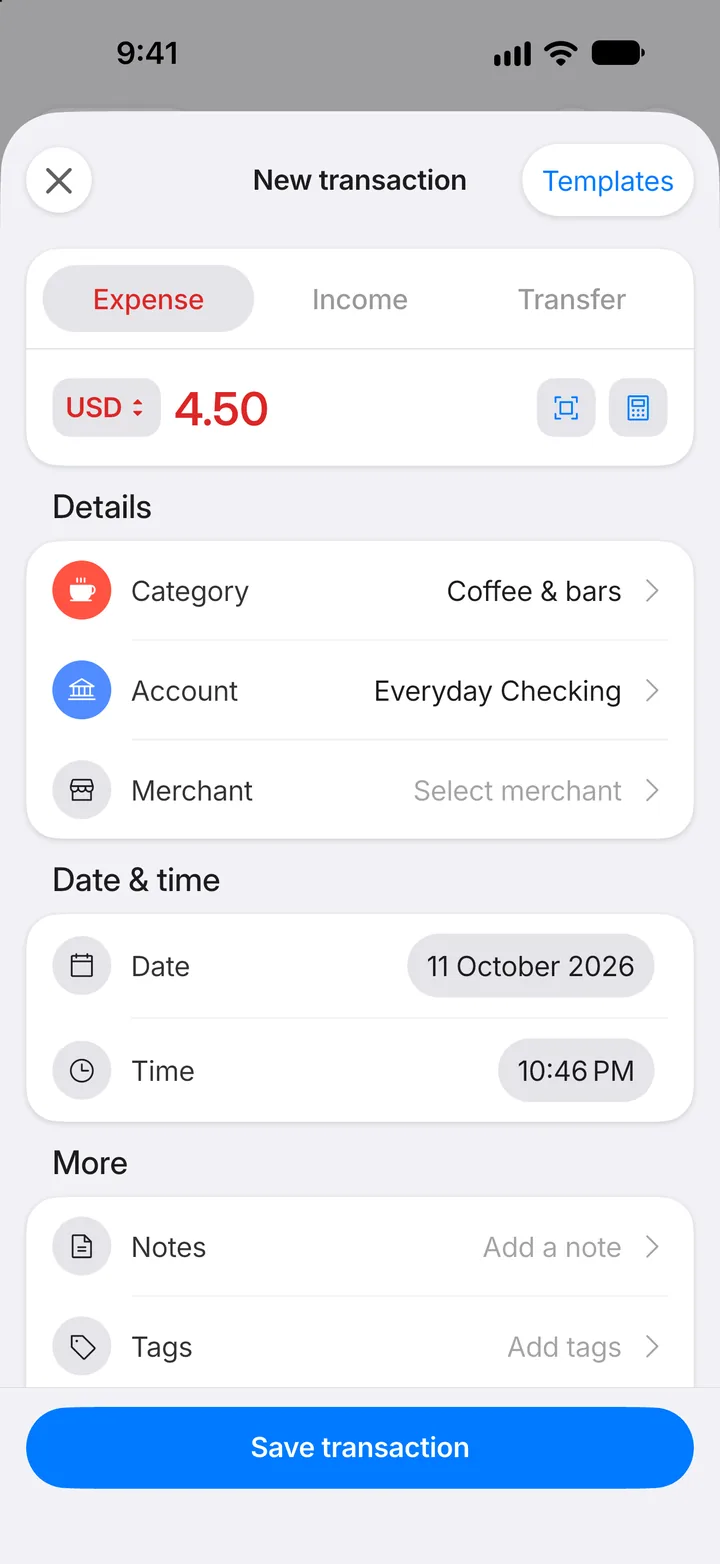
Tap Templates at the top of the form.
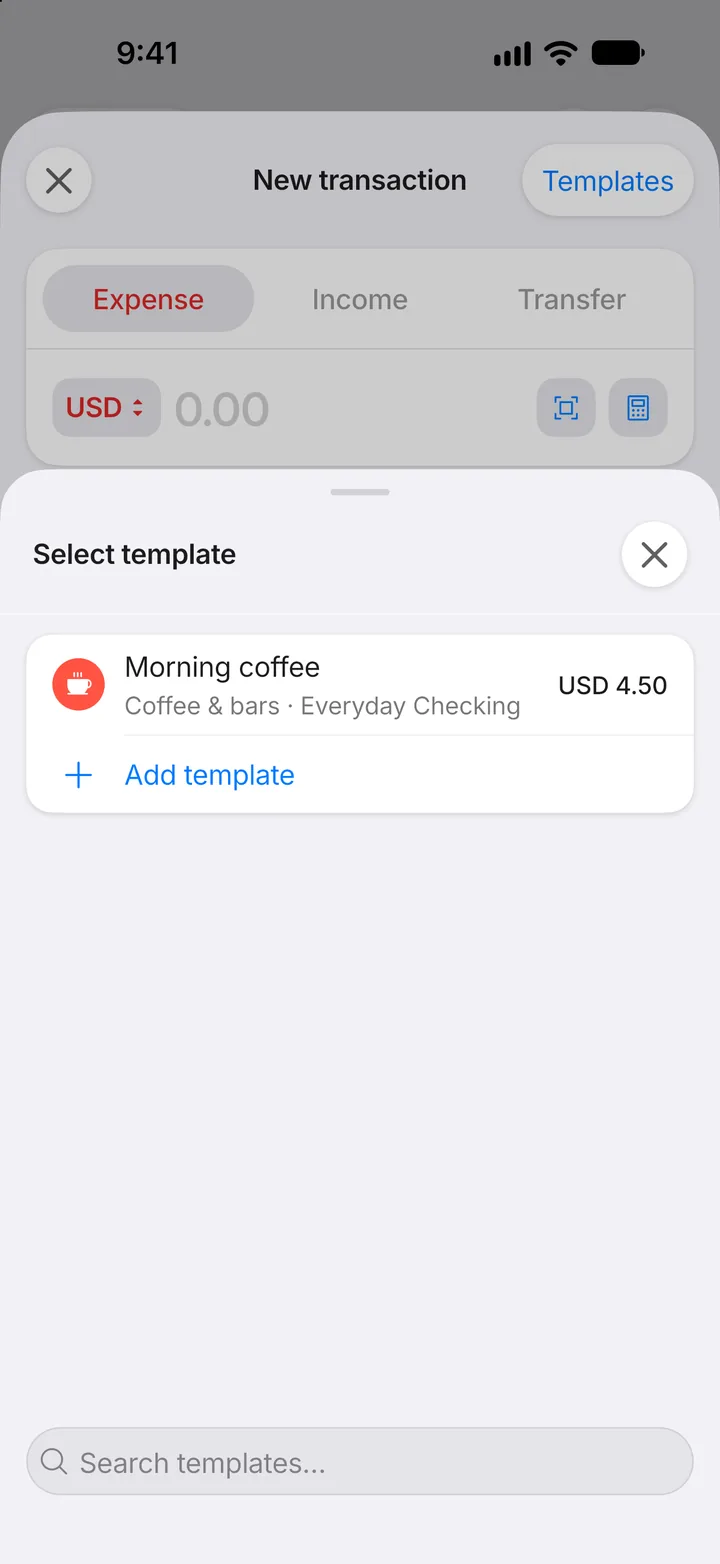
Step 9: Pick the template
Tap the one you want.
Step 10: Check and save
The form is filled in from the template. Change anything that's different this time, then save.