Set up a recurring transaction
Add rent, salary or a subscription once, and Expenselix records it on every due date.
9 steps
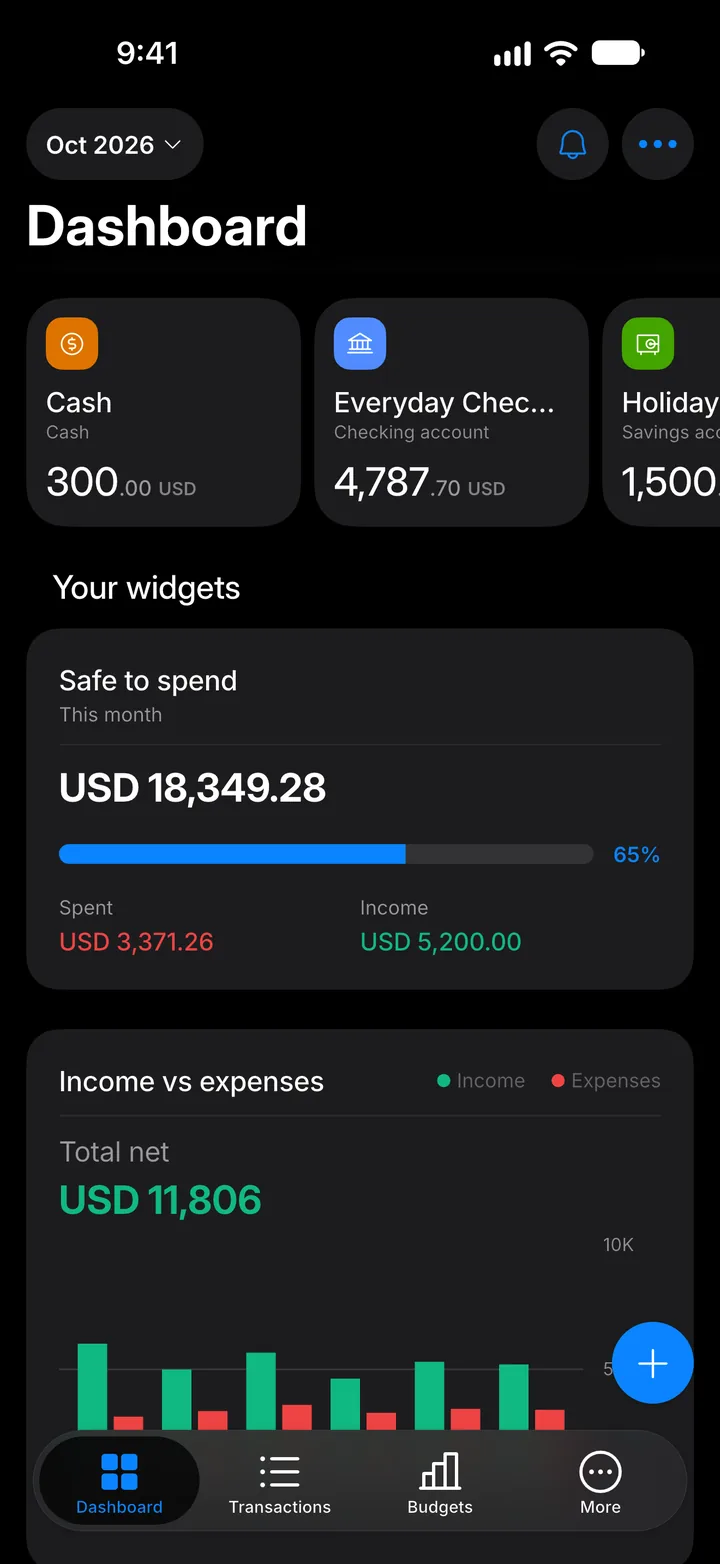
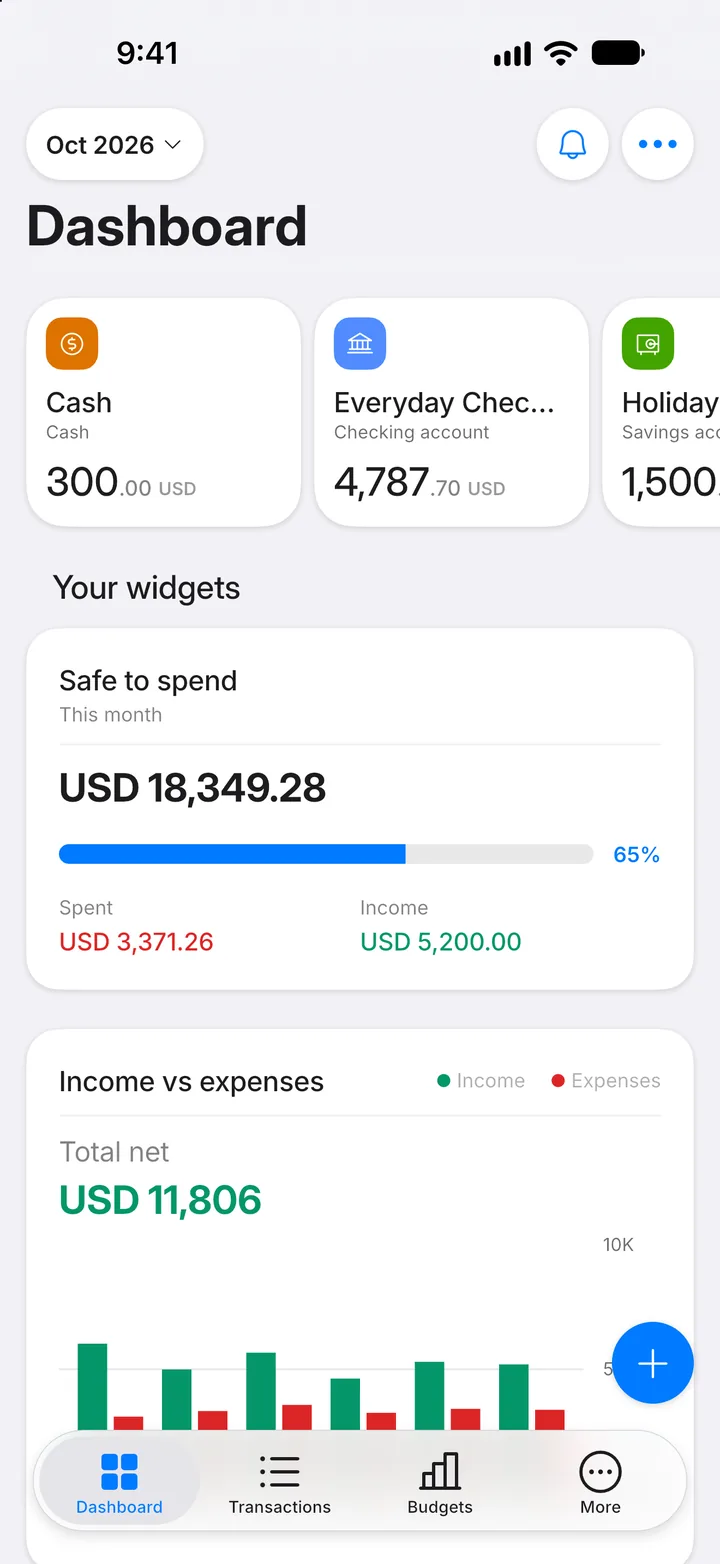
Step 1: Open More
Tap the More tab.
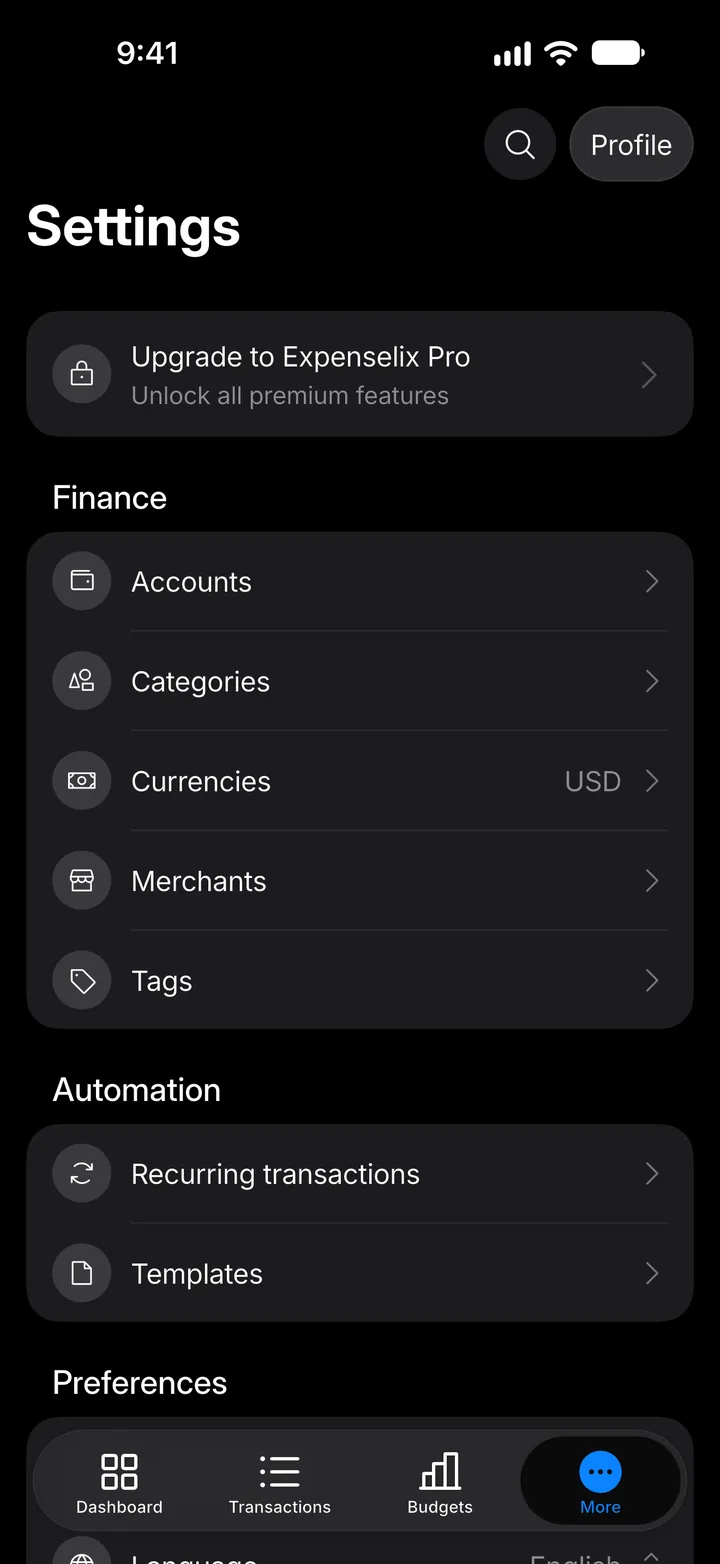
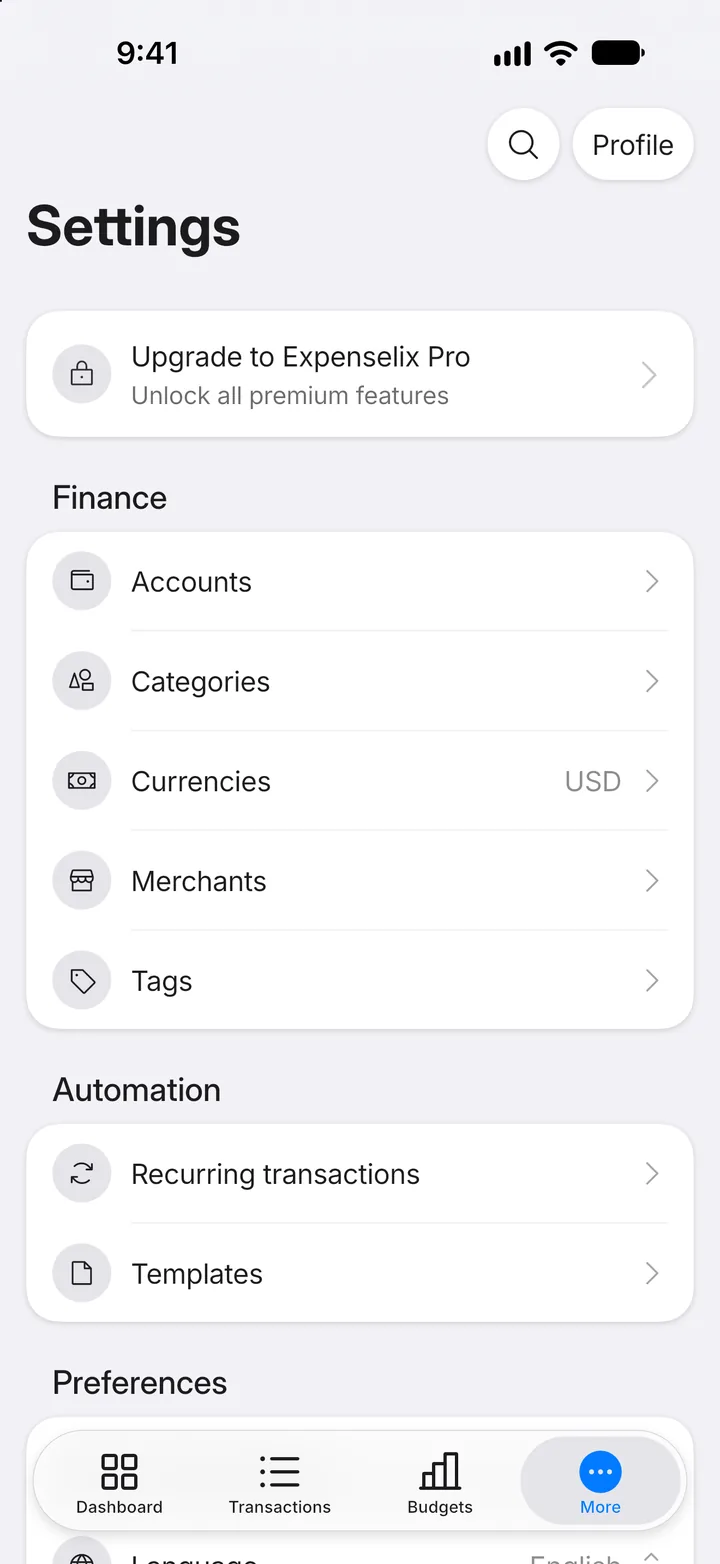
Step 2: Open Recurring transactions
Under Automation, tap Recurring transactions.
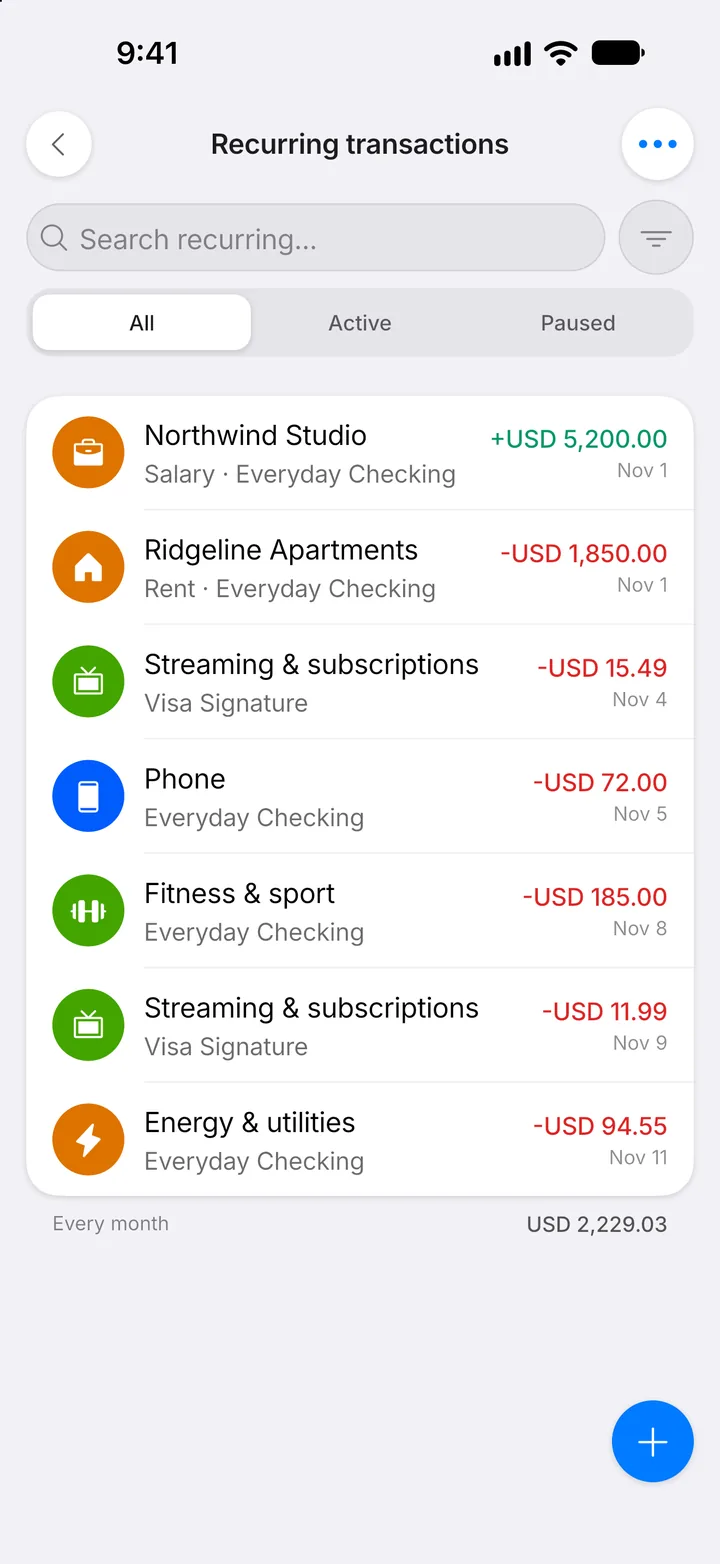
Step 3: Tap +
Tap the + button to add a new one.
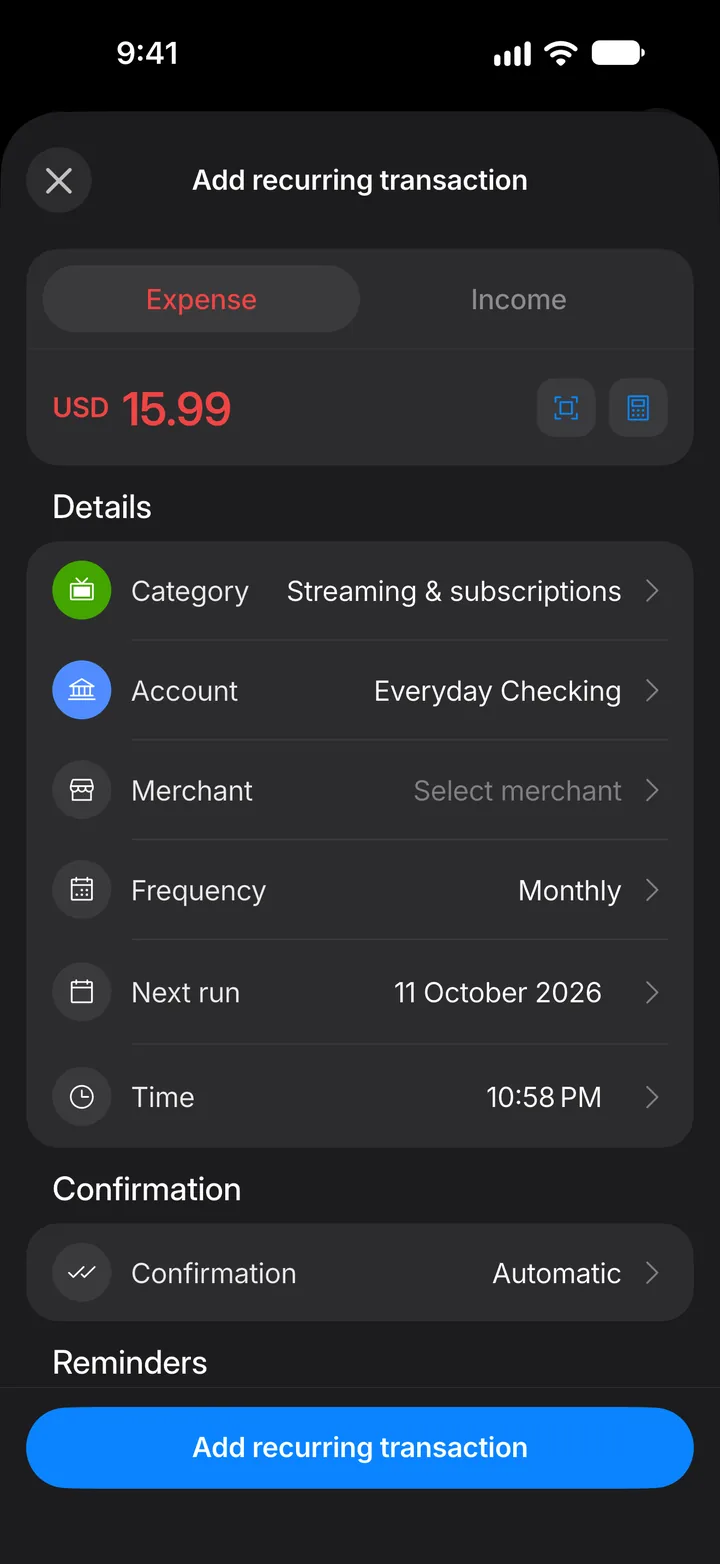
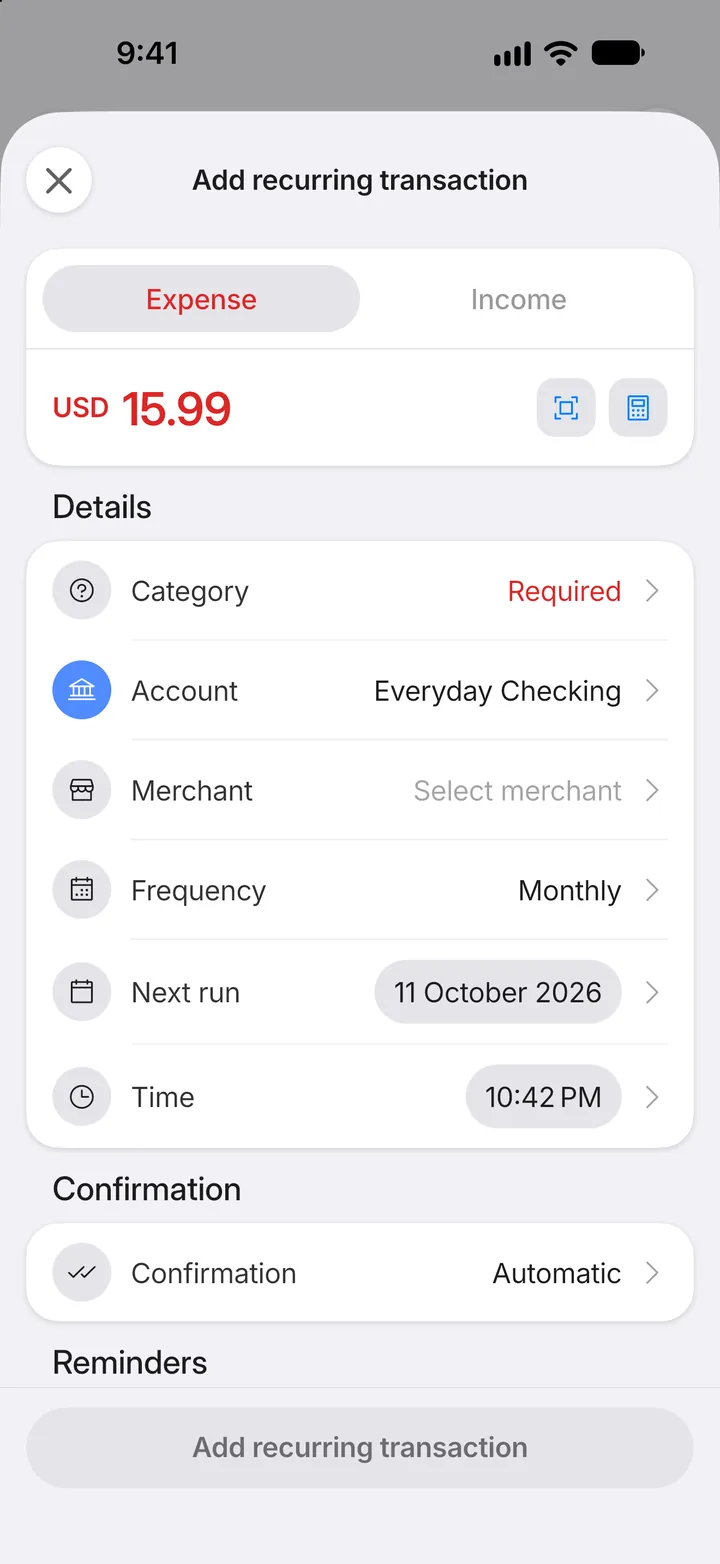
Step 4: Enter the amount
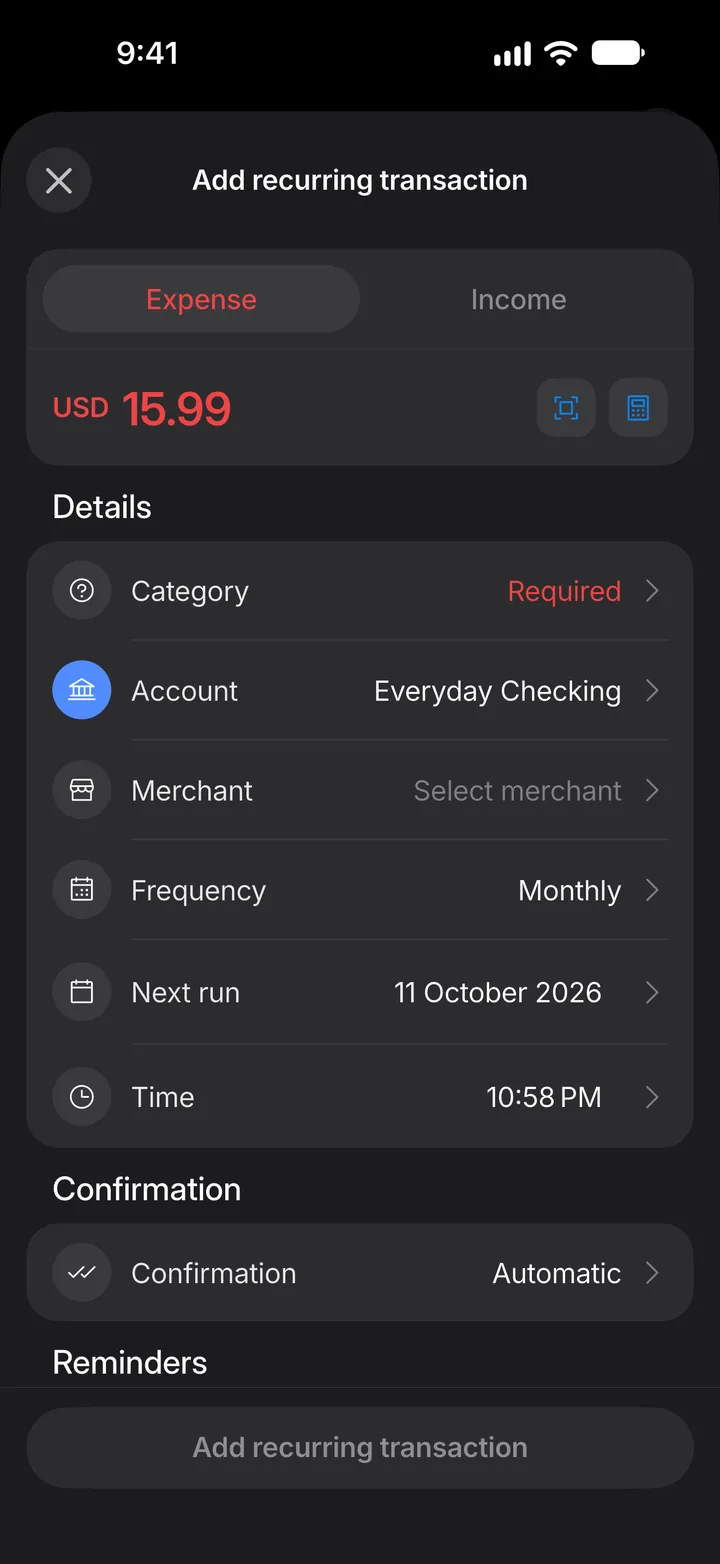
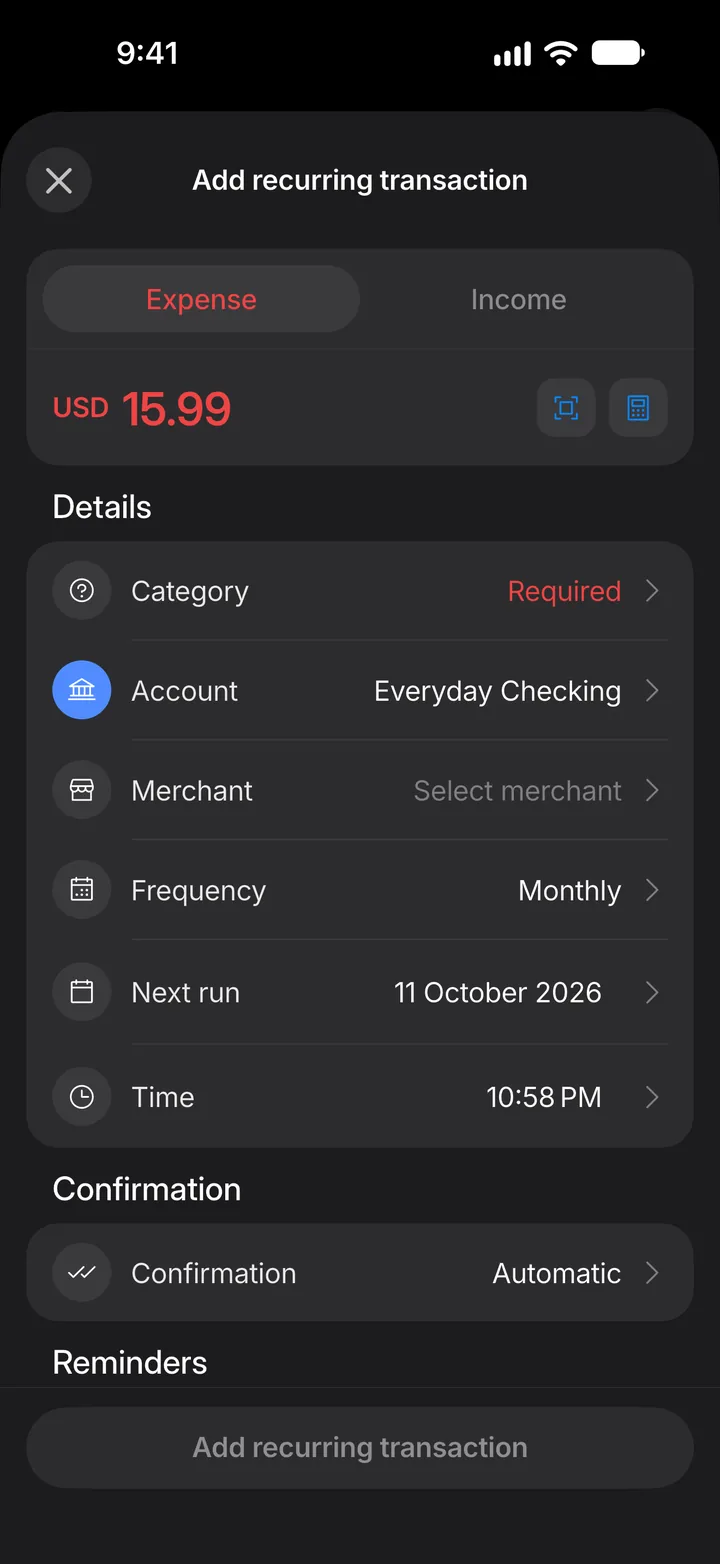
Choose Expense or Income, then type the amount.
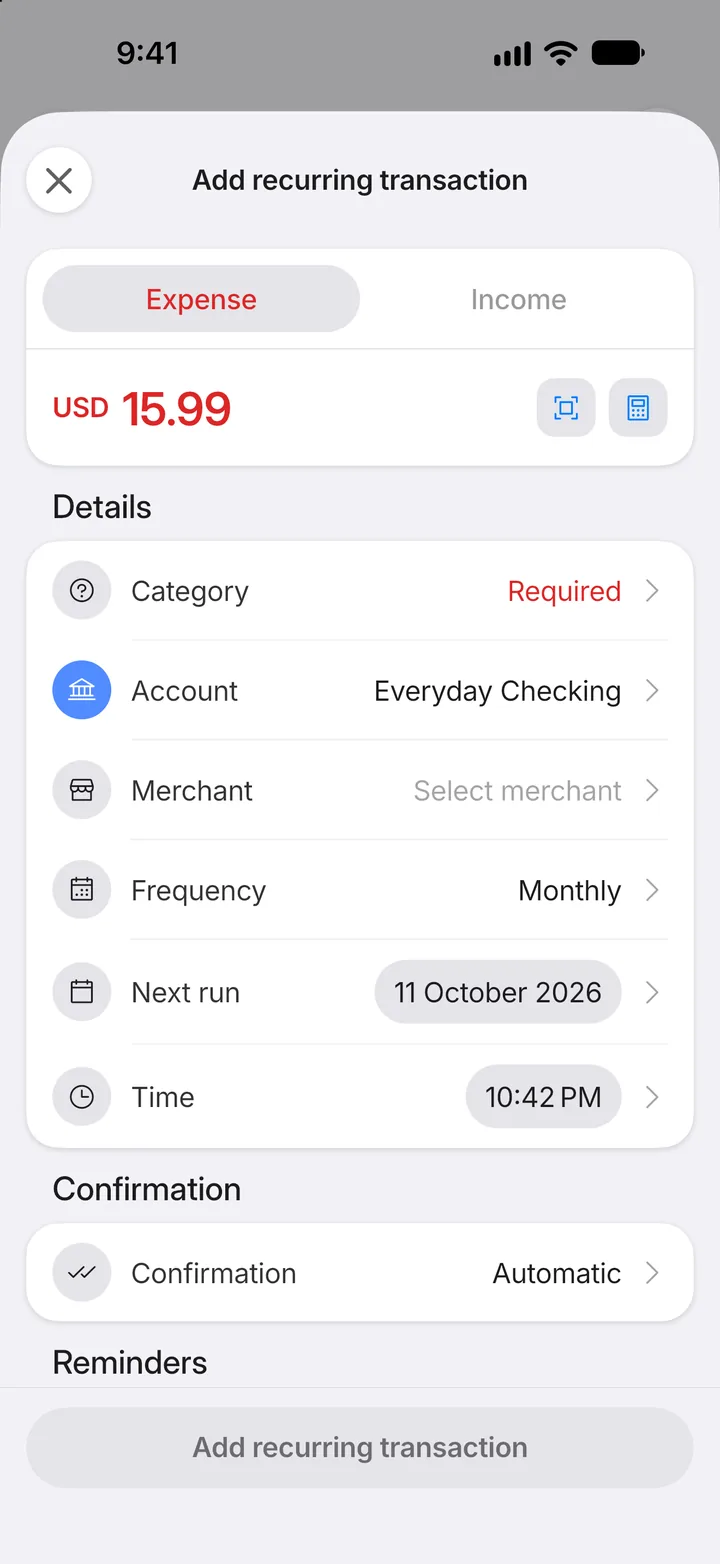
Step 5: Choose a category
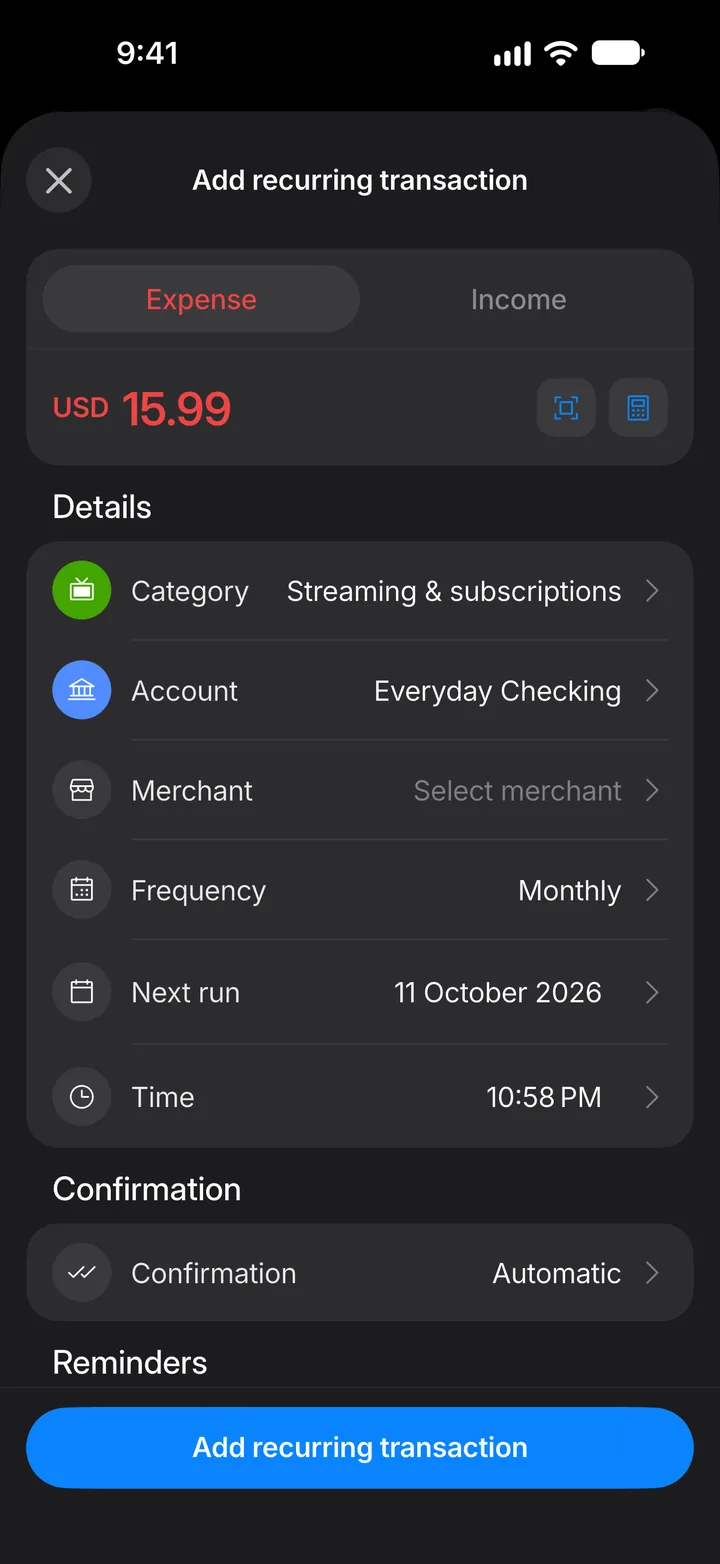
Tap Category and pick one, the same way as when you add a transaction.
Step 6: Set the schedule
Frequency is how often it repeats. Next run is the date of the next one.
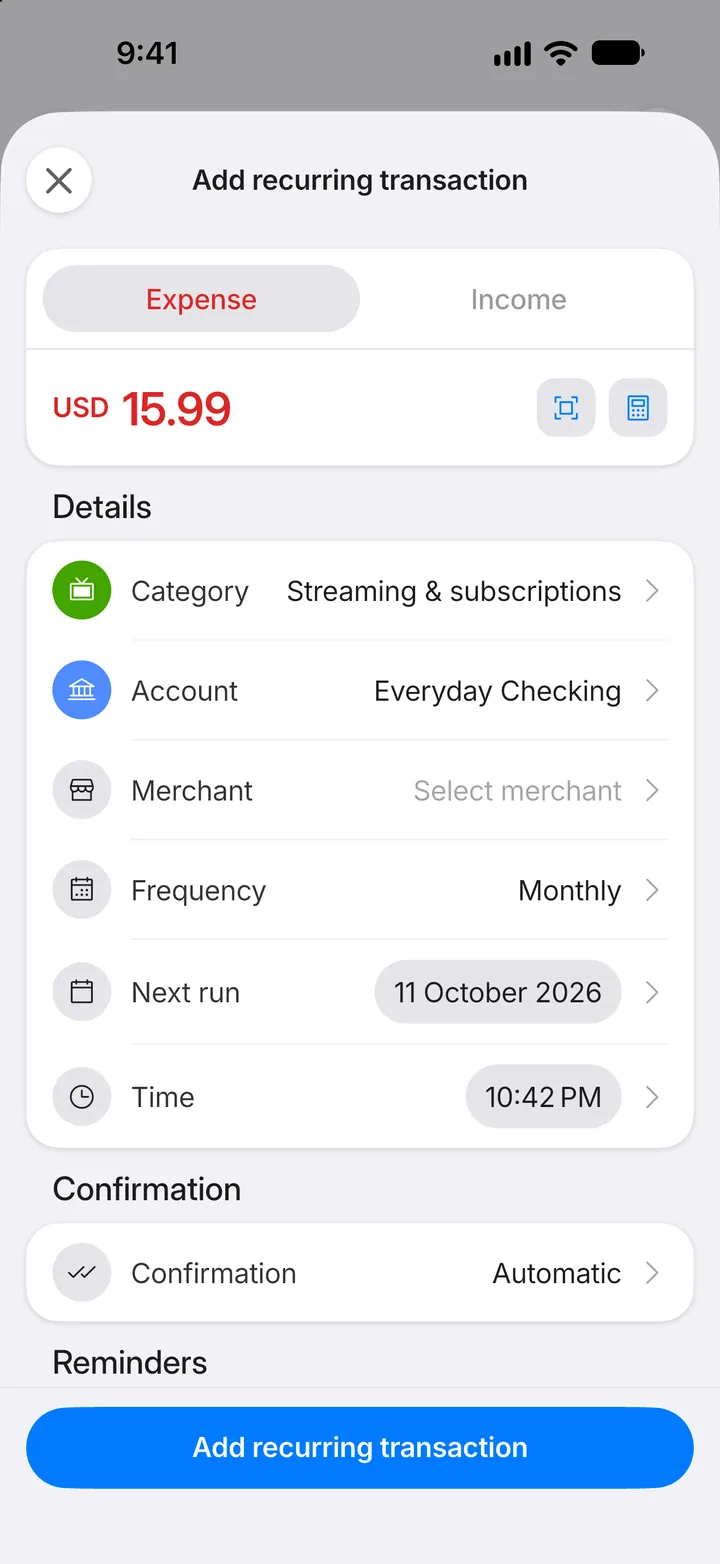
Step 7: Choose how it's added
Automatic records the transaction on each date for you. Choose Manual to confirm each one yourself first.
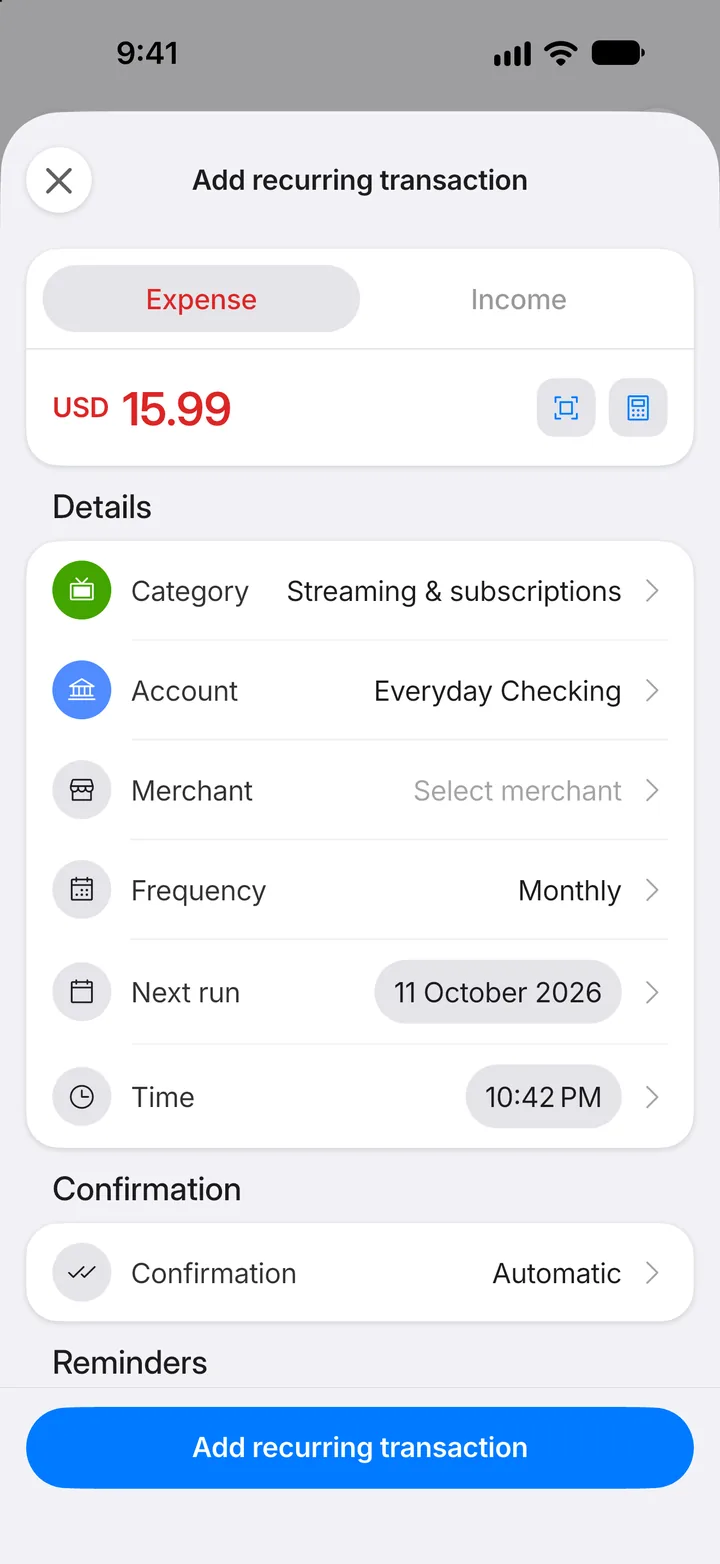
Step 8: Save
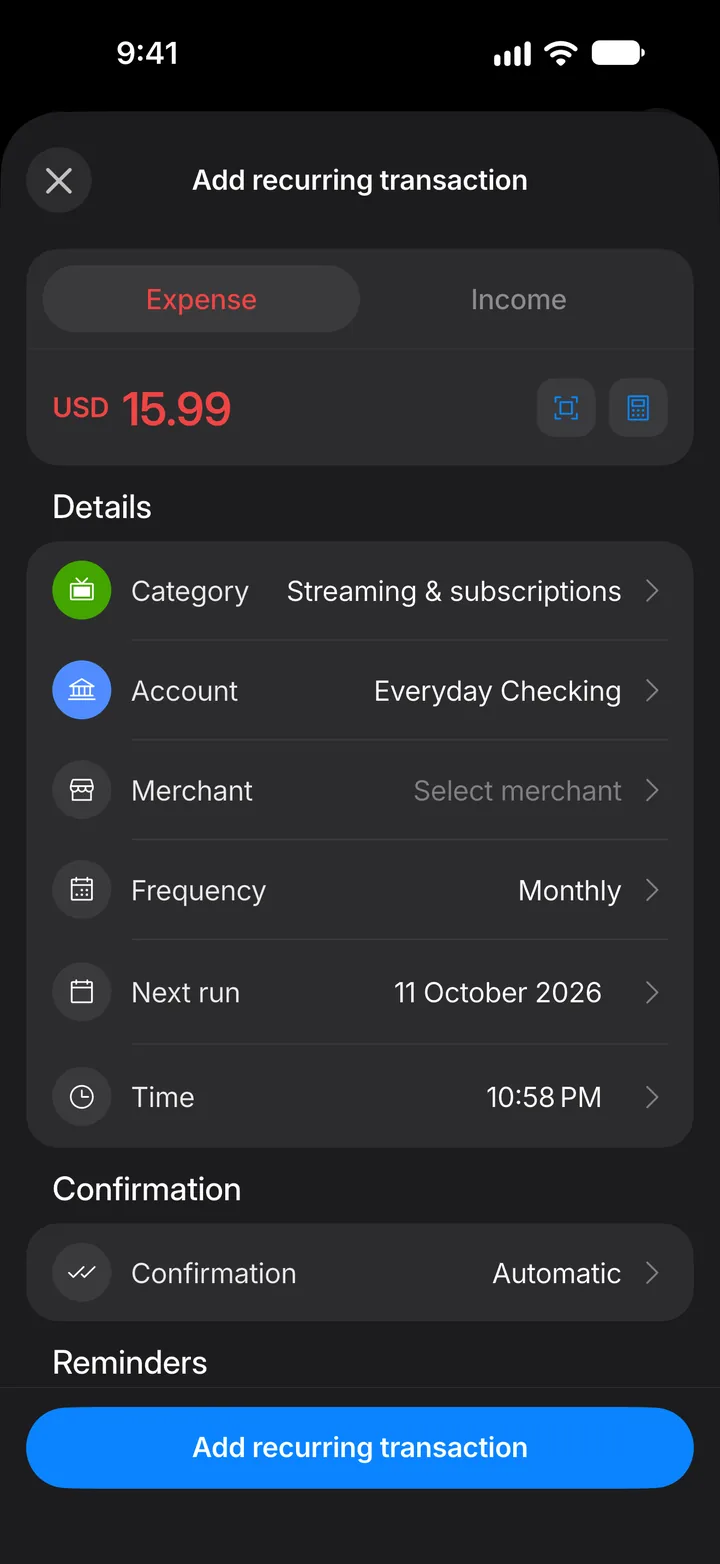
Tap Add recurring transaction.
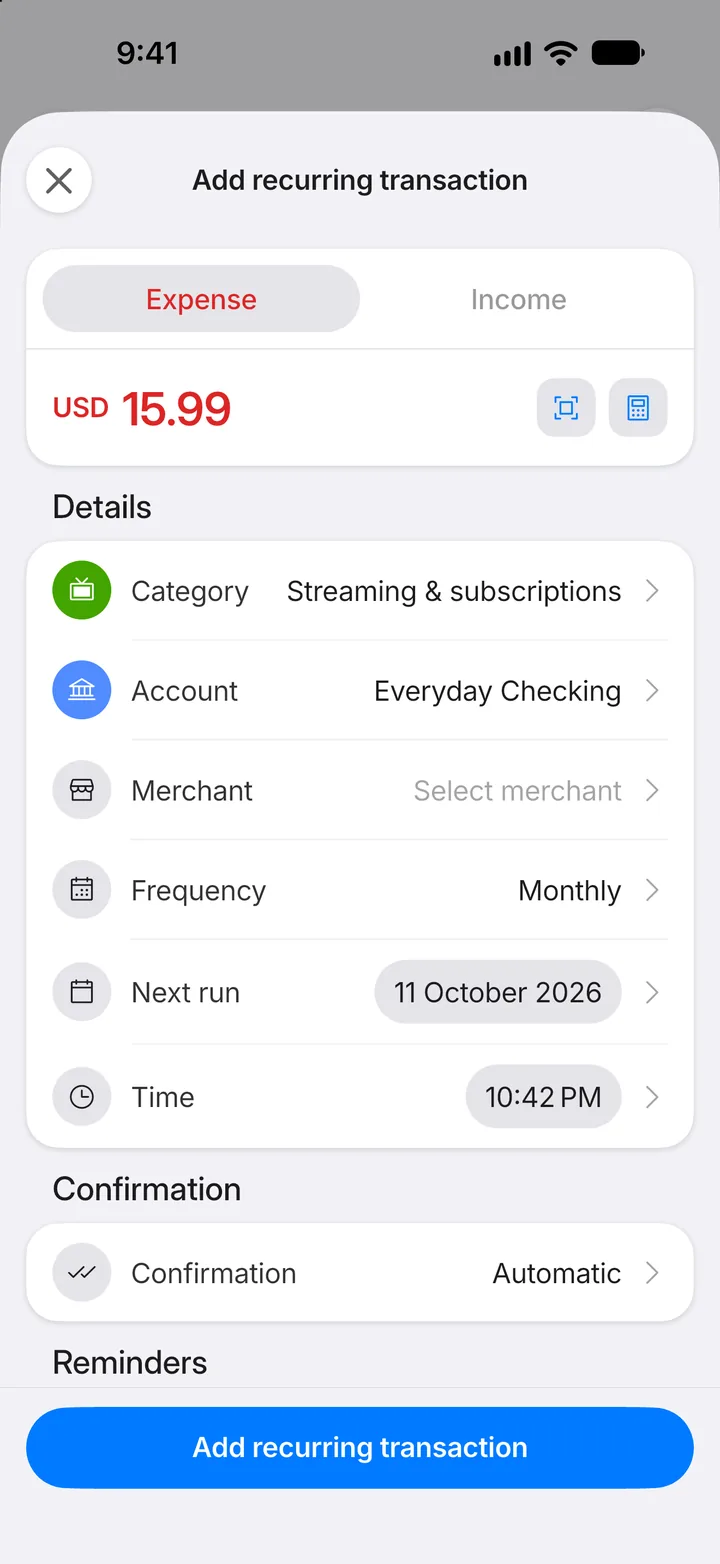
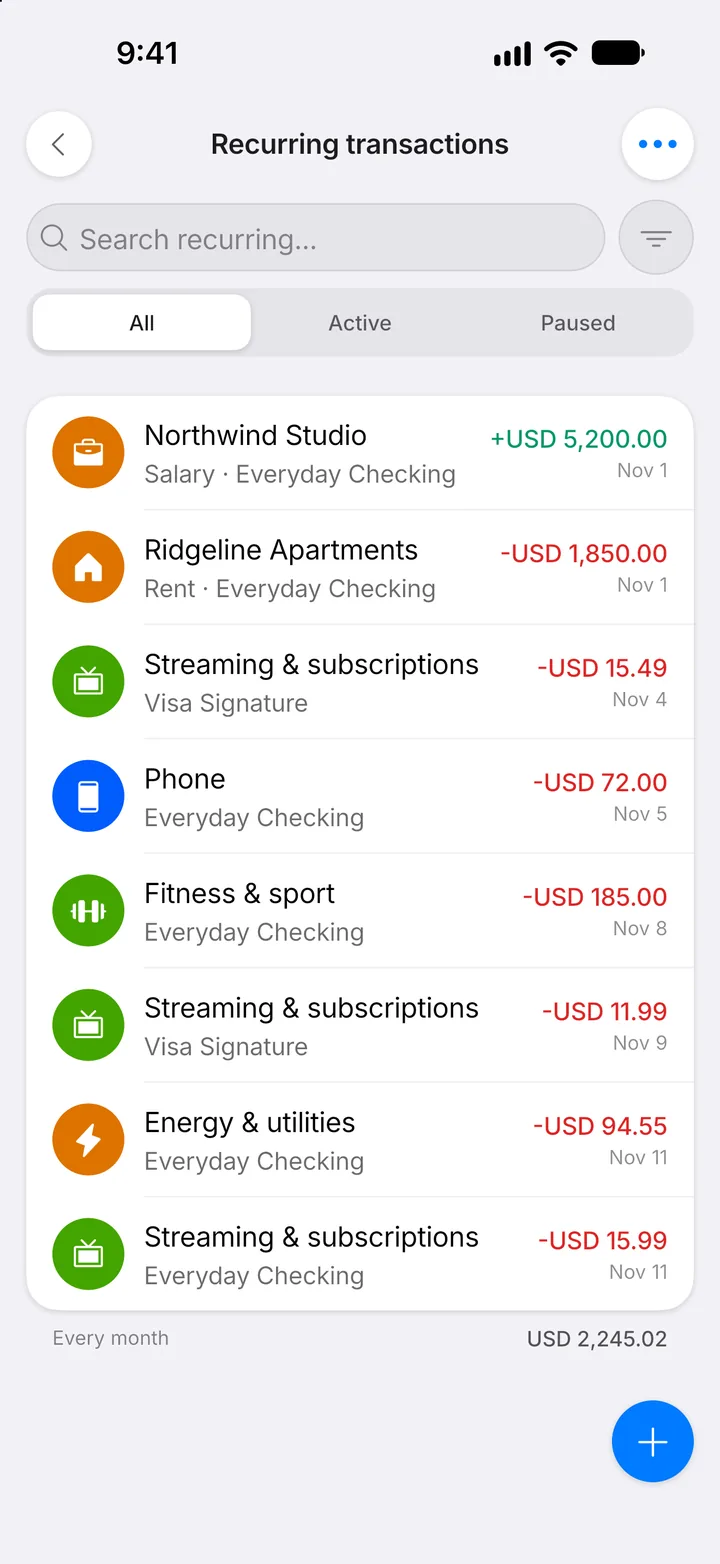
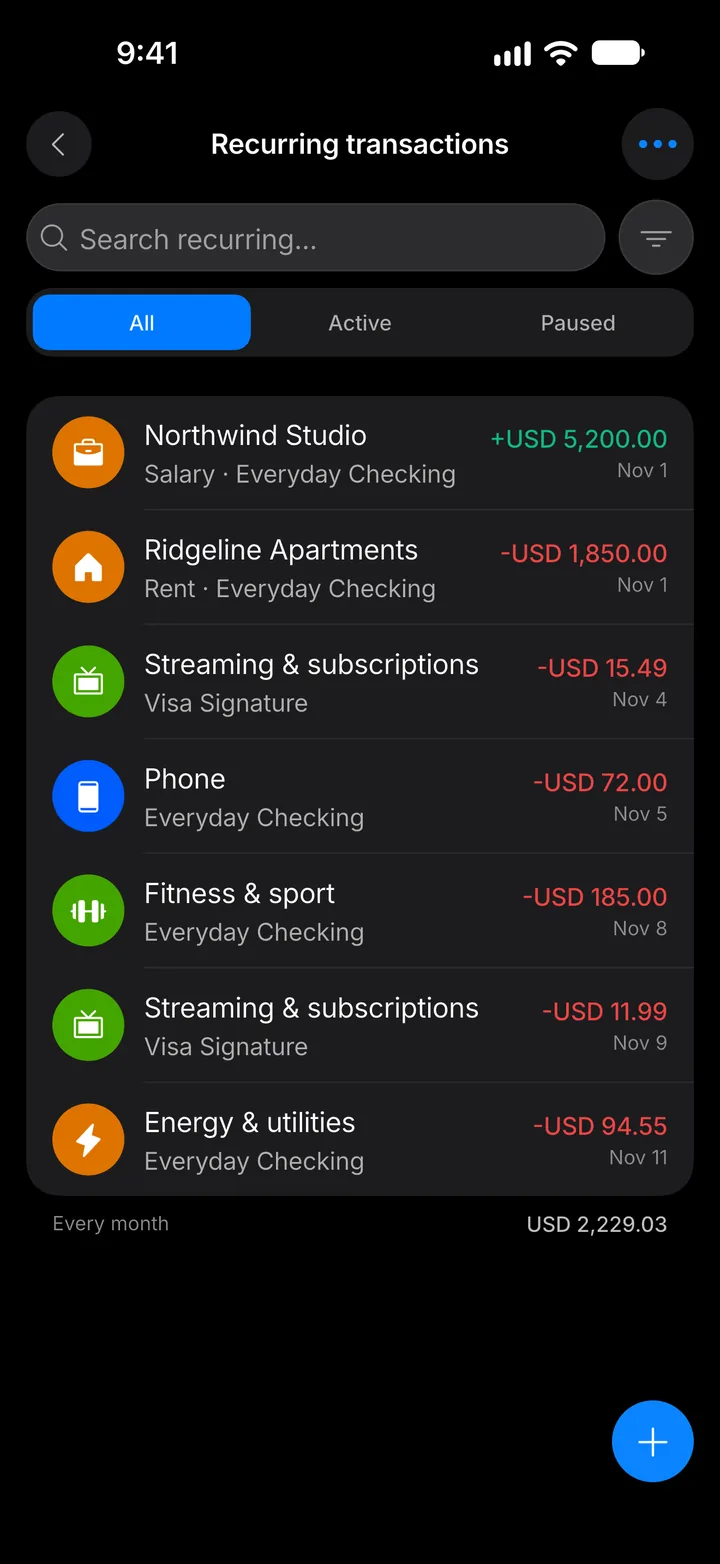
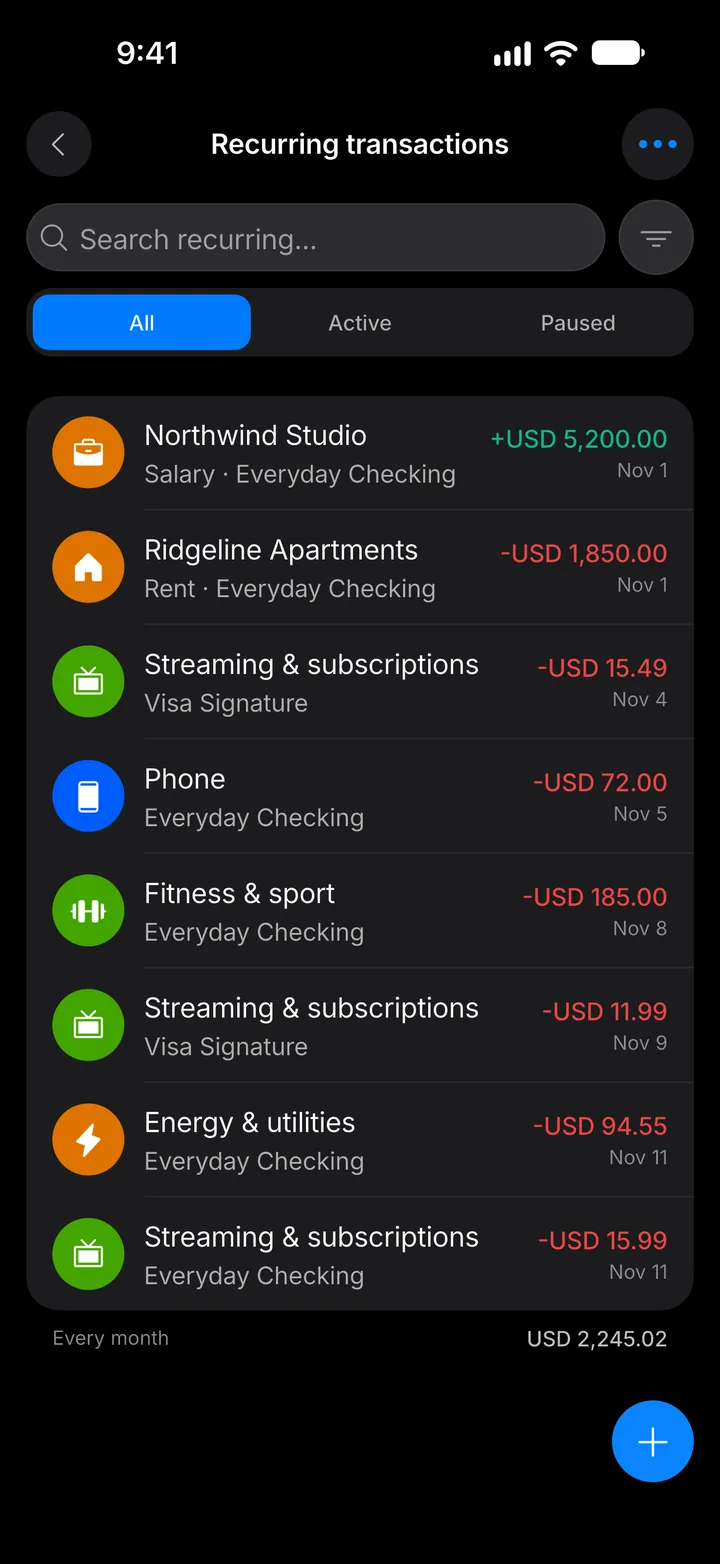
Step 9: It's on the list
Your new rule appears in the list. Anything due today shows under Needs attention.