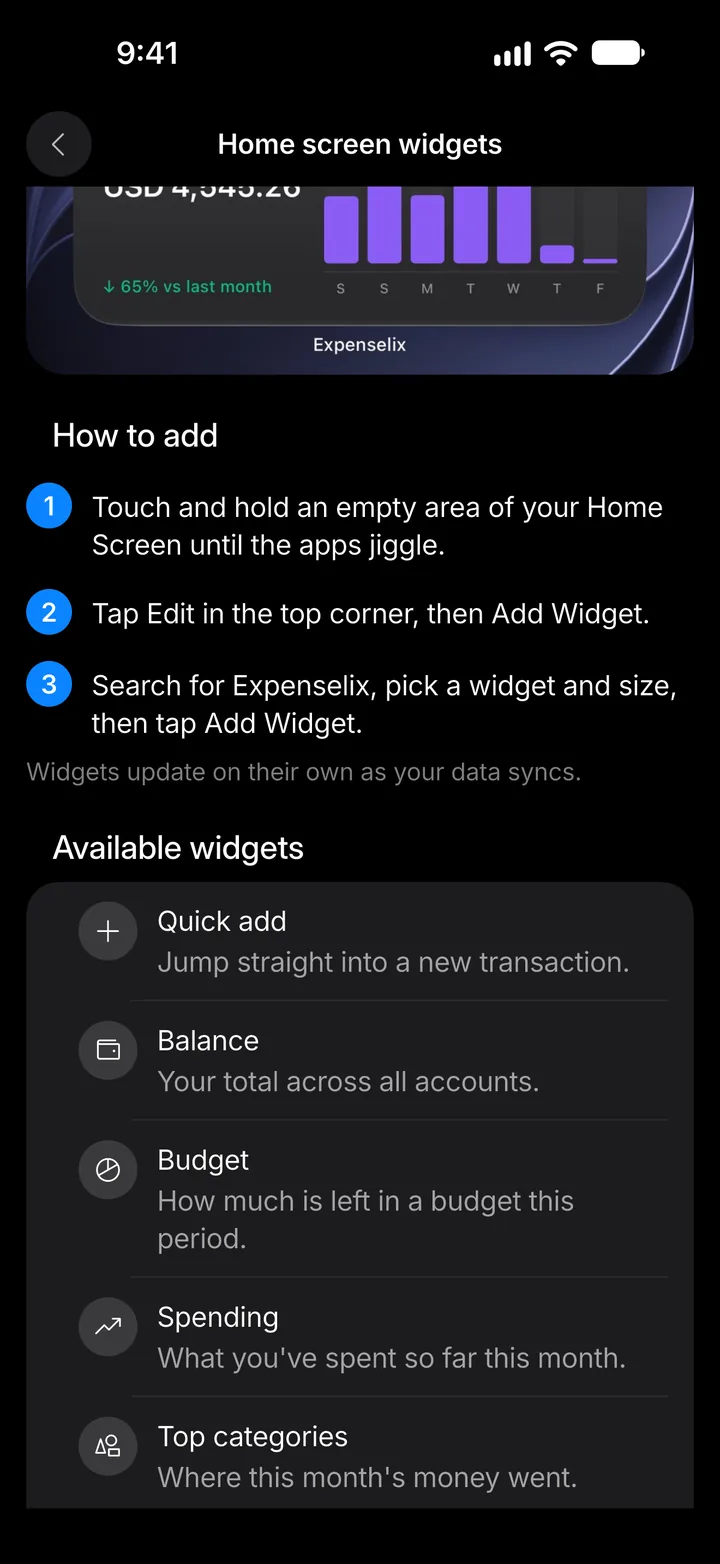
Add widgets to your Home Screen
See your balance, budgets and more without opening the app, and add a transaction in one tap.
7 steps
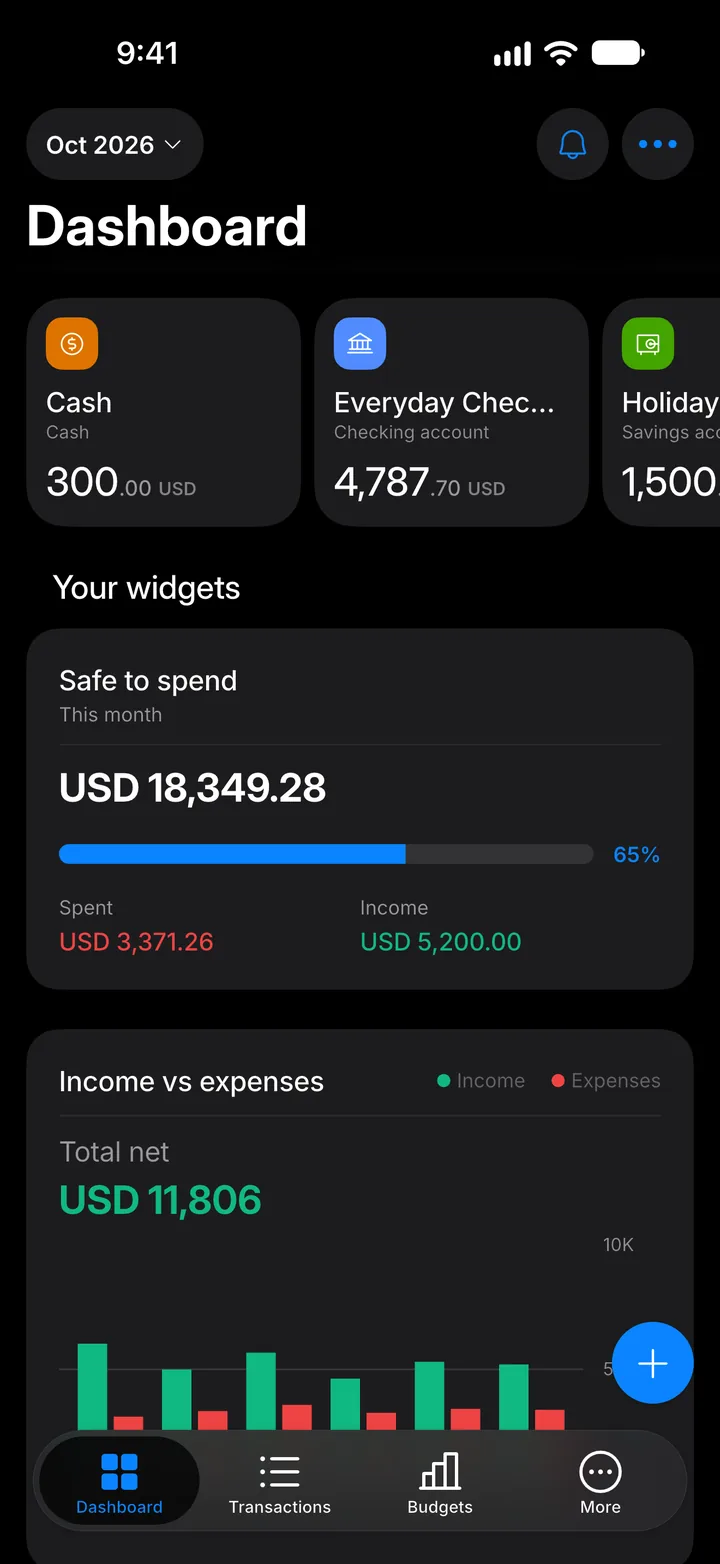
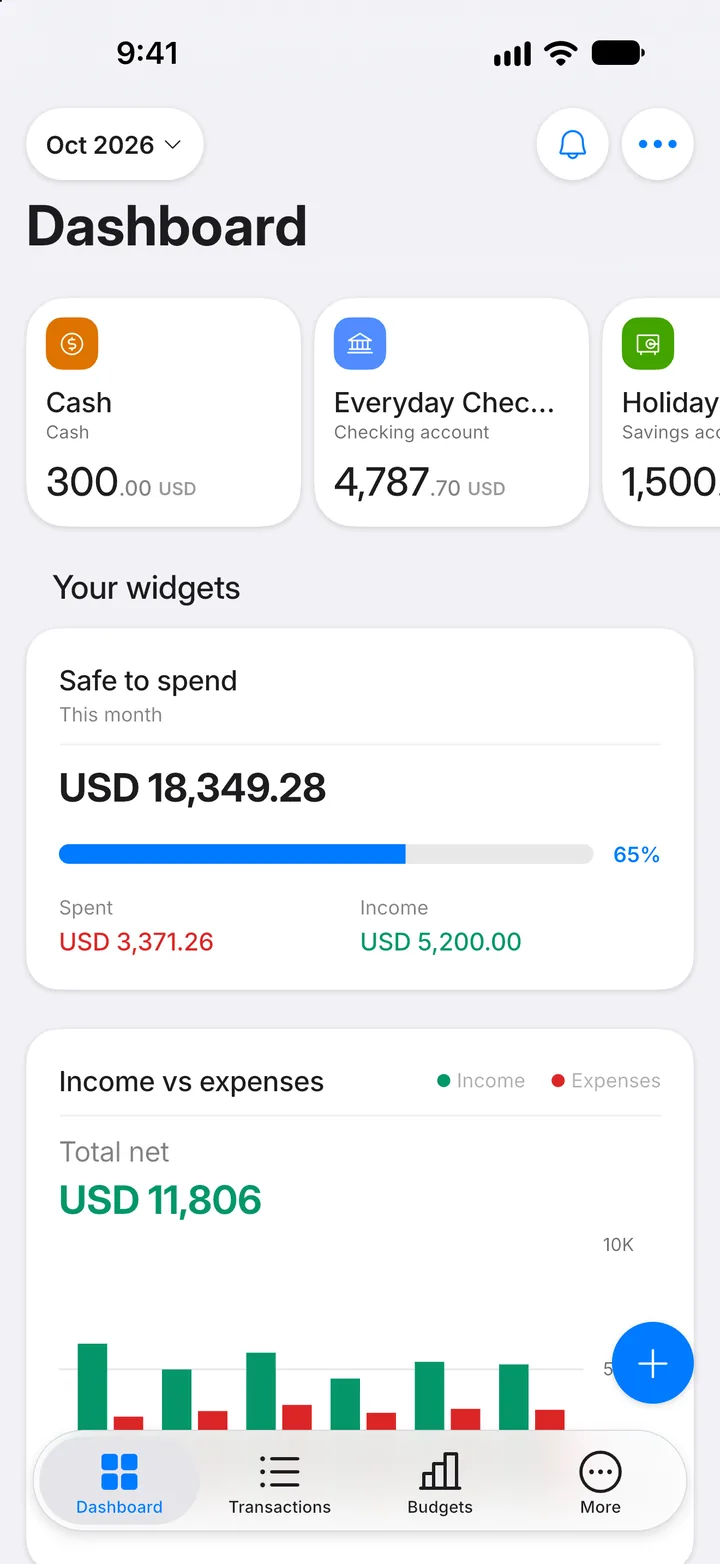
Step 1: Open More
Tap the More tab.
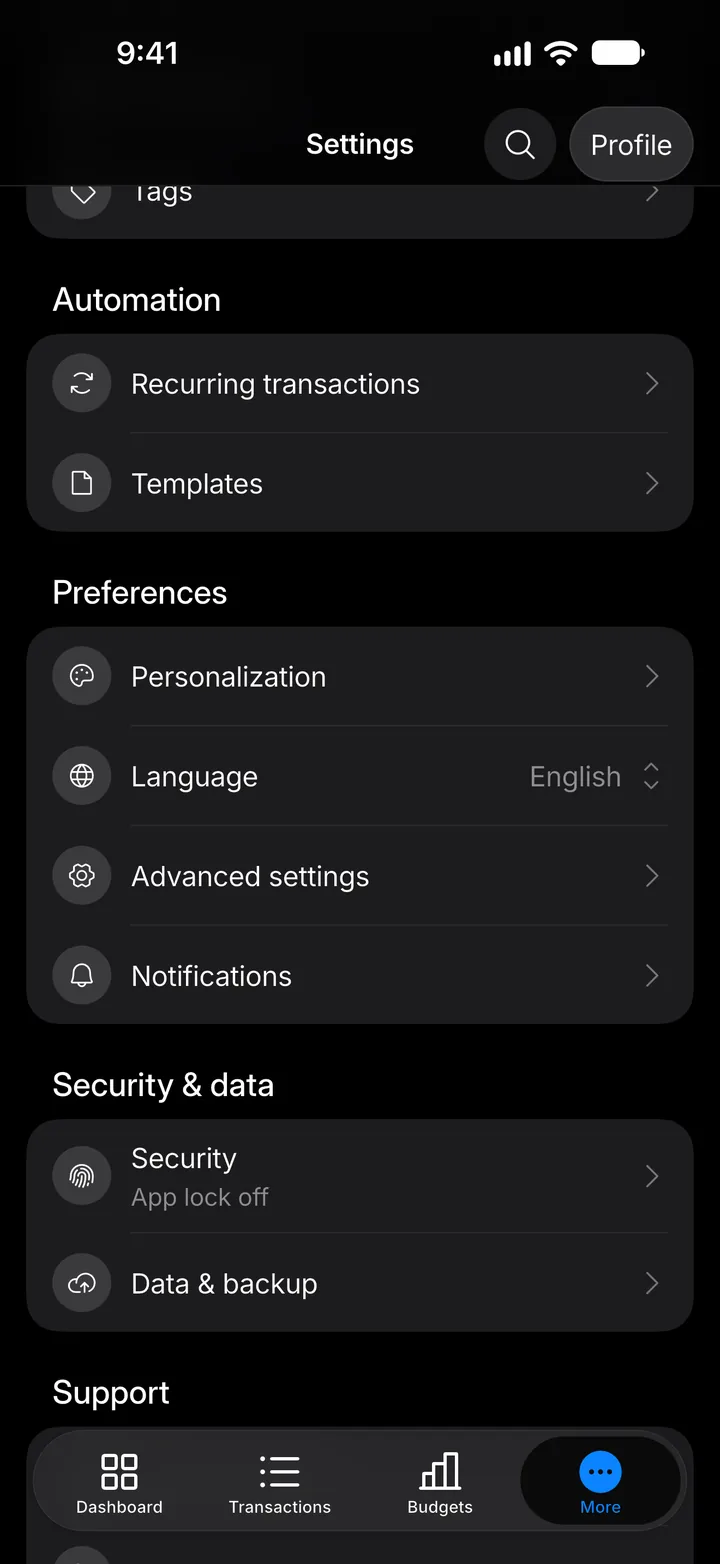
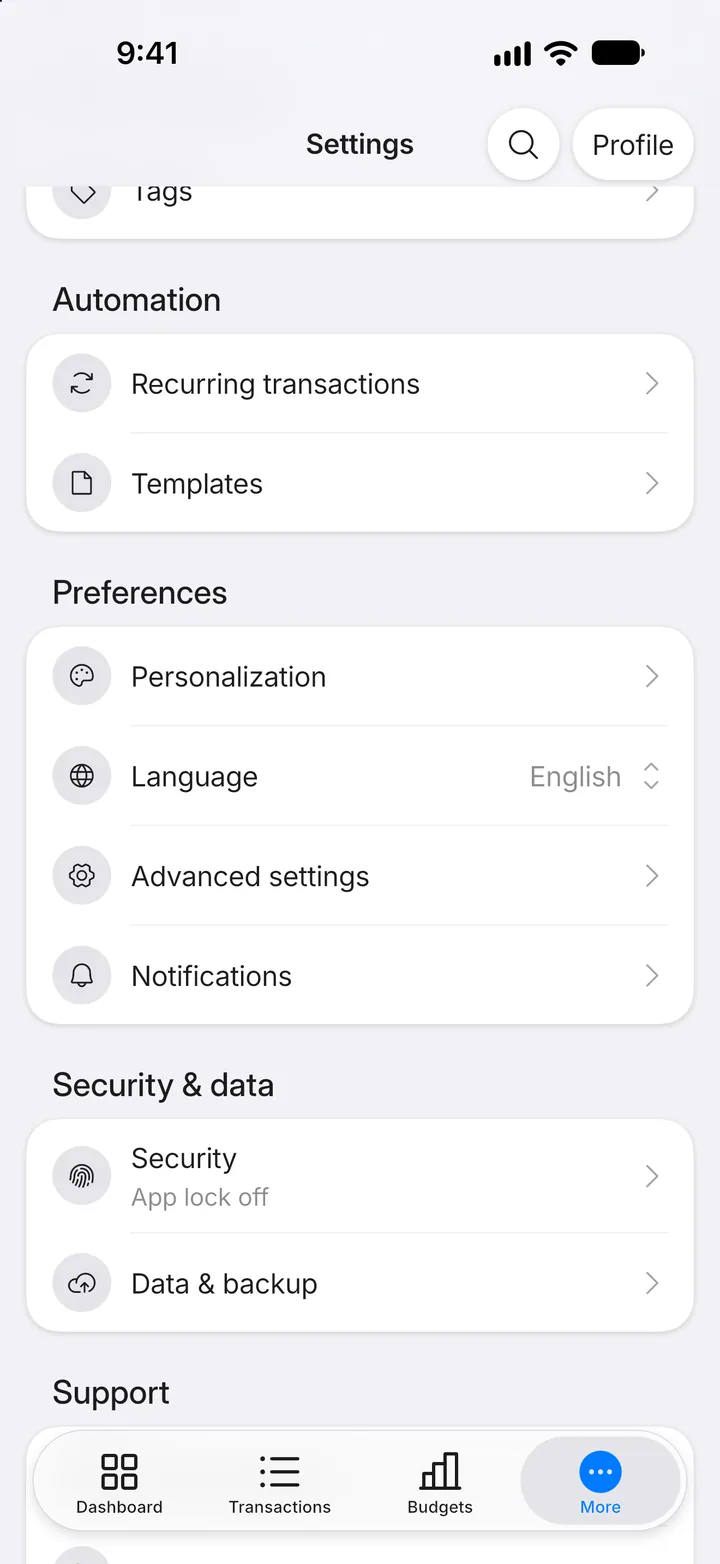
Step 2: Open Advanced settings
Tap Advanced settings.
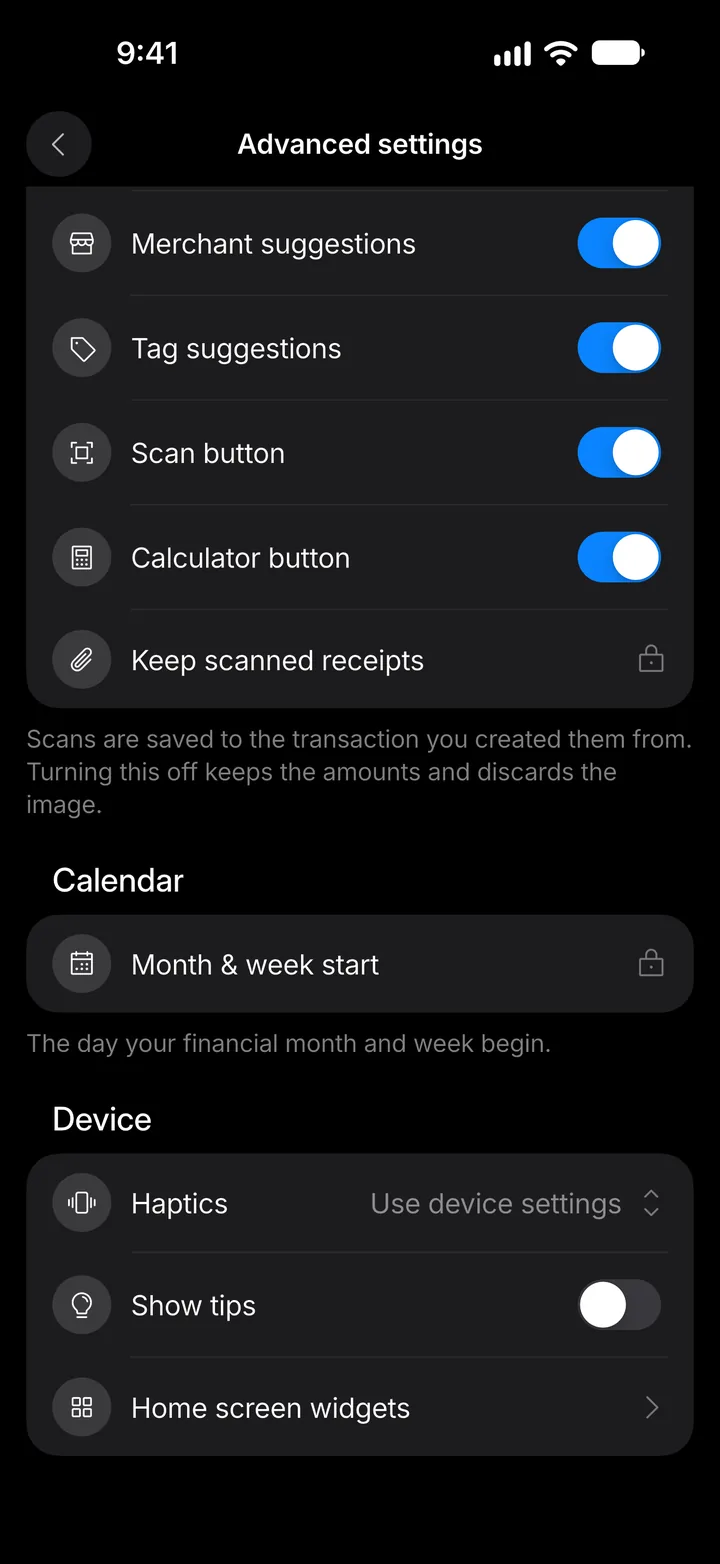
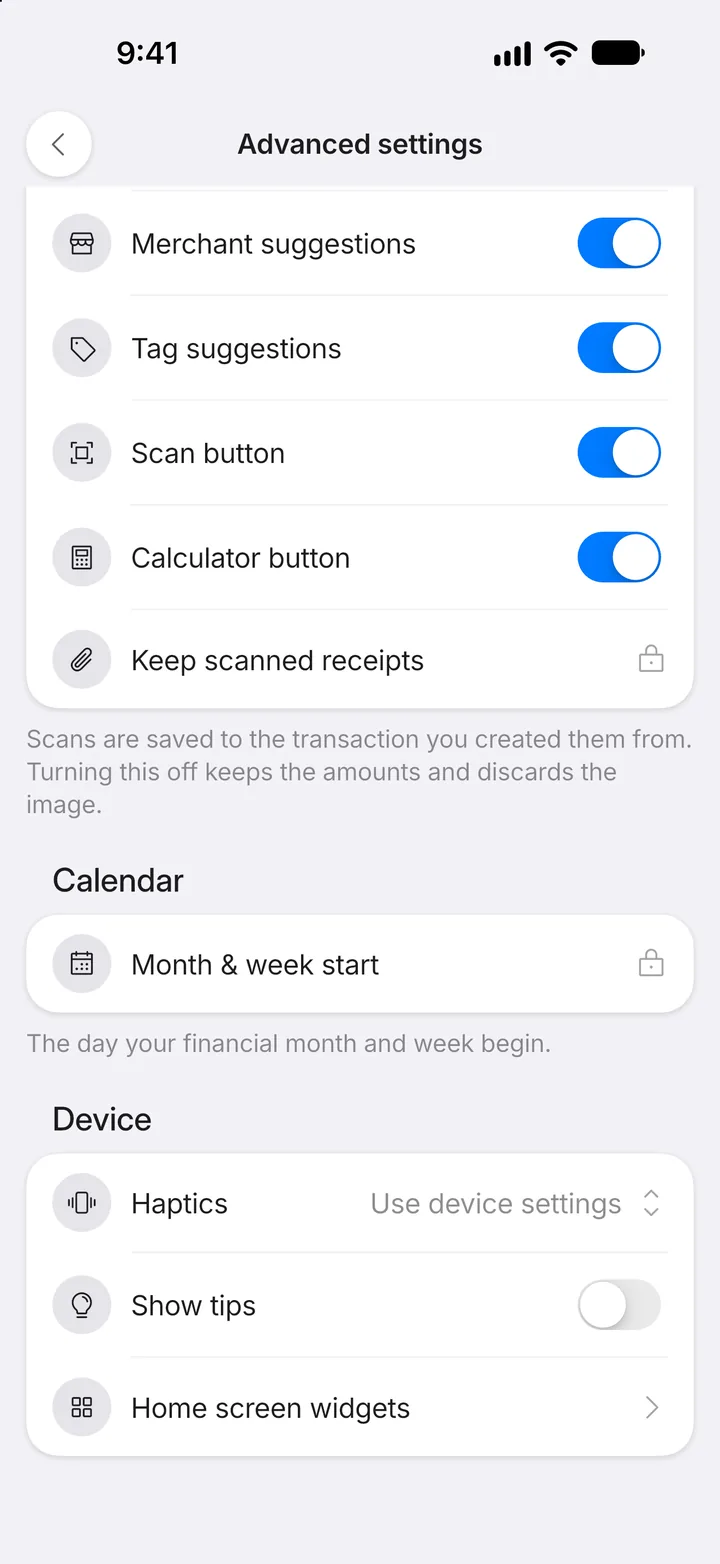
Step 3: Open Home screen widgets
Under Device, tap Home screen widgets.
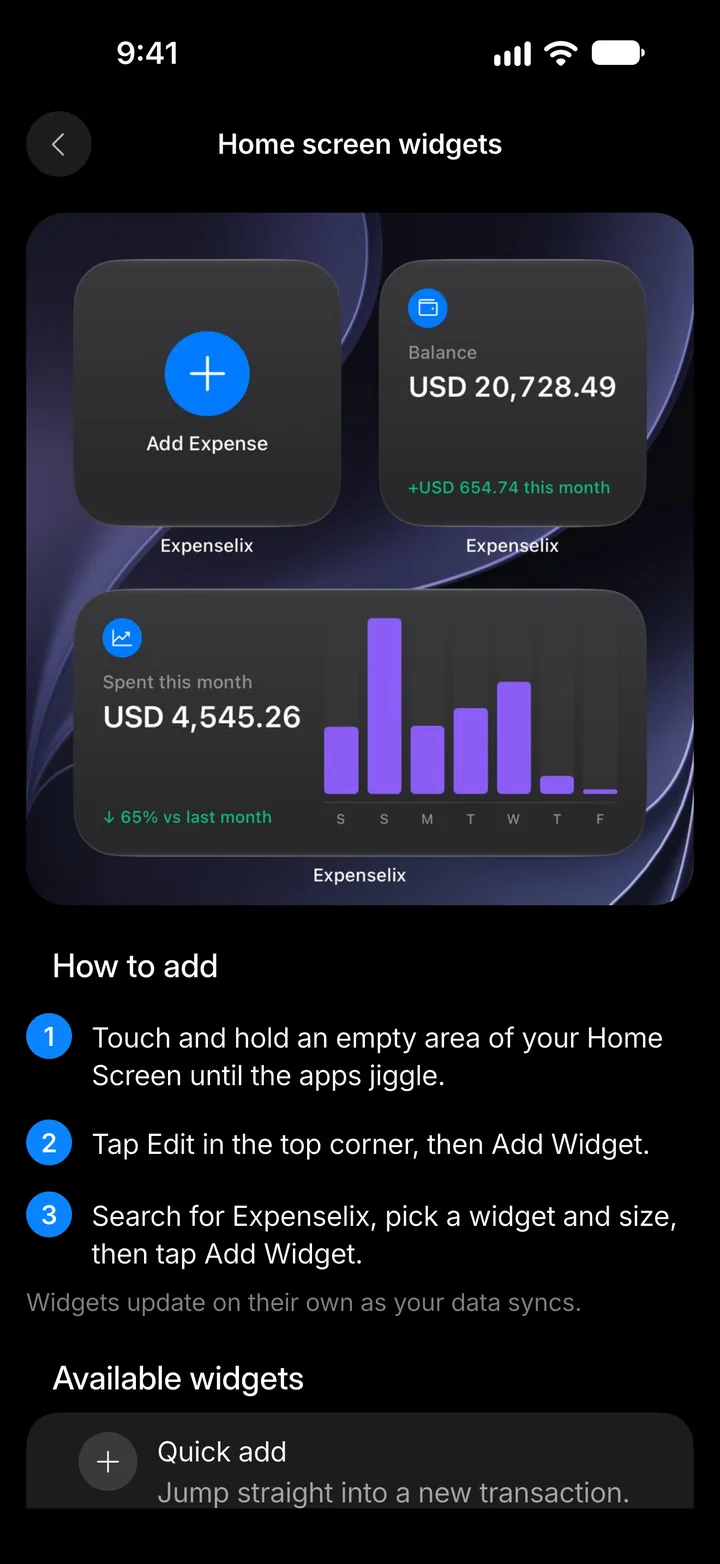
Step 4: Read how to add one
The steps for your phone are under How to add.
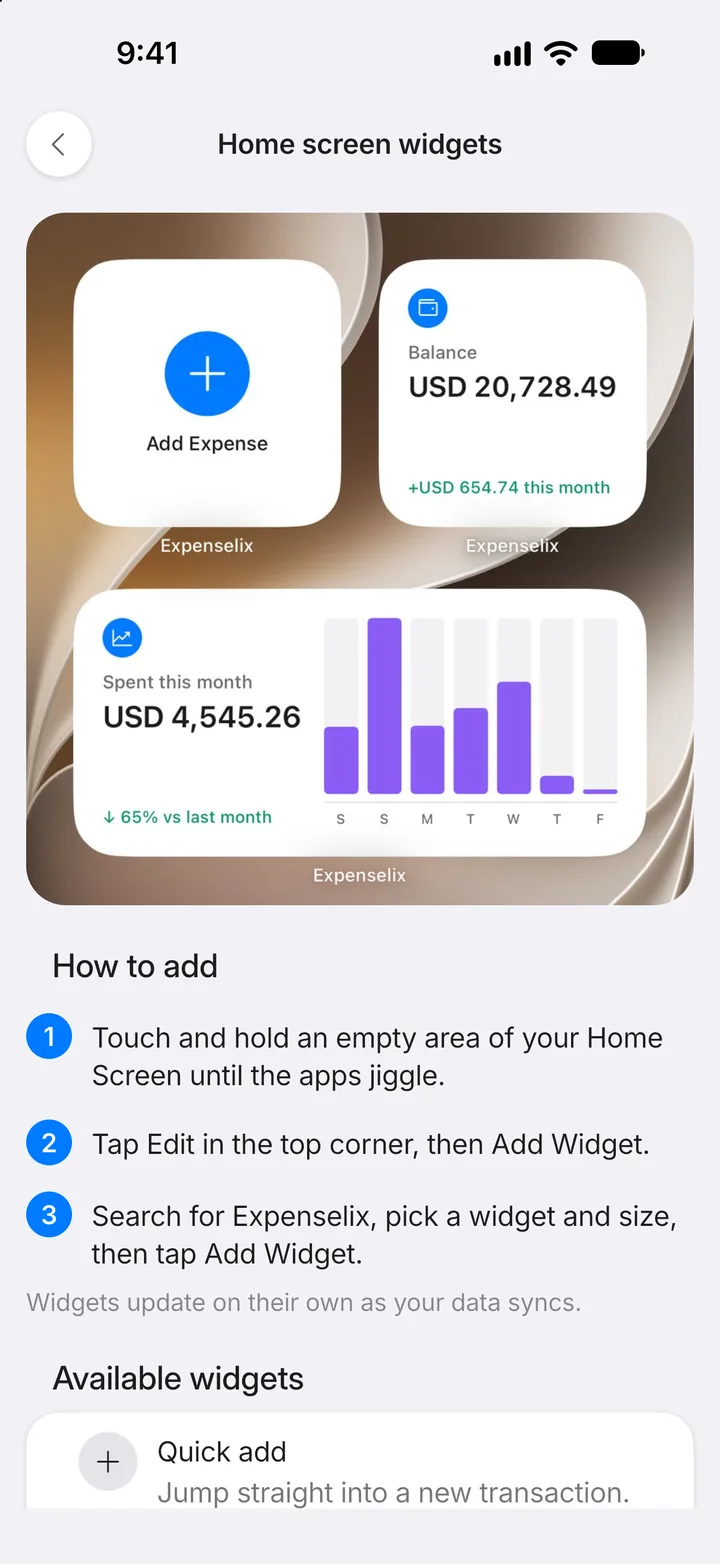
Step 5: Choose a widget
Available widgets lists every widget and what it shows.
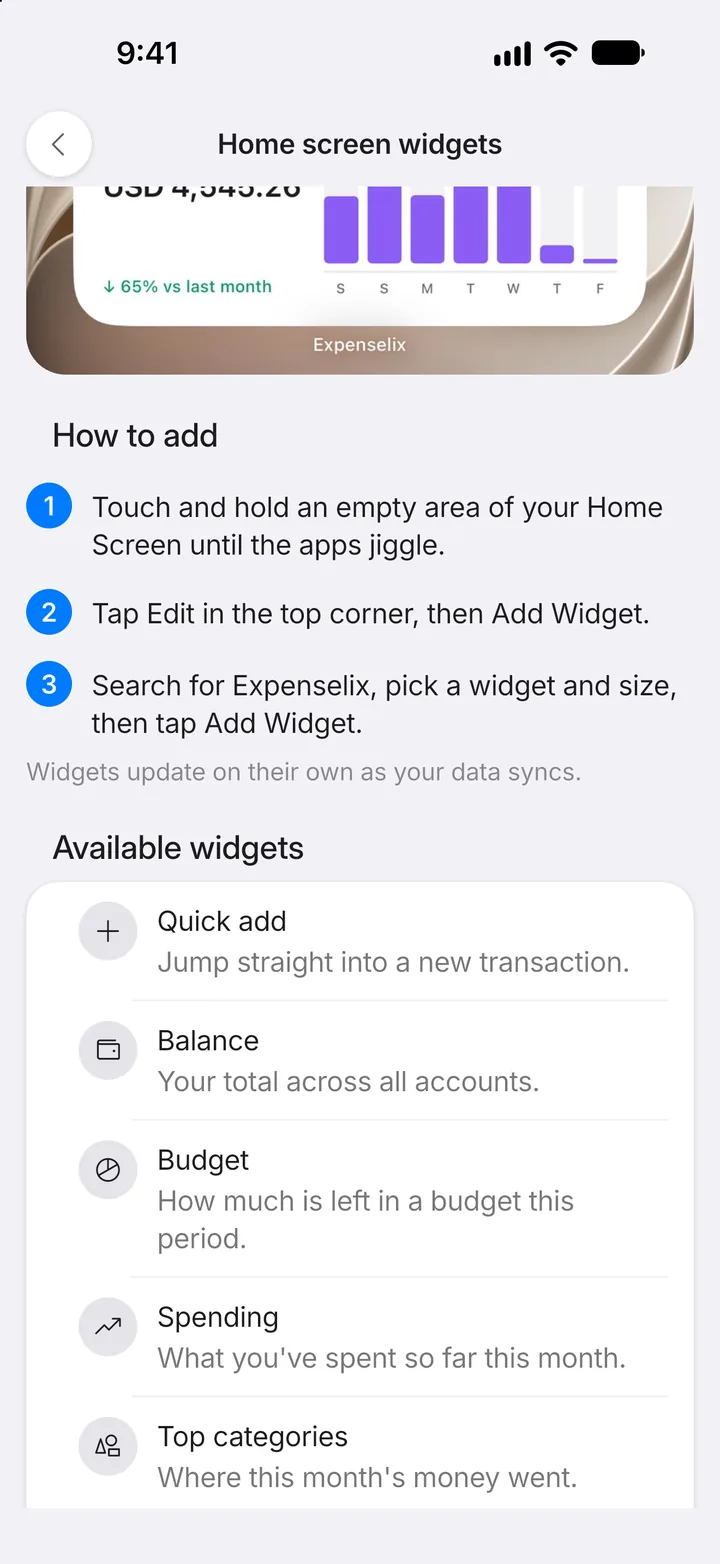
Step 6: On iPhone
Touch and hold an empty area of your Home Screen until the apps jiggle. Tap Edit, then Add Widget. Search for Expenselix, pick a widget and size, and tap Add Widget.
Step 7: On Android
Touch and hold an empty area of your Home Screen and tap Widgets. Find Expenselix, then touch and hold a widget and drag it into place.