Customize your Dashboard
Choose which widgets the Dashboard shows, and in what order.
5 steps
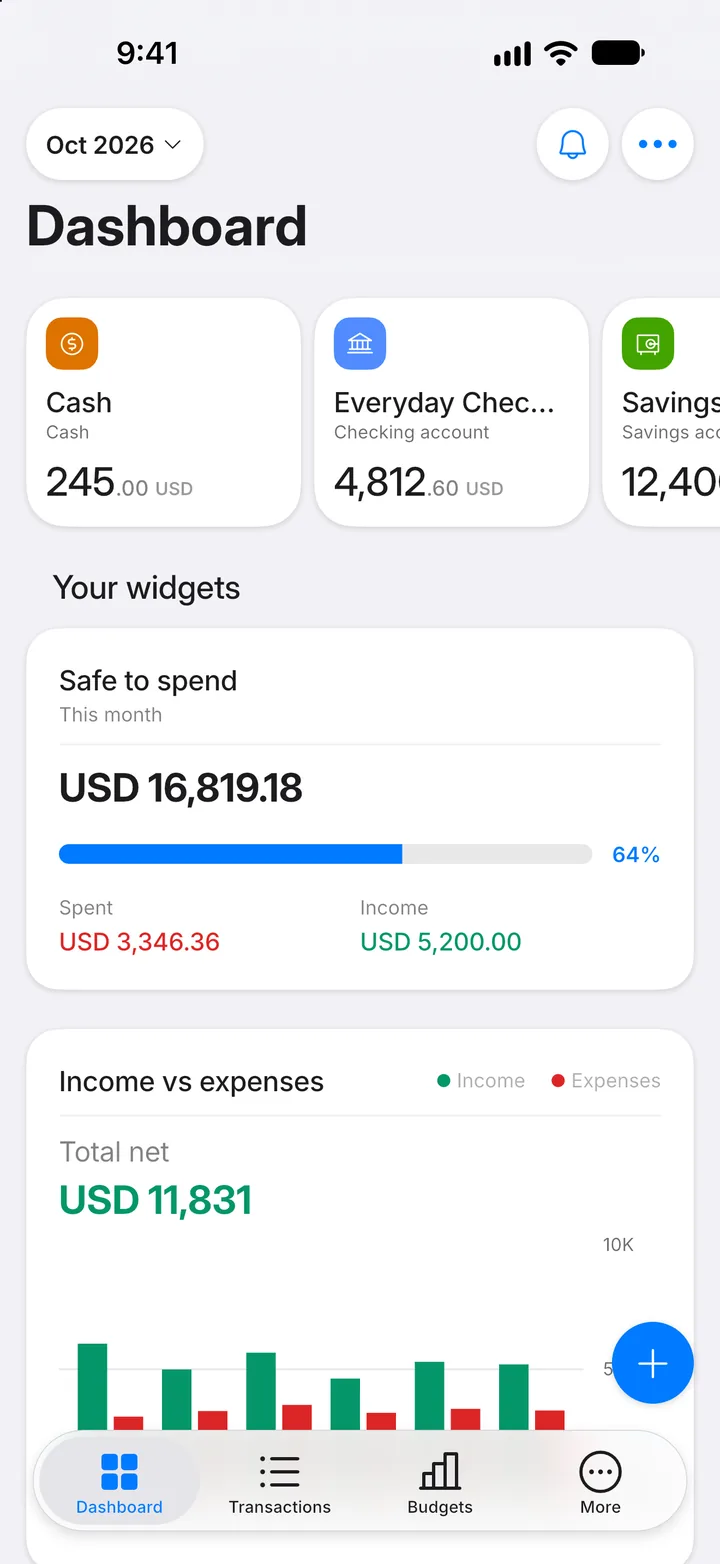
Step 1: Open the menu
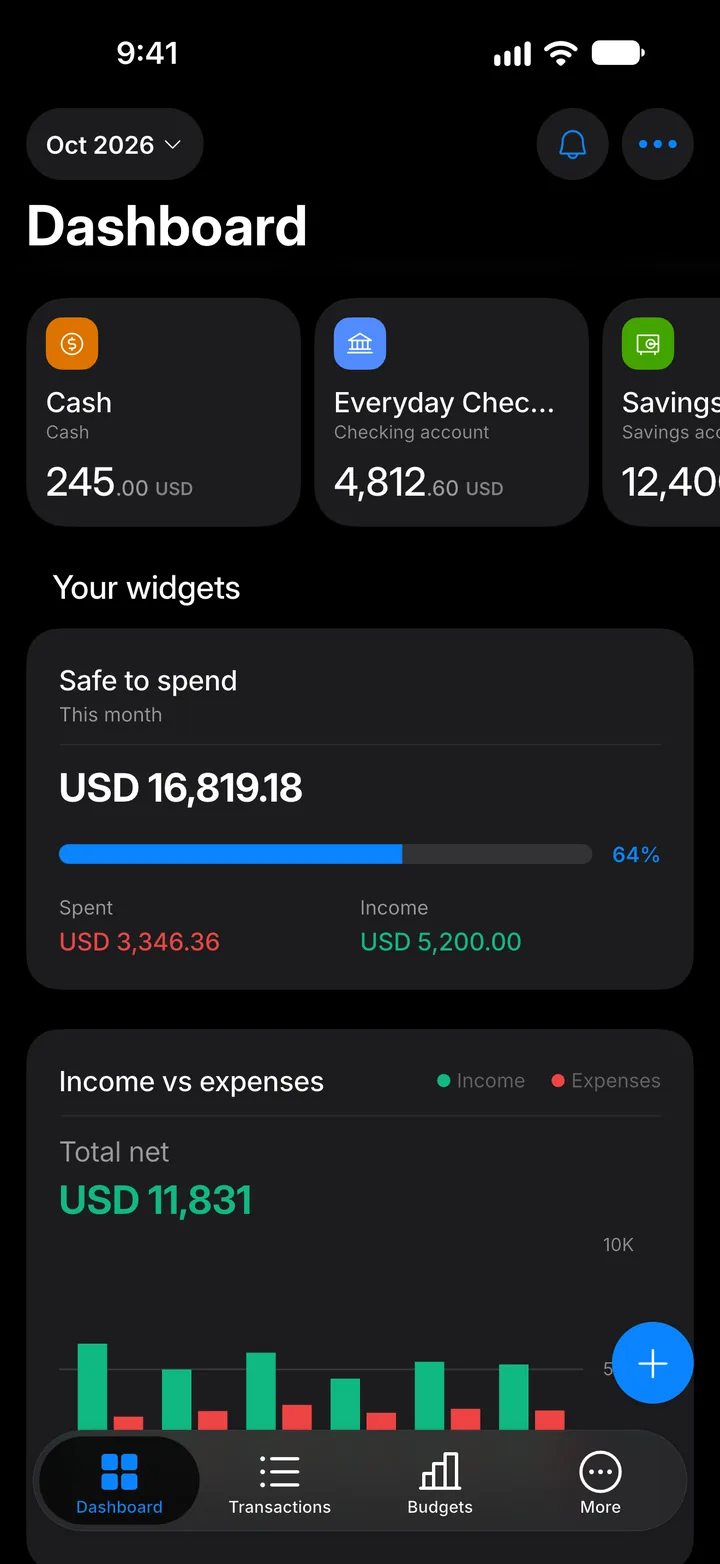
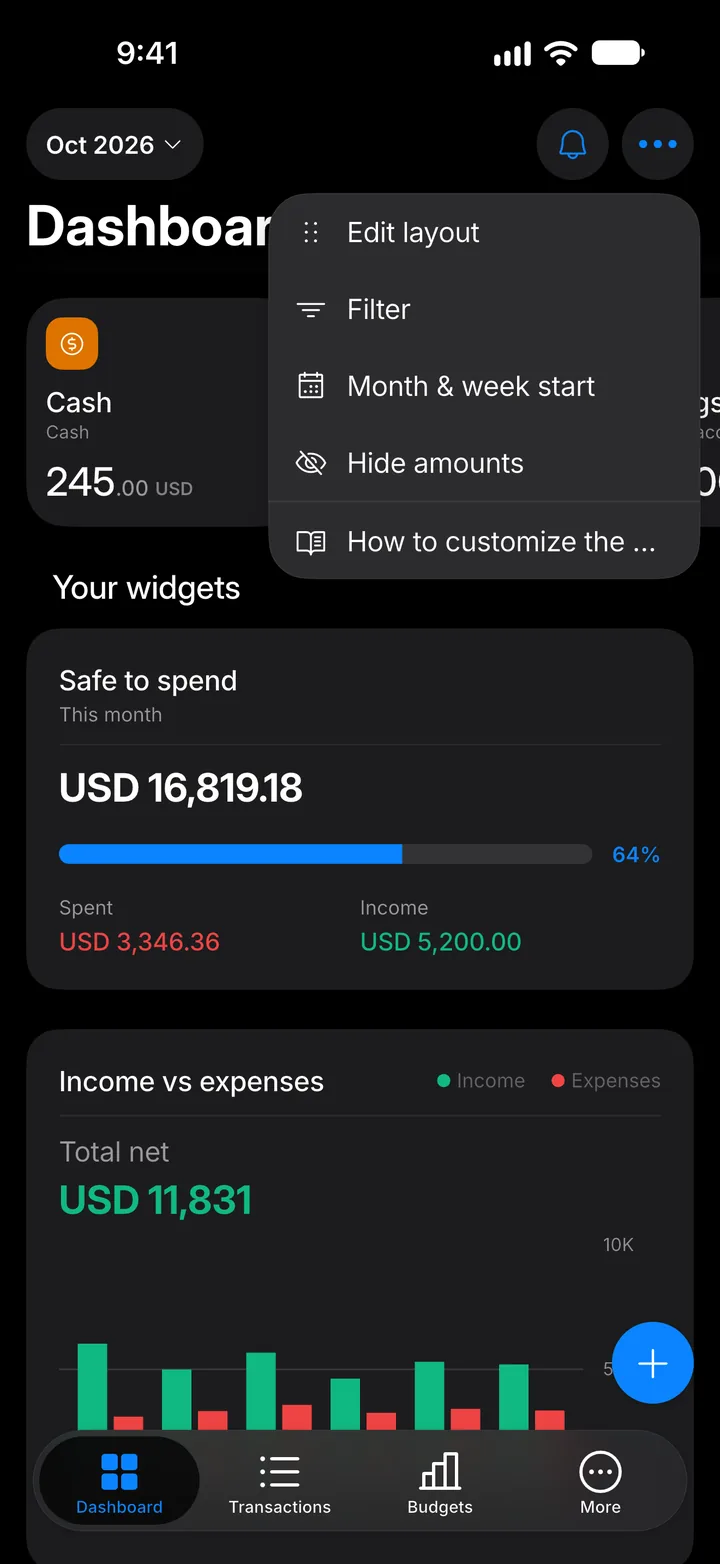
On the Dashboard, tap ••• at the top.
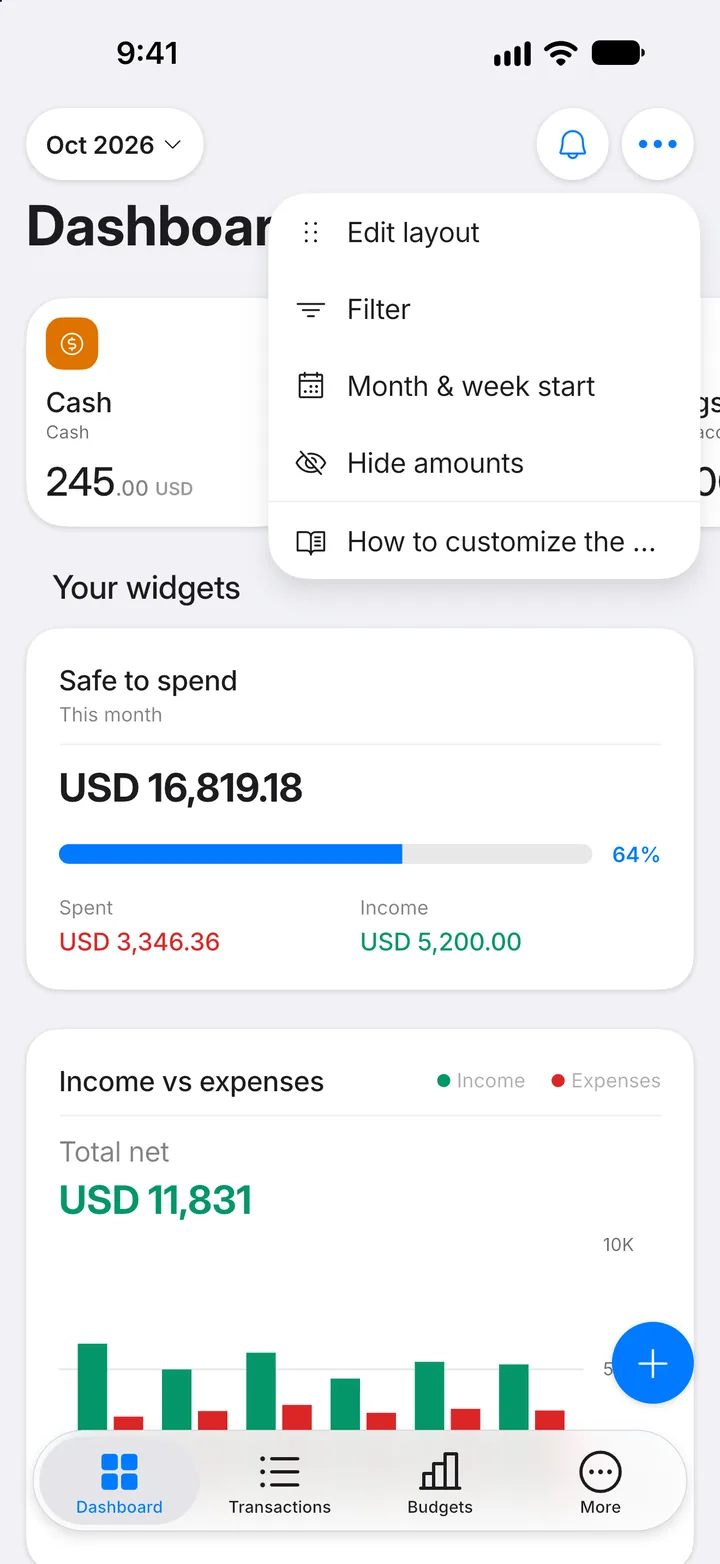
Step 2: Edit the layout
Tap Edit layout.
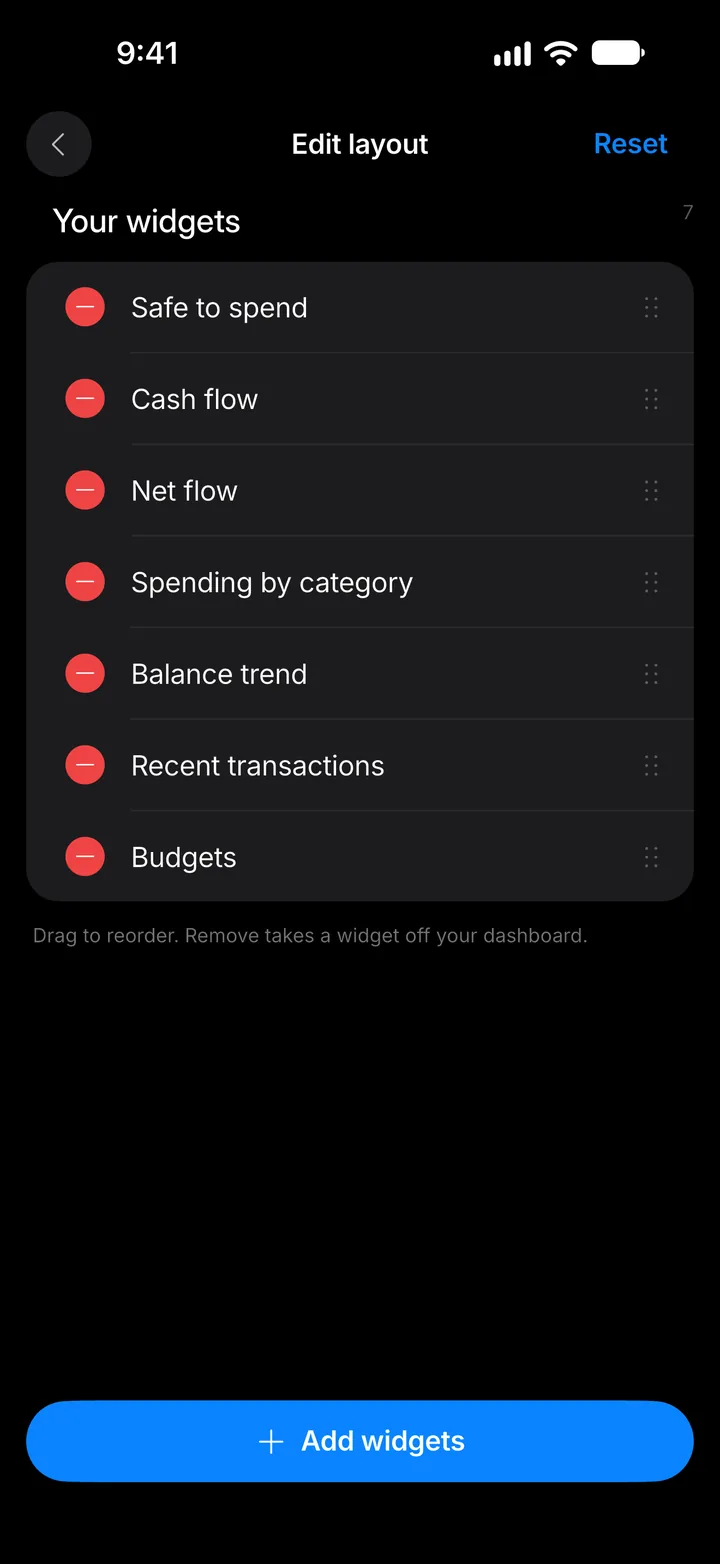
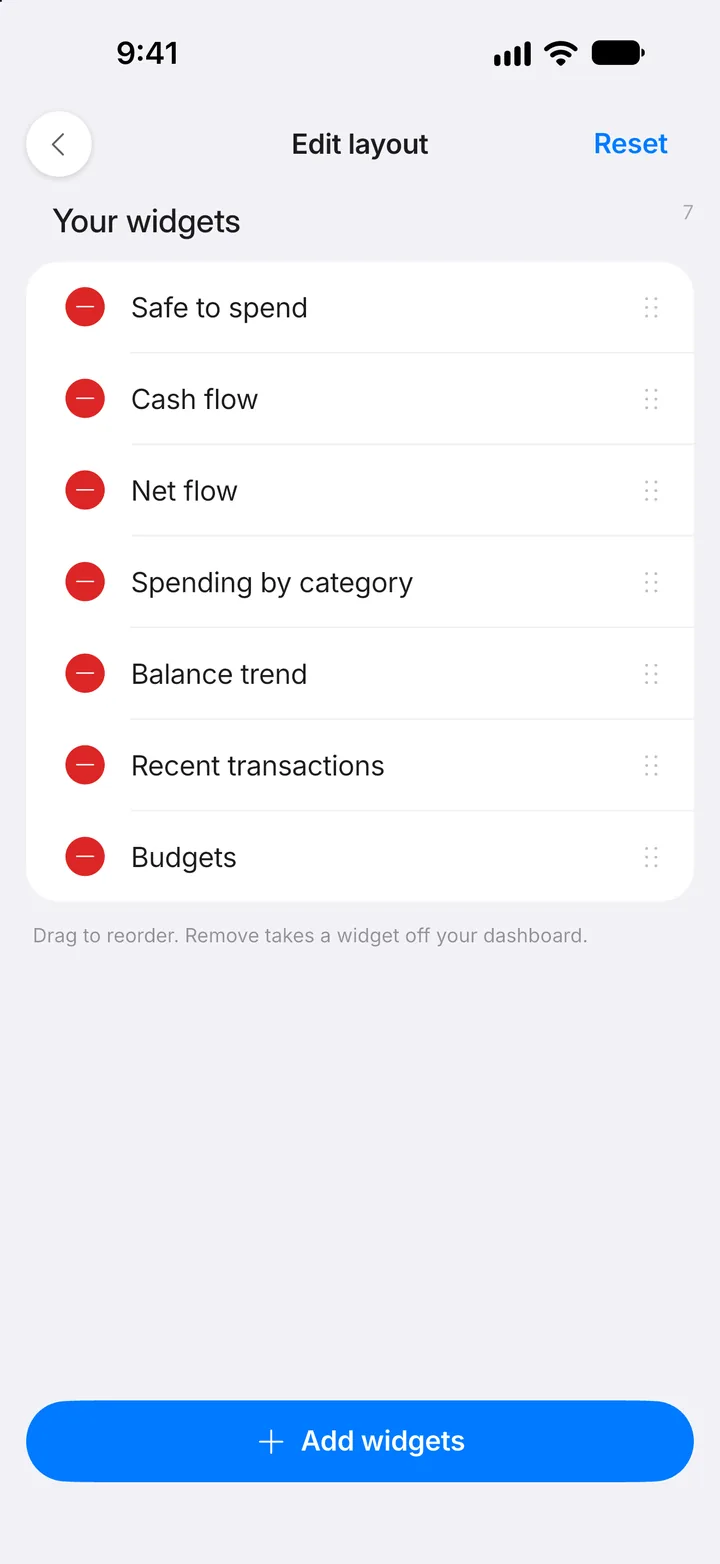
Step 3: Rearrange or add
Drag a widget by its handle to move it, or tap the red minus to remove it. To add more, tap Add widgets.
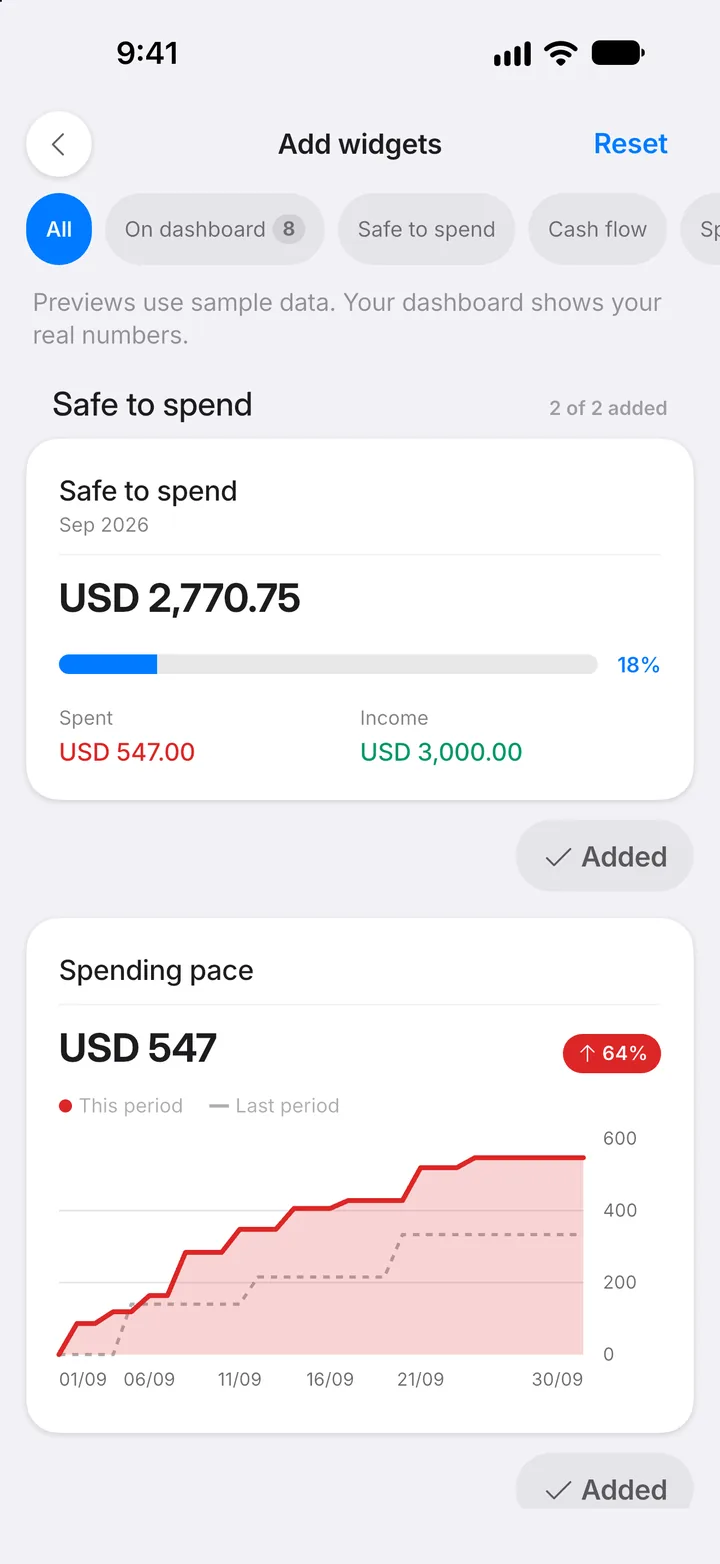
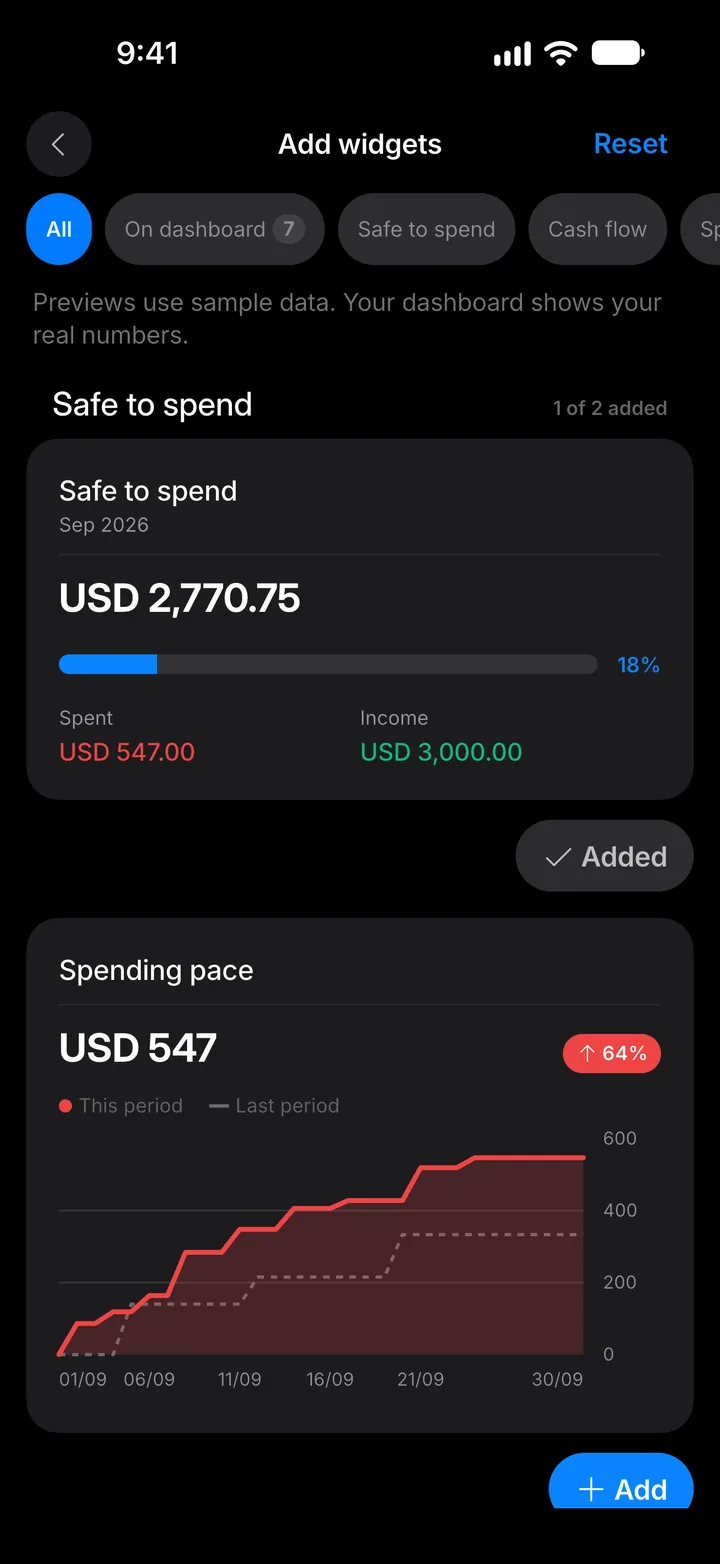
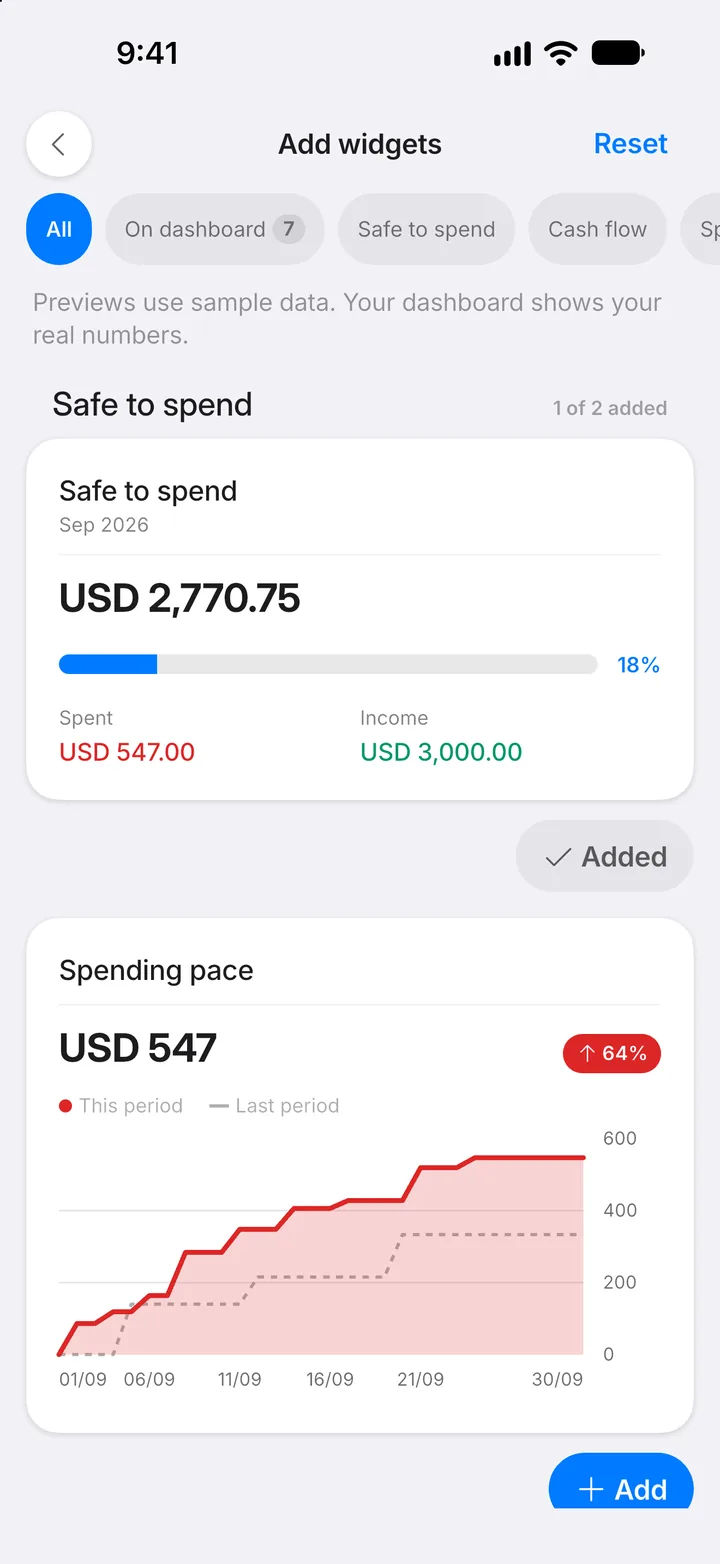
Step 4: Add a widget
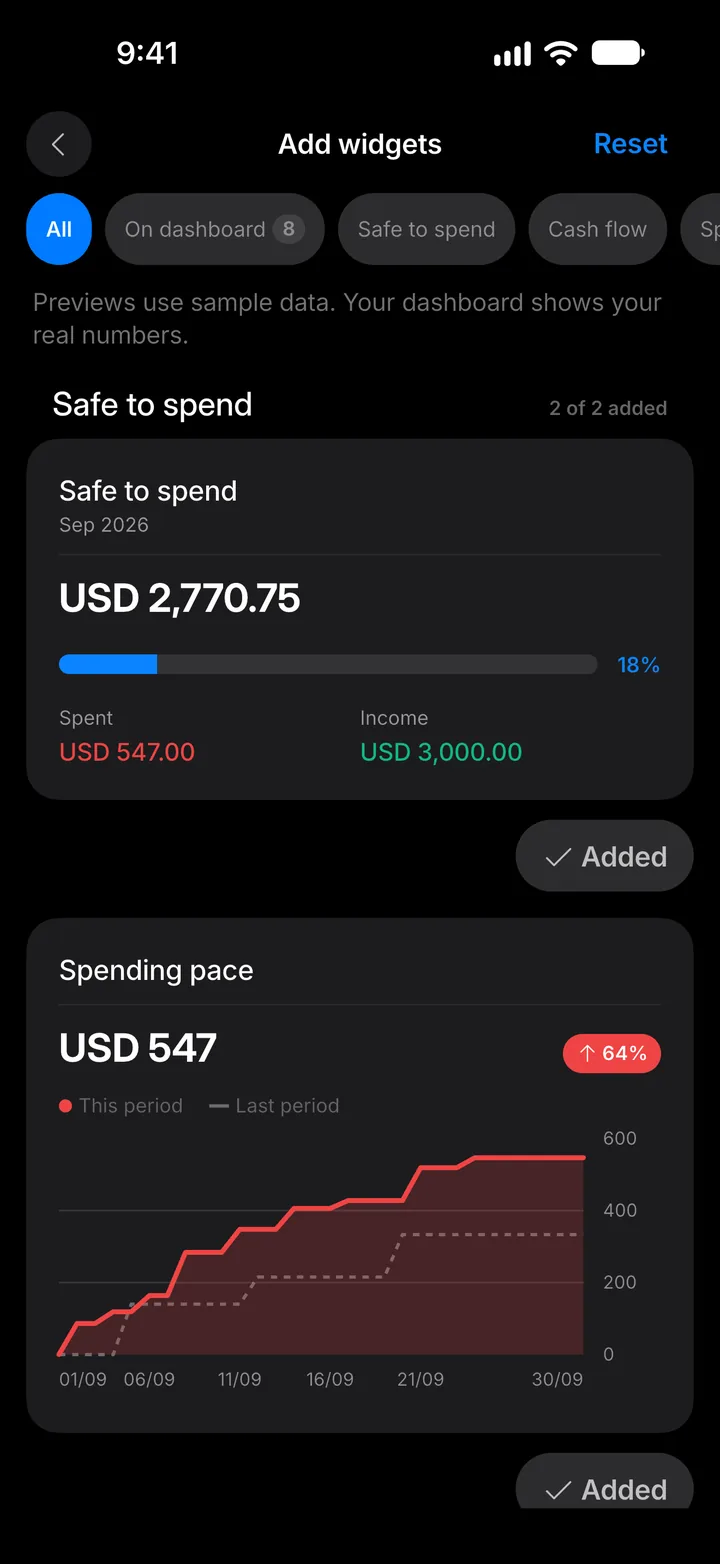
Browse the gallery and tap Add on the ones you want.
Step 5: Done
Added widgets appear on your Dashboard straight away. Go back to see them.