Create a budget
Set a spending limit for a category and see how much is left as the month goes on.
9 steps
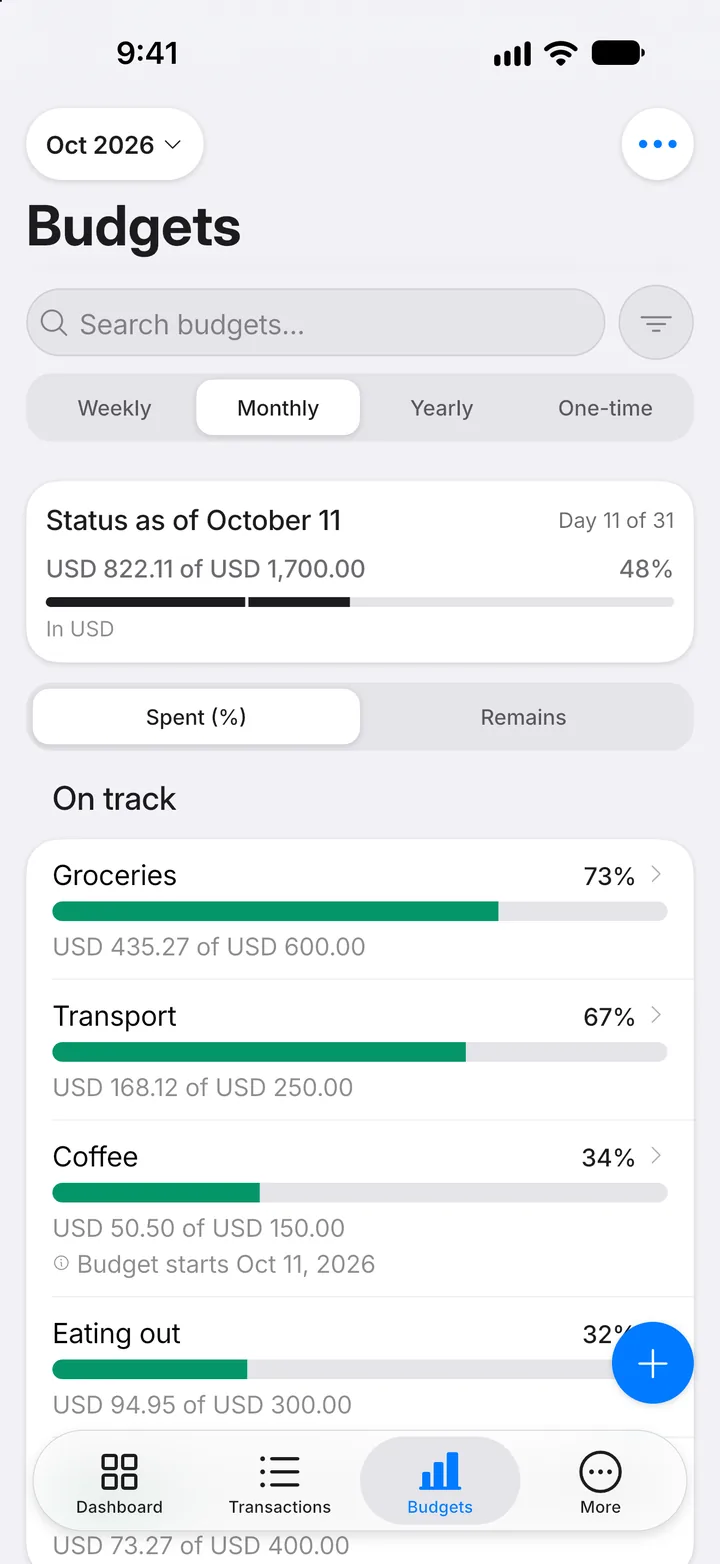
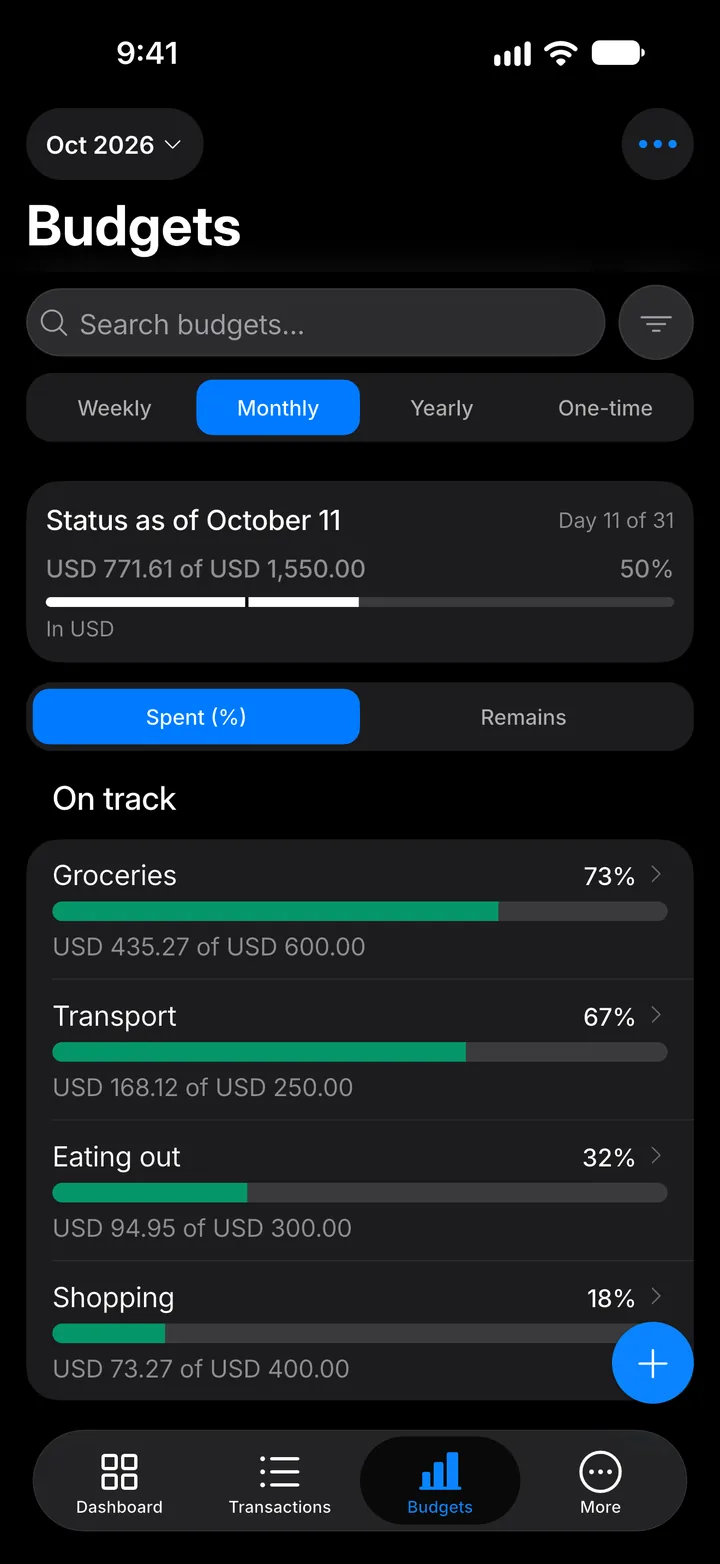
Step 1: Open Budgets
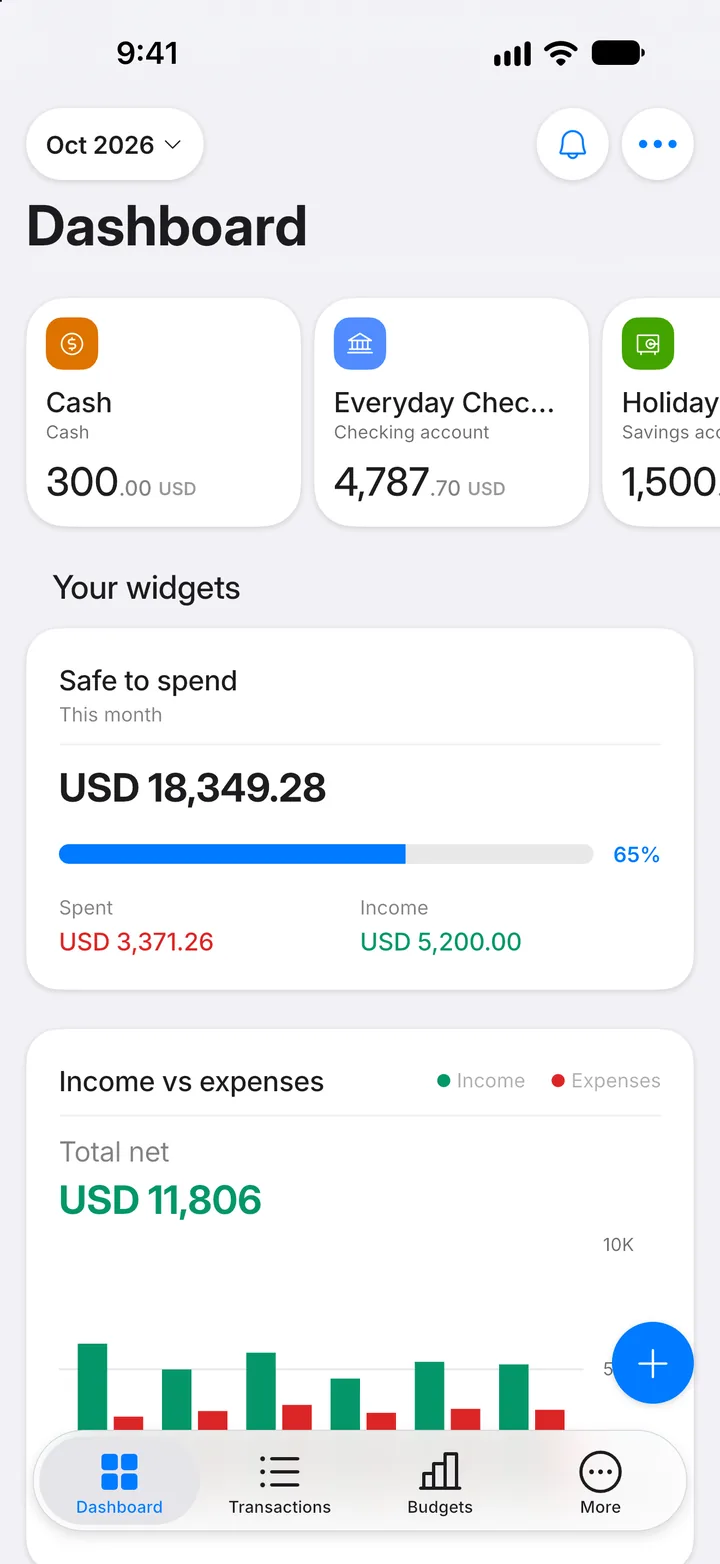
Tap the Budgets tab.
Step 2: Tap +
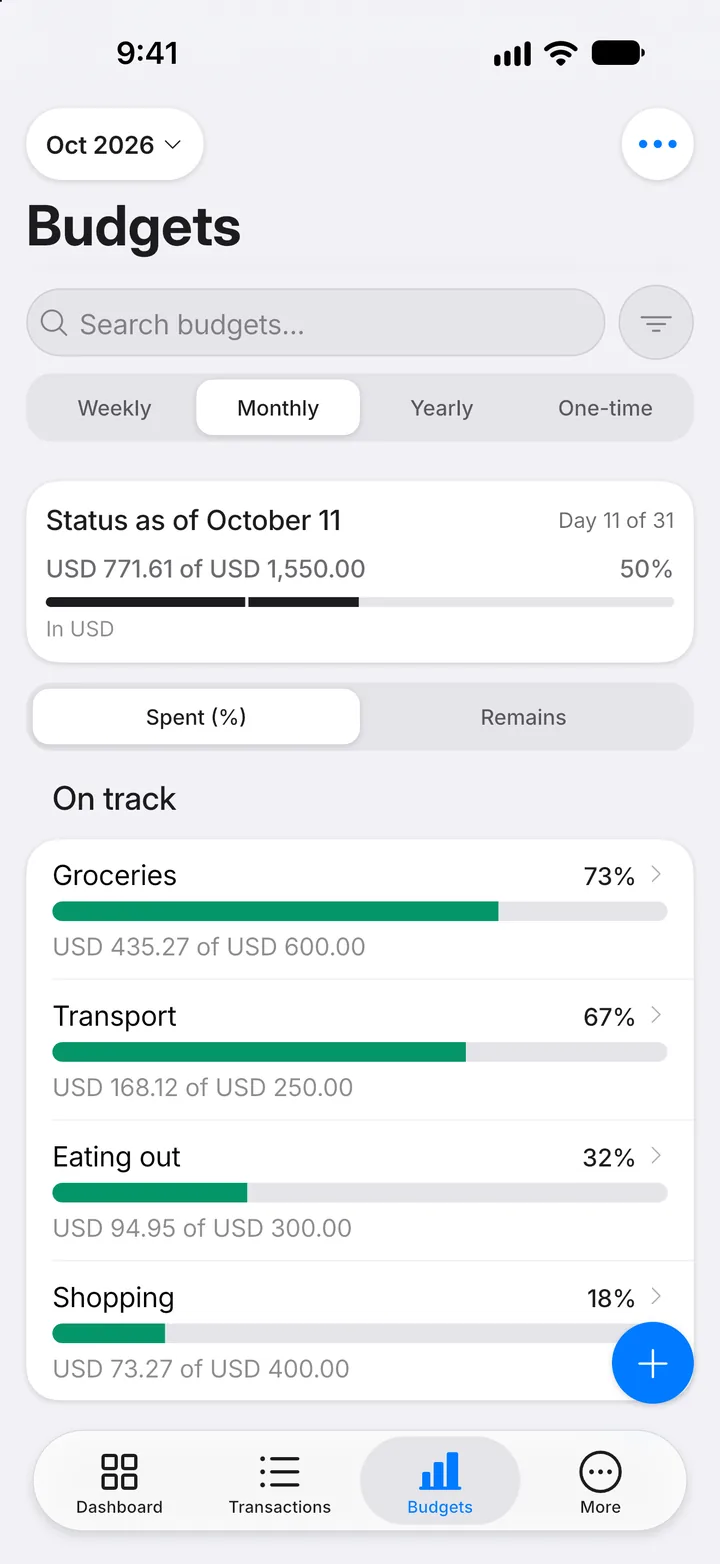
Tap the + button to start a new budget.
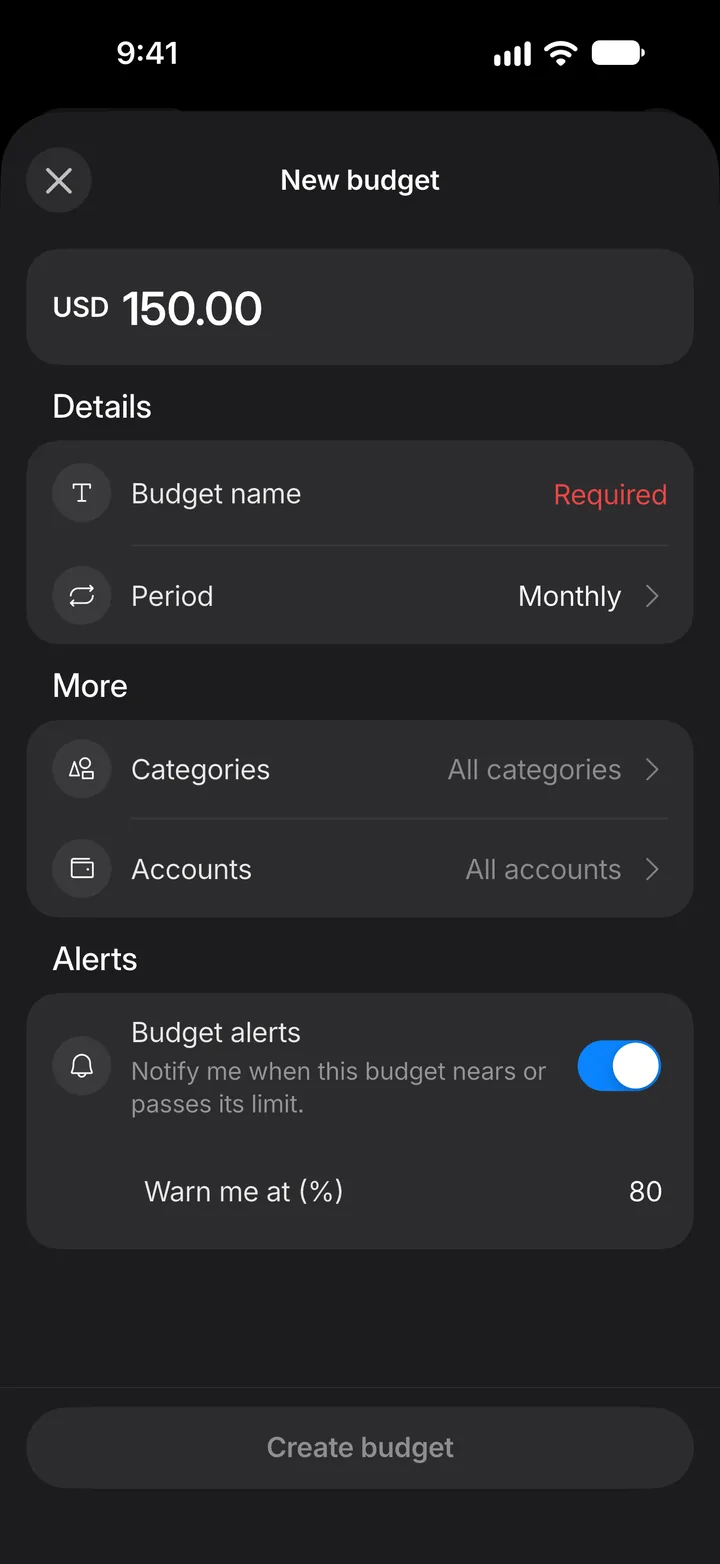
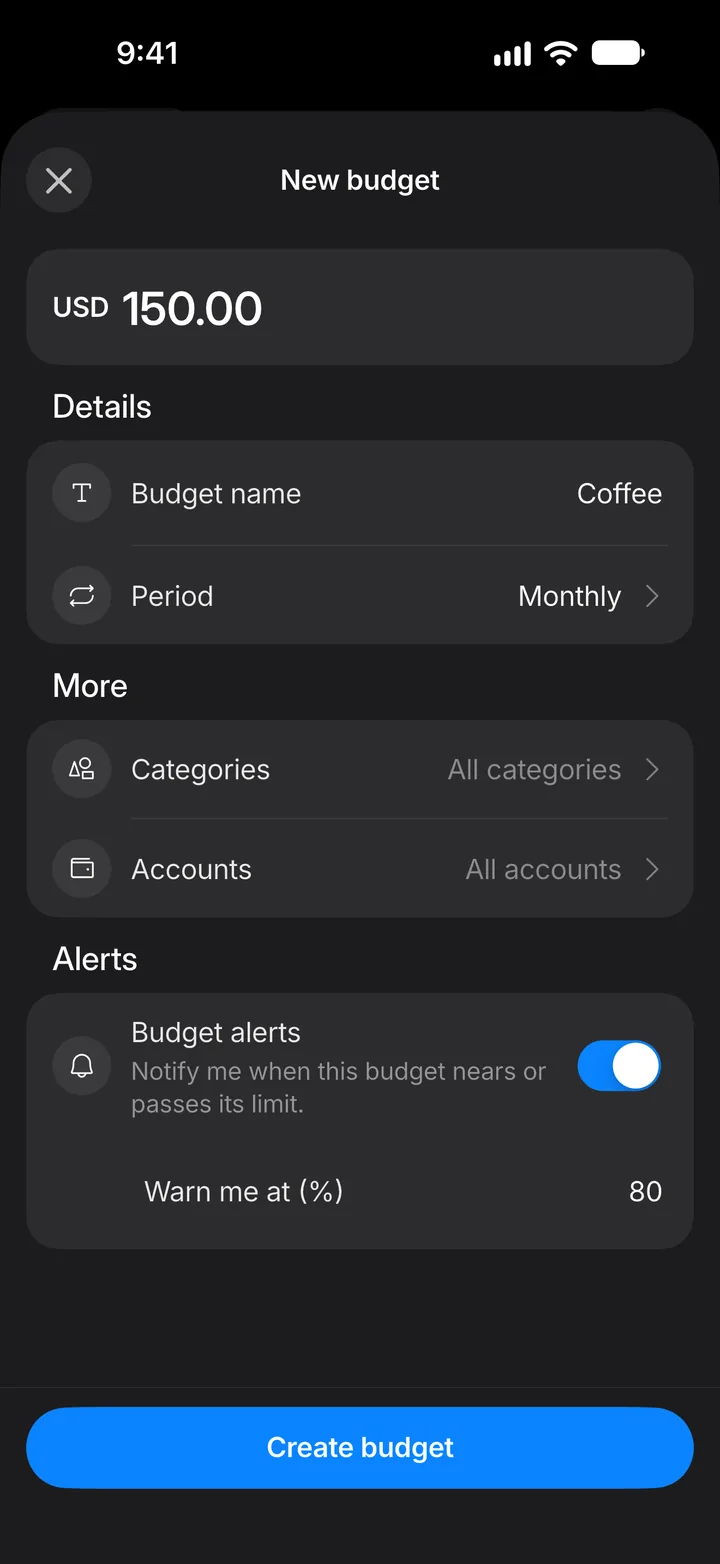
Step 3: Set the limit
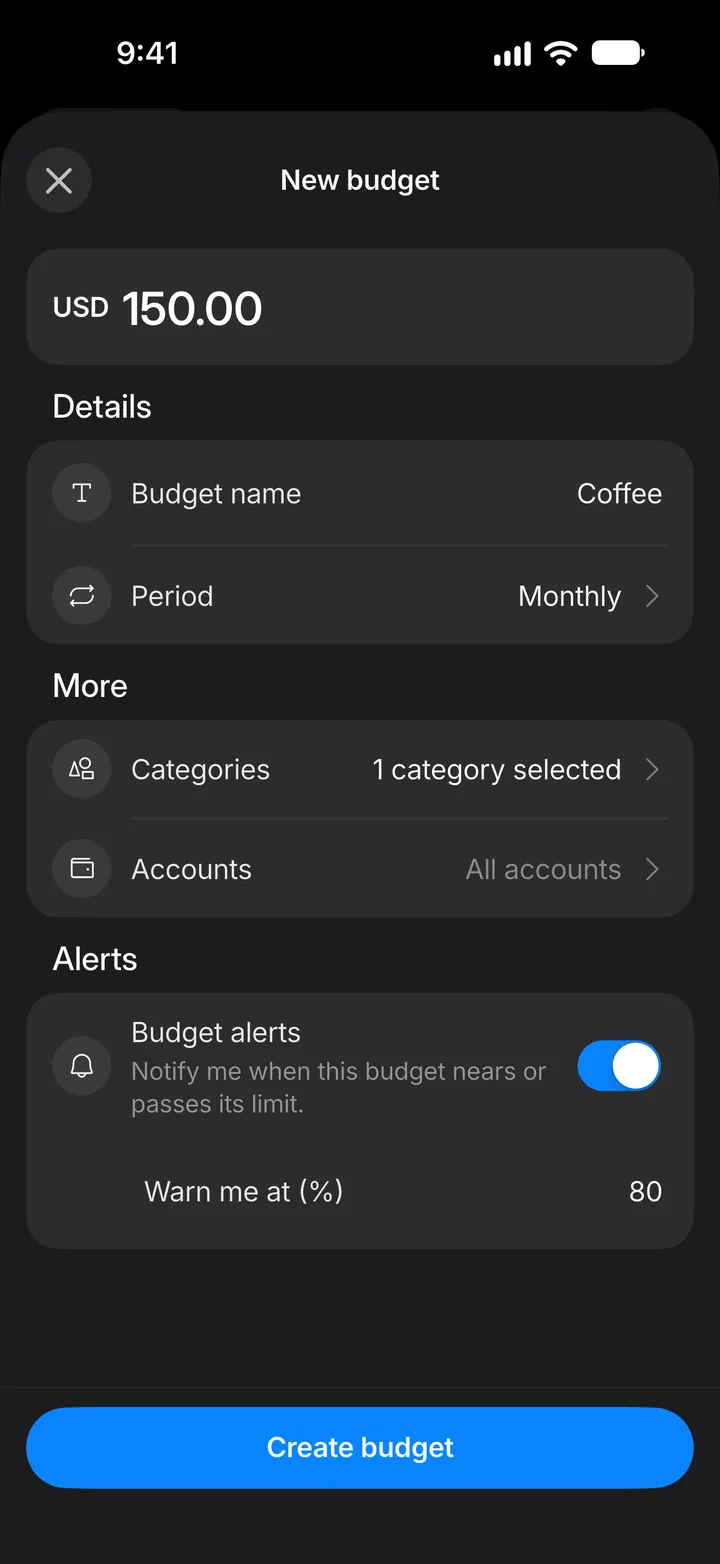
Type the most you want to spend in each period.
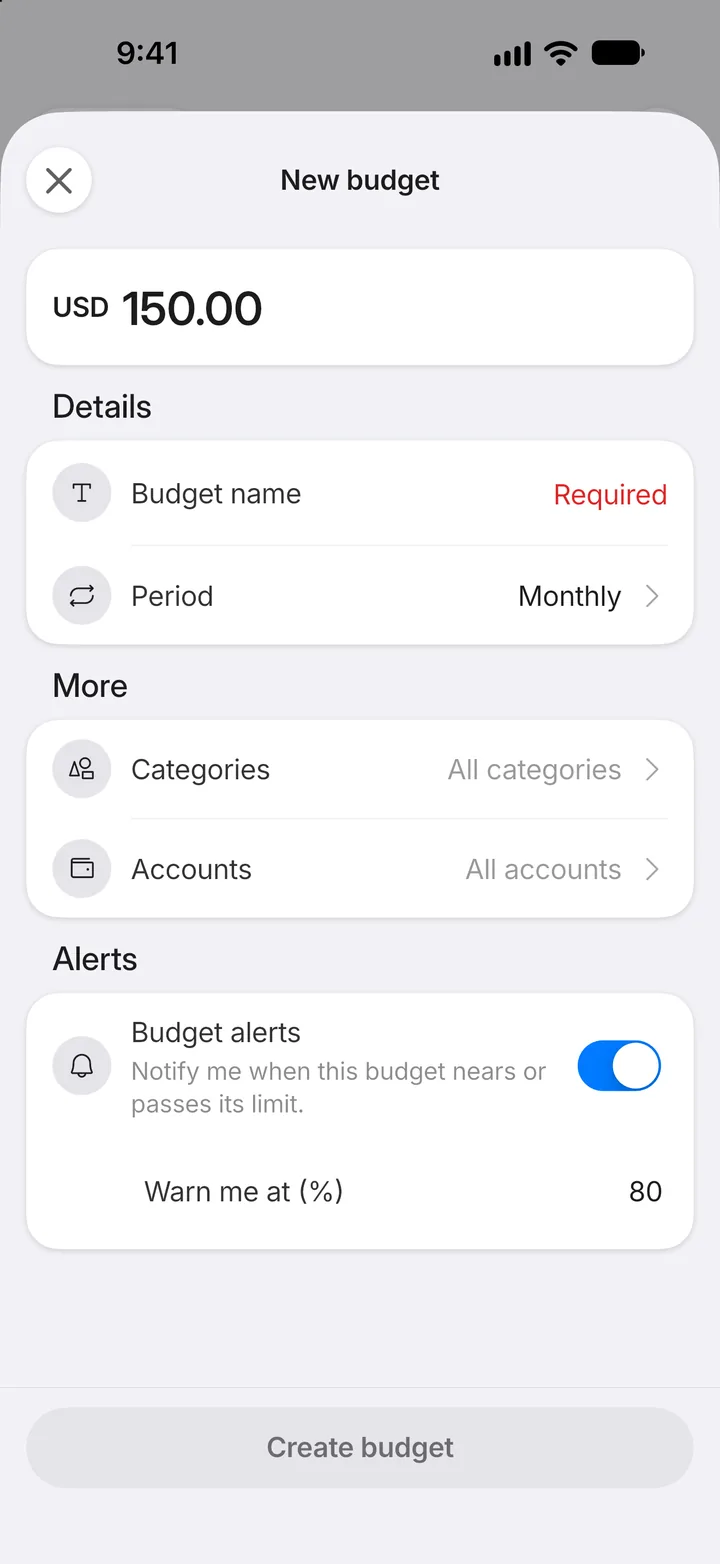
Step 4: Name it
Tap Budget name and give the budget a name you'll recognize.
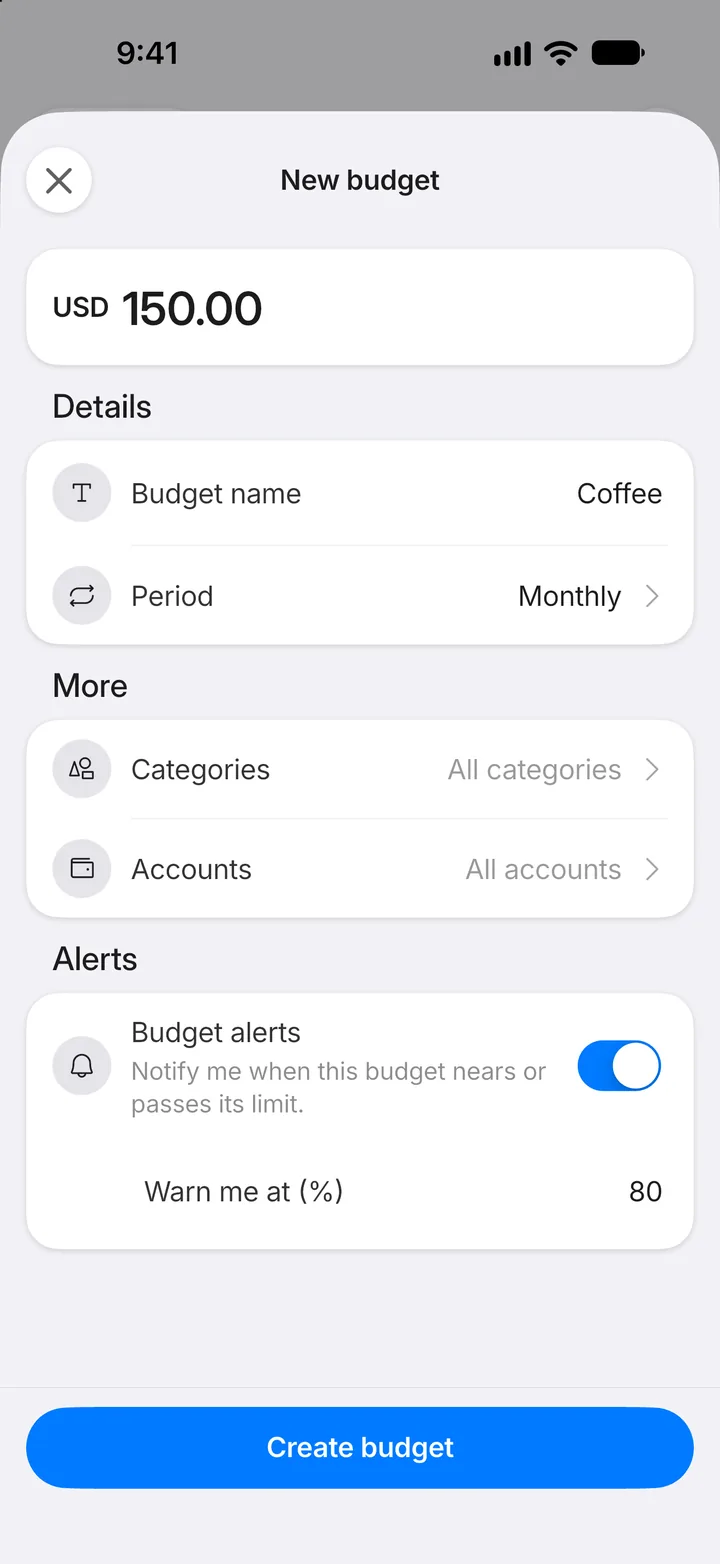
Step 5: Choose what it covers
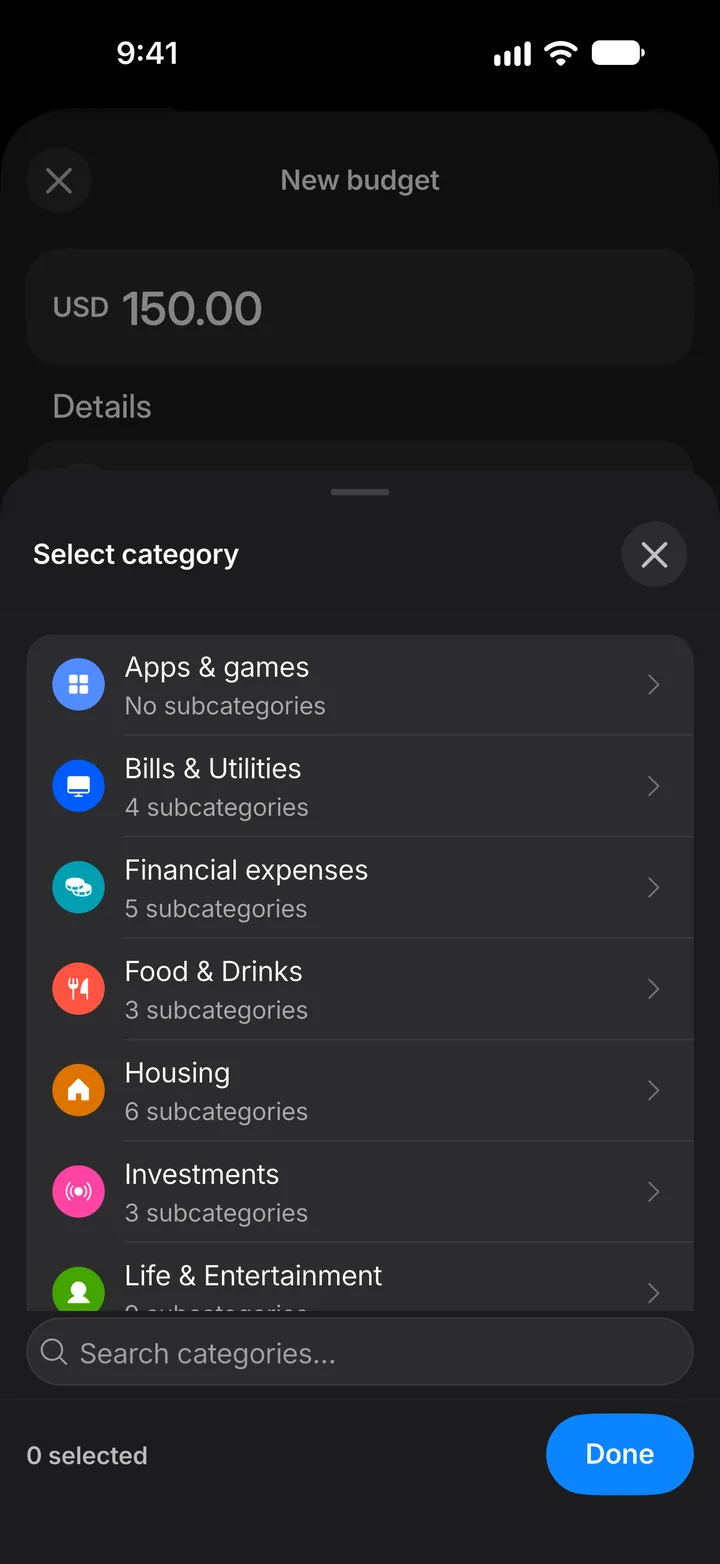
A new budget counts spending in every category. To track only some, tap Categories.
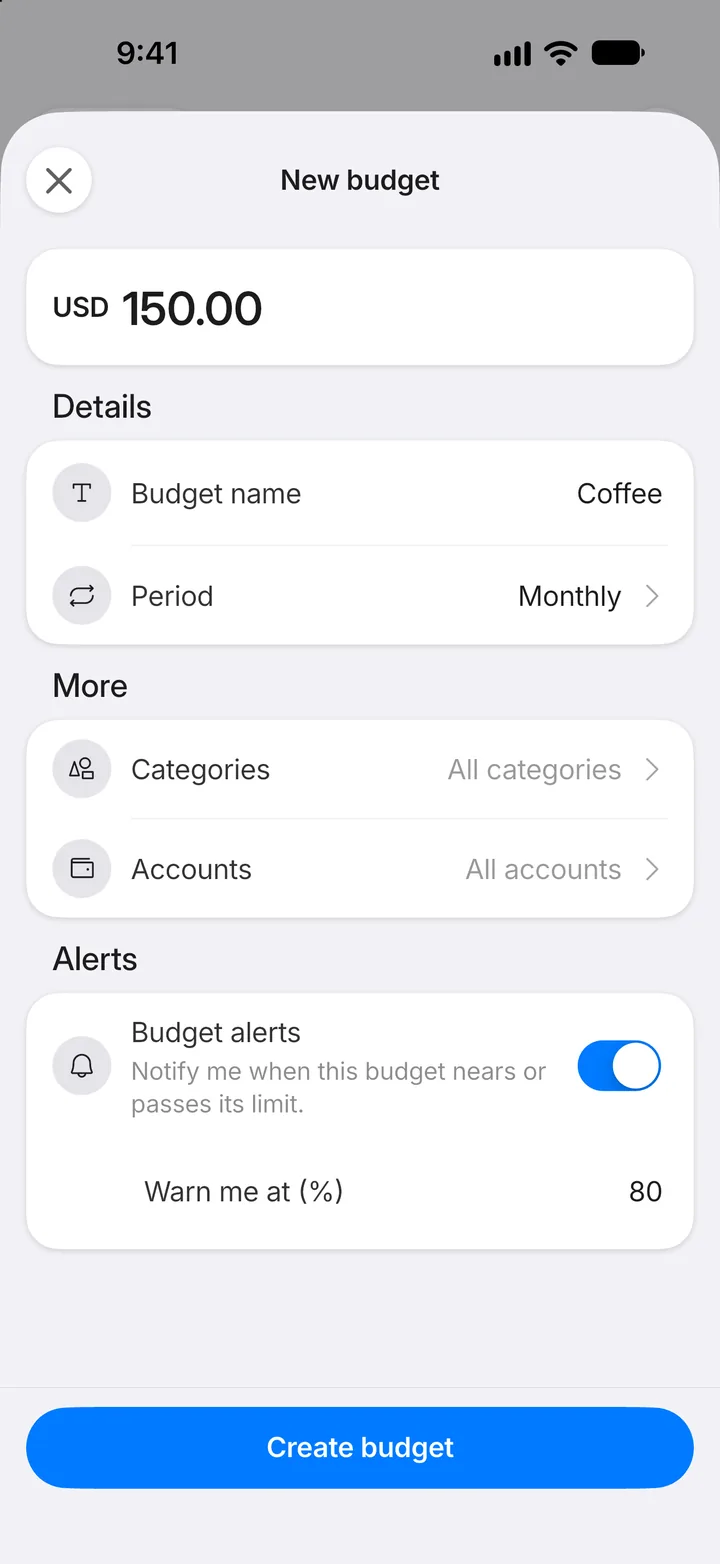
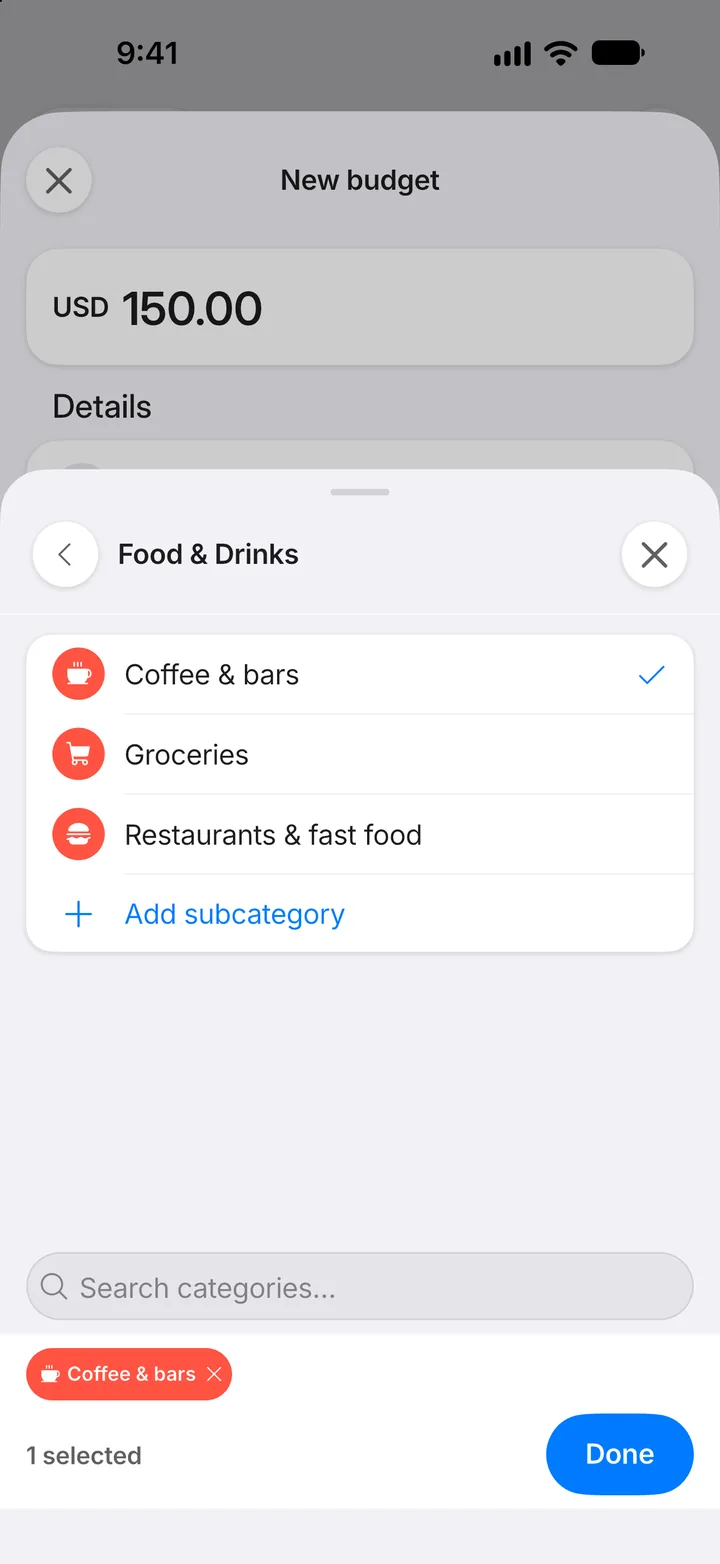
Step 6: Open a group
Tap the group that holds the categories you want.
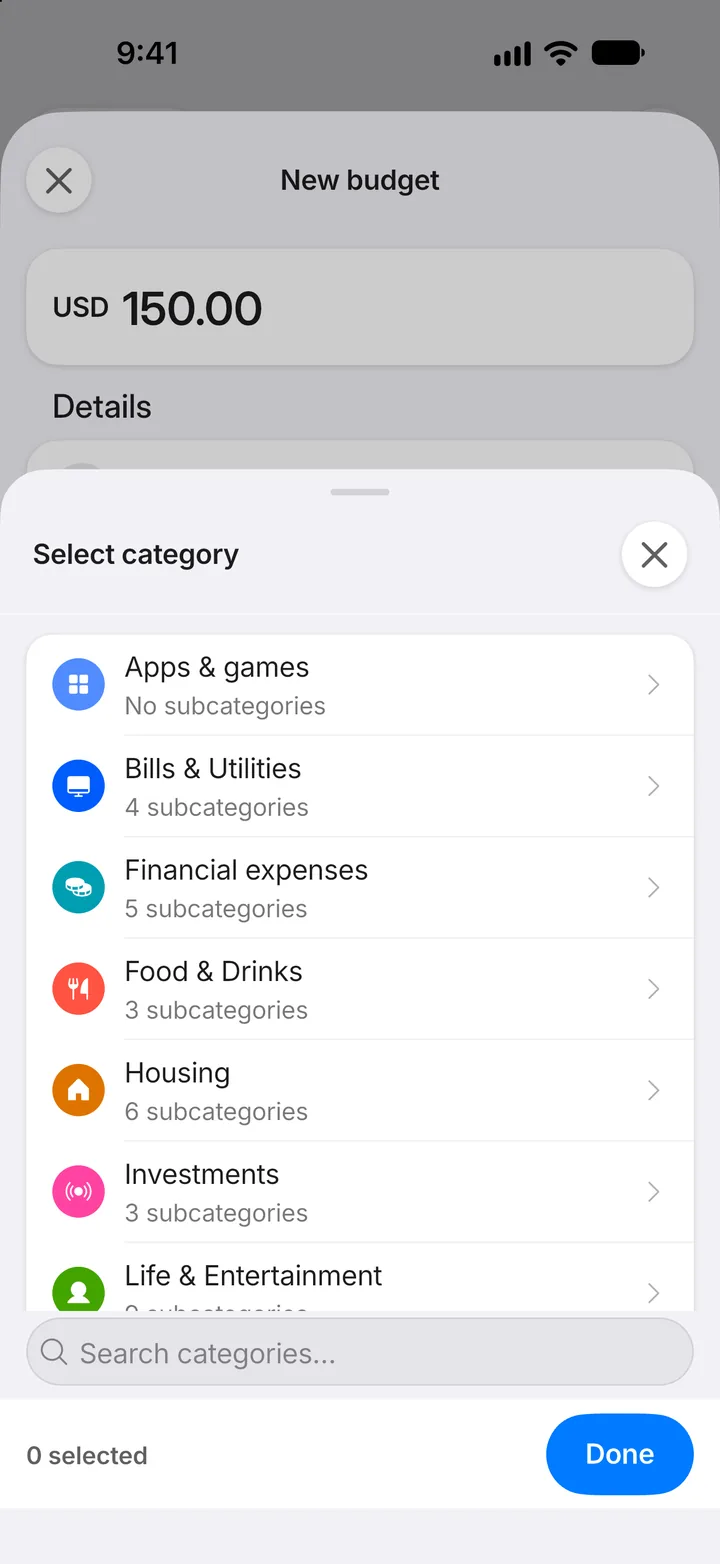
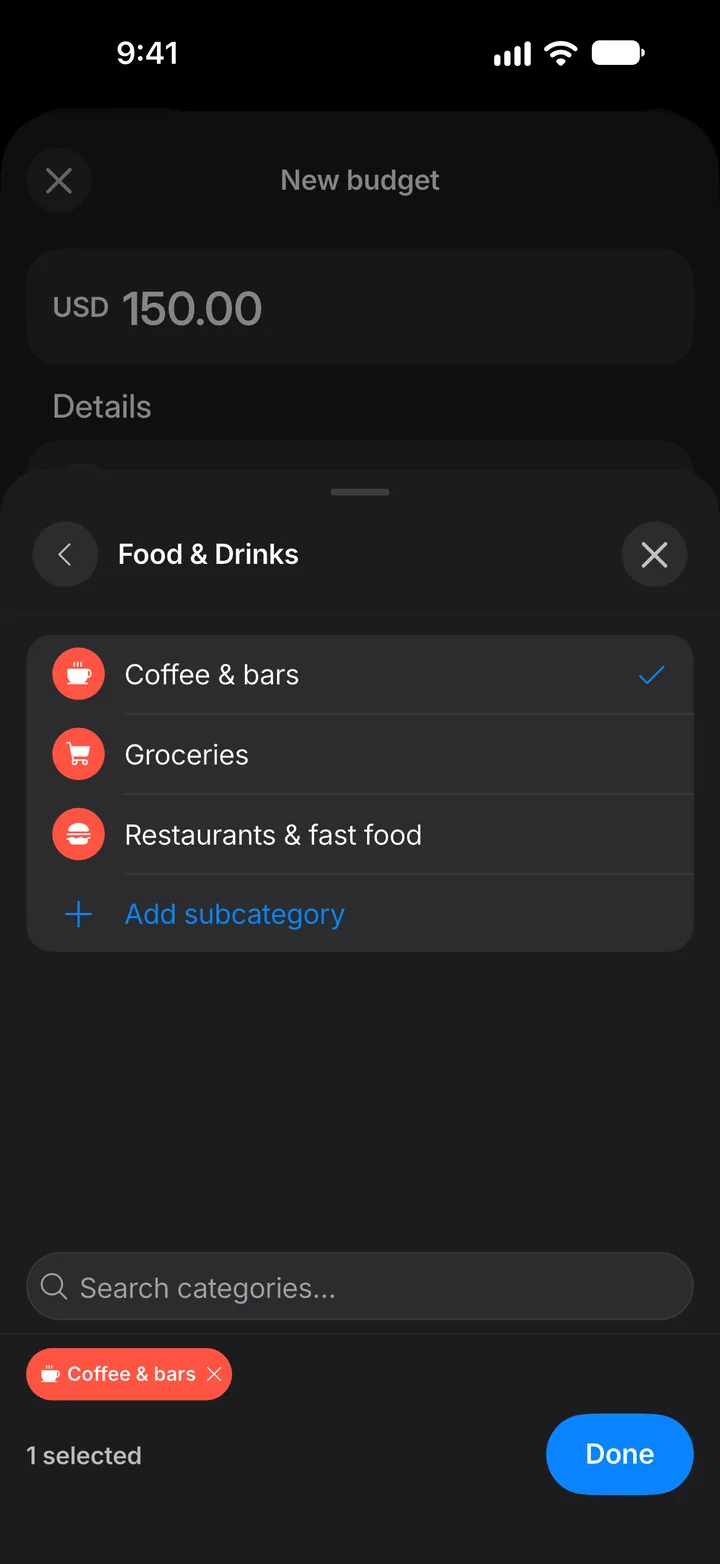
Step 7: Select and confirm
Tick each category to include — you can pick from more than one group — then tap Done.
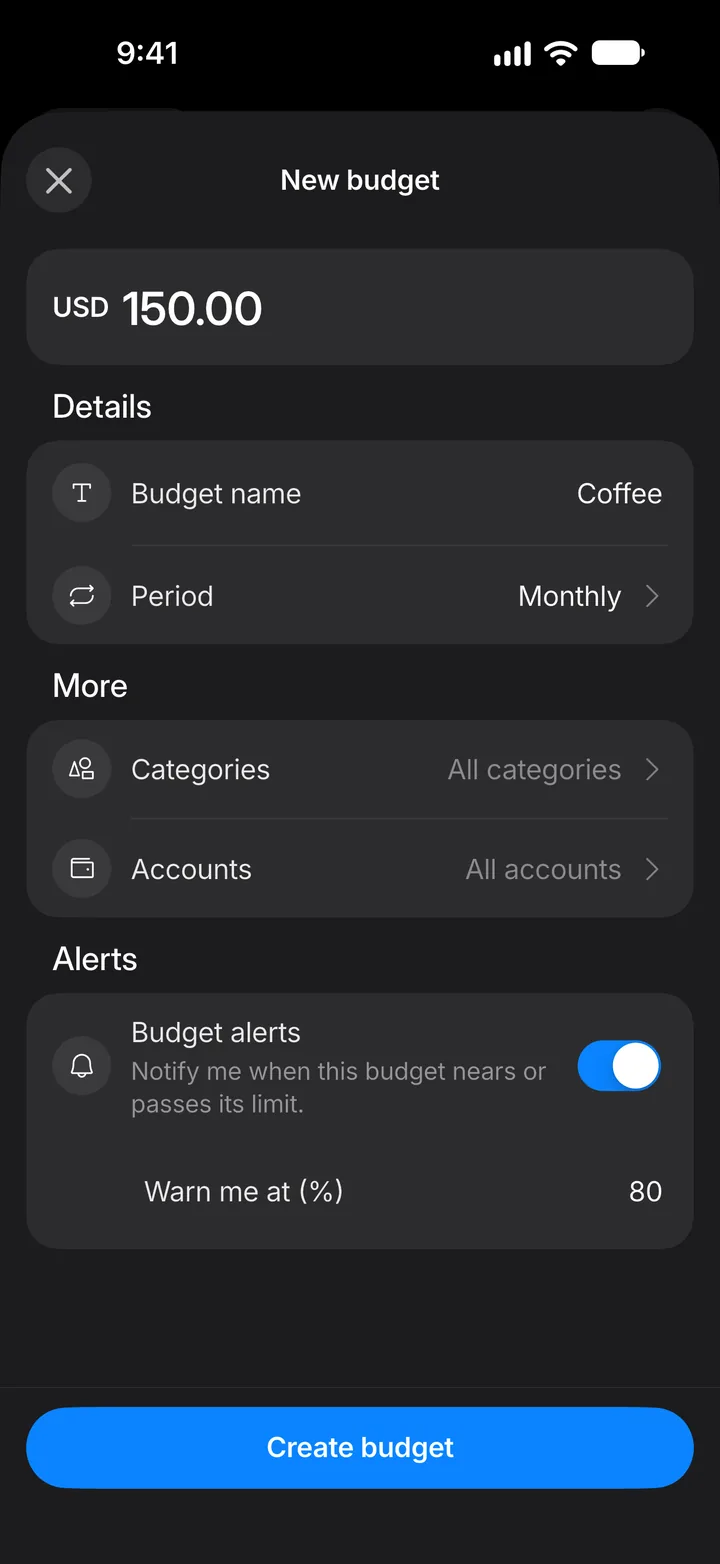
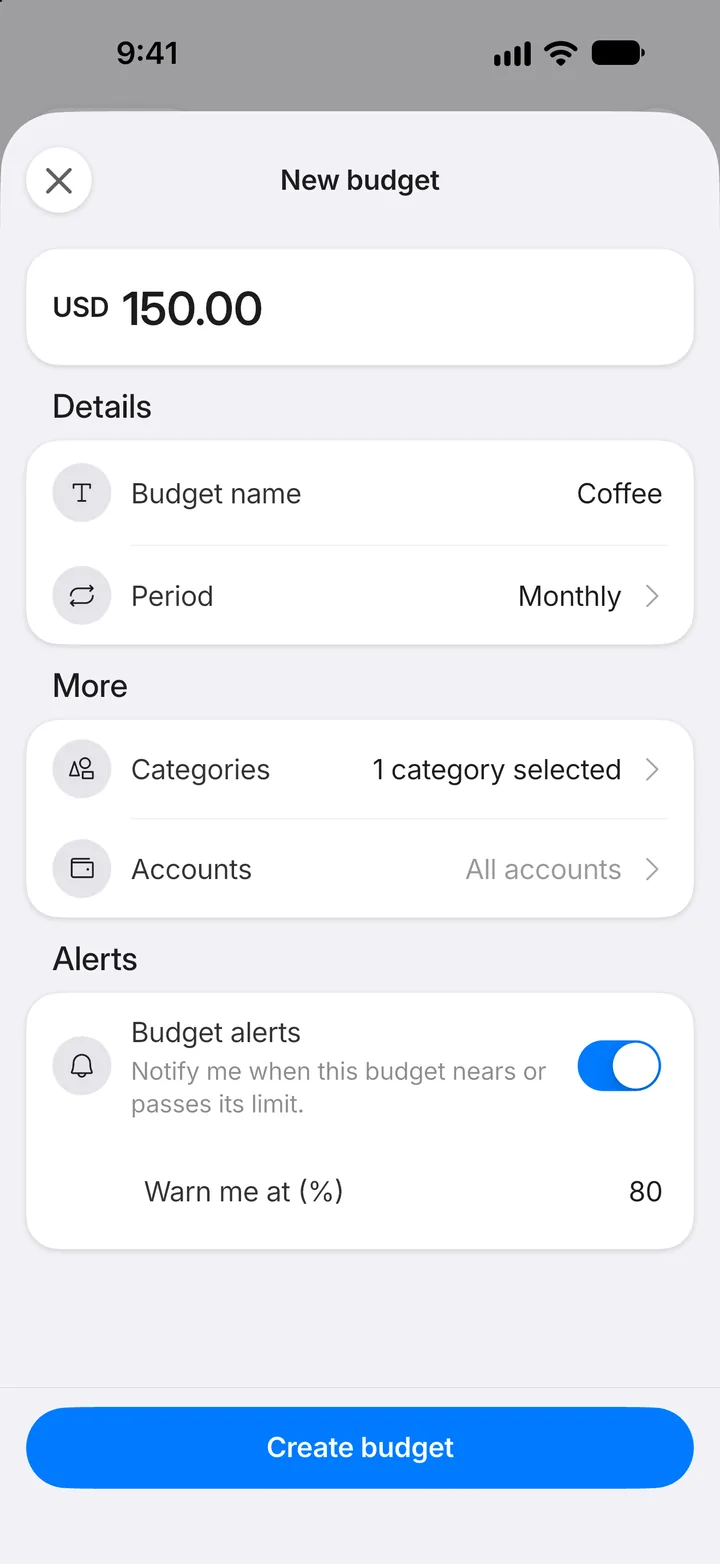
Step 8: Create the budget
Budgets are Monthly unless you change the Period to Weekly, Yearly or One-time. Budget alerts warn you as you near the limit. Tap Create budget.
Step 9: Track it
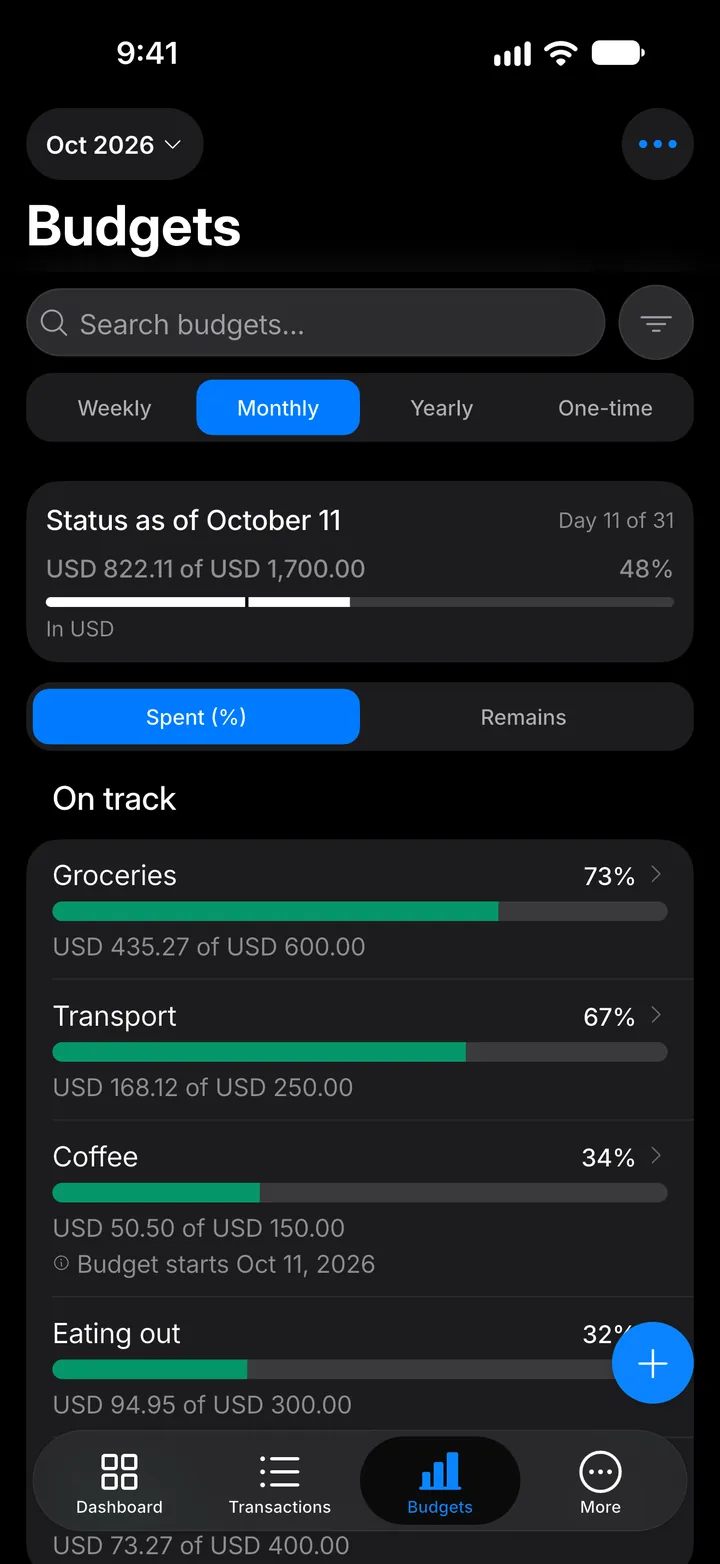
Your budget shows how much you've spent and what's left. Tap it to see the transactions that count towards it.